AppendixA:
Troubleshooting
ScannerConnection
Thefirststeptotakewhentroubleshootingconnectionproblemswithyourscanneris
tocheckallphysicalconnections.
Attention
ManuallyInstallingtheSoftware
For Windows OS: If you are facing difficulty in installing the scanner driver,
pleasetrymanuallyinstallingthesoftware.
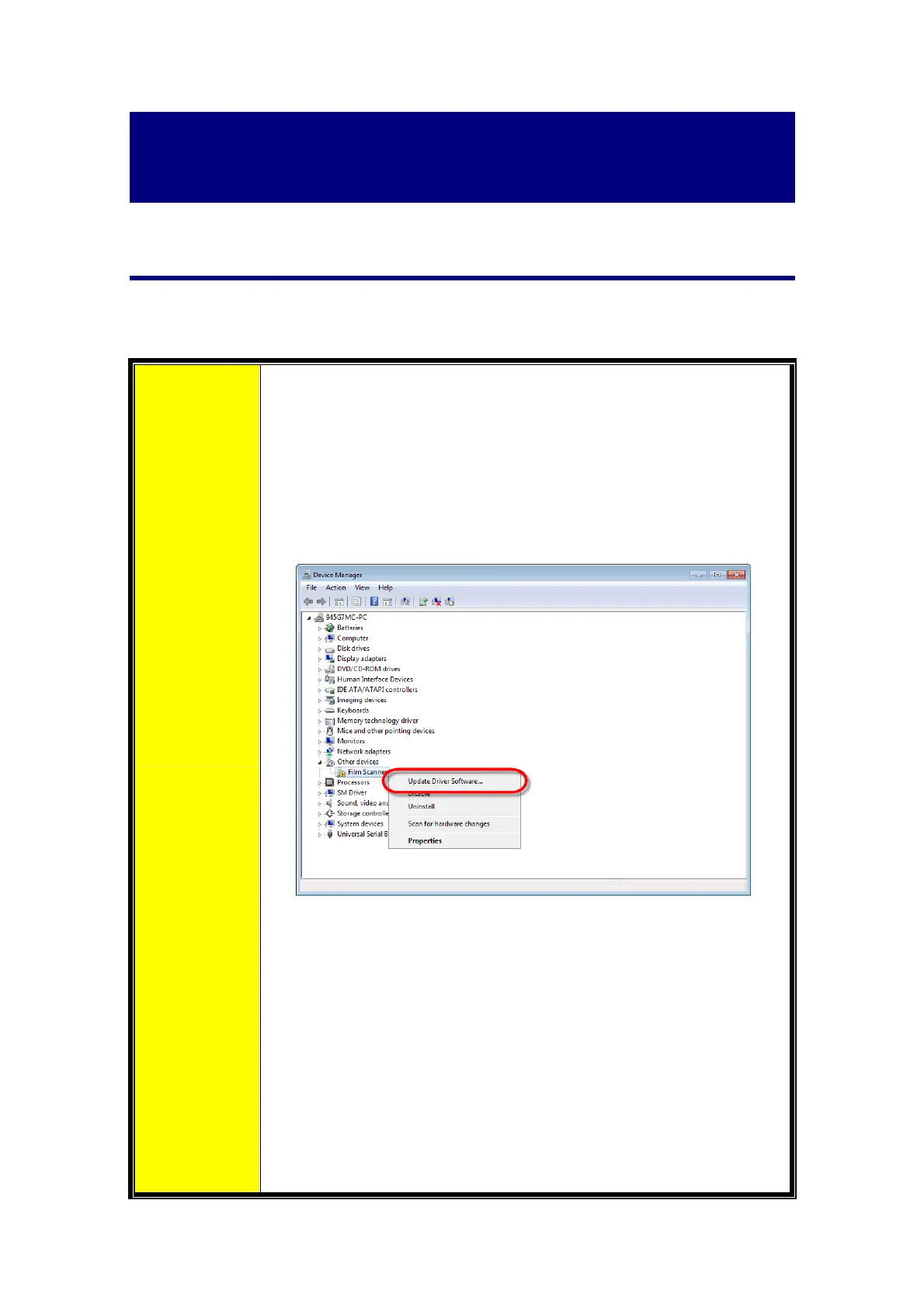
1. Please open [Start] > [Control Panel] > [System] > [Hardware] >
[Device Manager]. In the [Device Manager] window, right‐click
onthisscannerunder[Otherdevices]and select[UpdateDriver
Software]fromthepop‐upmenu.
2. Click [Browse my computer for driver software] in the window
that appears, and click the [Browse] button. In the [Browse For
Folder] window, select the folder that contains this scanner’s
driverandclickthe[OK]buttontoreturntothepreviousscreen.
Click the [Next] button and click [Install
this driver software
anyway]ifthe[WindowsSecurity]windowappears.
3. BrowseyourUSBstickandmanuallyrunthe[Setup.exe]filefrom
OPTICFILM> Windows>Plustek OpticFilm8300i.Click on the
[Yes]buttonifthe[UserAccountControl]dialogpopsup.Follow
the on‐screen instructions to install all software
that your new
USBscannerrequires.
35





 To Next Page