Sample card designs are installed with the printer driver. Sample cards require Microsoft Word
or Microsoft Paint application software. The cards are accessed via the start menu.
First set the CARD PRINTER TP-9XXX as the default printer and then follow these steps to de-
sign and print your rst card:
5.3 Printing a sample Card 5.4 Printing a self-test card
Launch Microsoft Word, Depending on your computer conguration this may be done
by Double-clicking the windows start icon, selecting programs, and navigating to Mi-
crosoft Word.
1
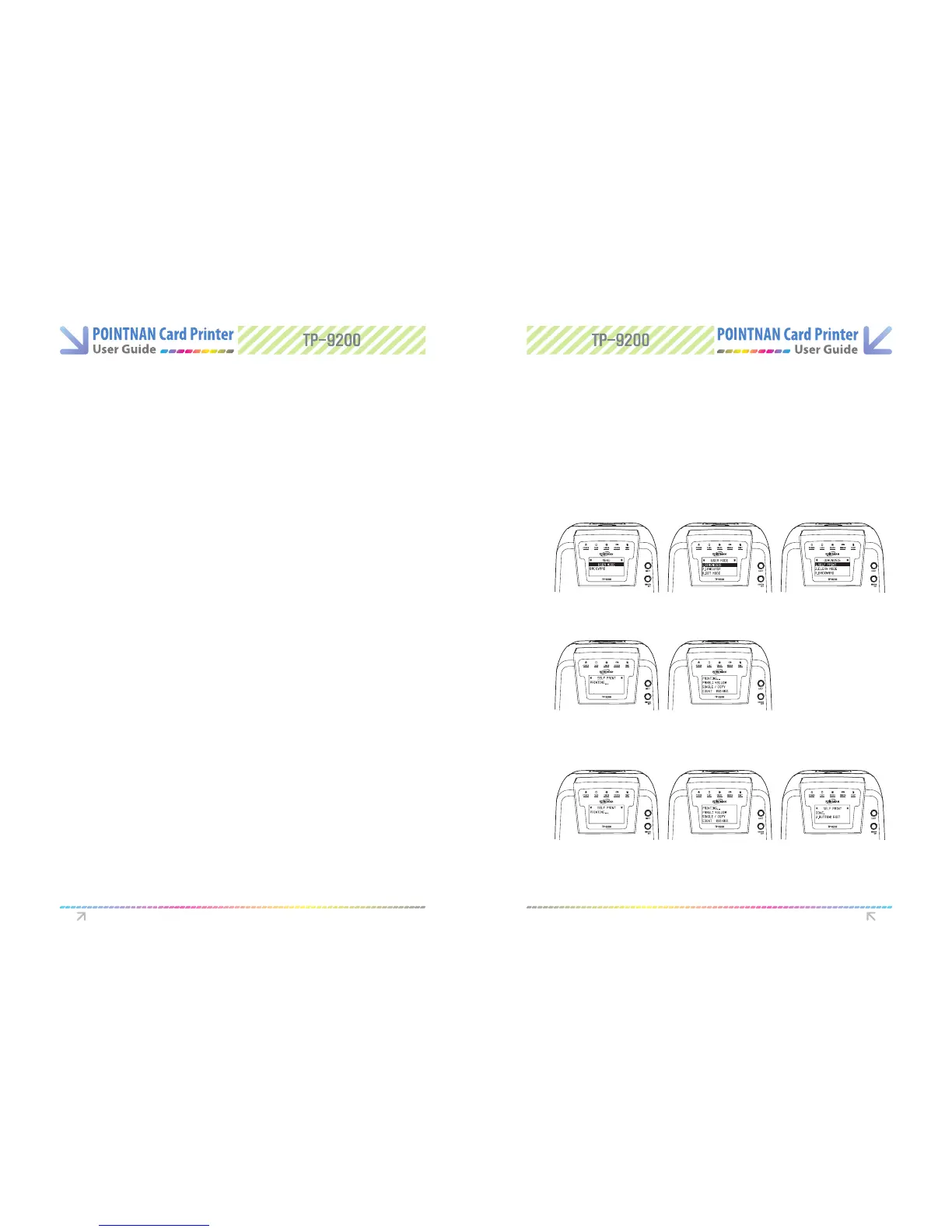
“Push the EJECT and RIBBON SET button together” at the same time until the LCD
displays “User Mode”
2
A self-printing card is then printed; see below for samples of YMCKO and Mono ribbon
Self-Printing cards. “Self-Printing done” will be displayed at LCD.
5
“Push the EJECT button and RIBBON SET button together” when Self-Printing is
done. LCD display would be backward.
6
Go to the le menu and choose page setup.
2
Select the paper size tab, choose card, under orientation, select landscape
3
Select the margins tab, and set the top, bottom, left, and right margins to 0 (Zero)
4
Click OK to close the page setup window
5
The card appears on the screen
6
Power on the printer (No PC connection necessary) Make sure a ribbon is loaded and a
card is in the hopper or ready in single feed slot.
1
“Push RIBBON SET” button when “Self-Printing menu is selected”.
4
Design a card with both and colored text and with colored pictures.
7
Once you are ready to print, go to the le menu and select print
8
The printer will feed in a card and start printing (the data download time will vary de-
pending on the complexity of the card design and the processing speed of your com-
puter)
9
Please “Push RIBBON SET” button till the user mode menu comes up then “Push
RIBBON SET button longer on 1. DIAGNOSIS“ to go into Self Print menu. If you want
to select dierent part, please push RIBBON SET button shorter.
3
Once the printing job is complete, the card is ejected from the printer.
10
User Mode
Self Printing
Self Printing Self Printing Done
Diagnosis Self Printing Mode
Printer Operation Printer Operation



 To Next Page