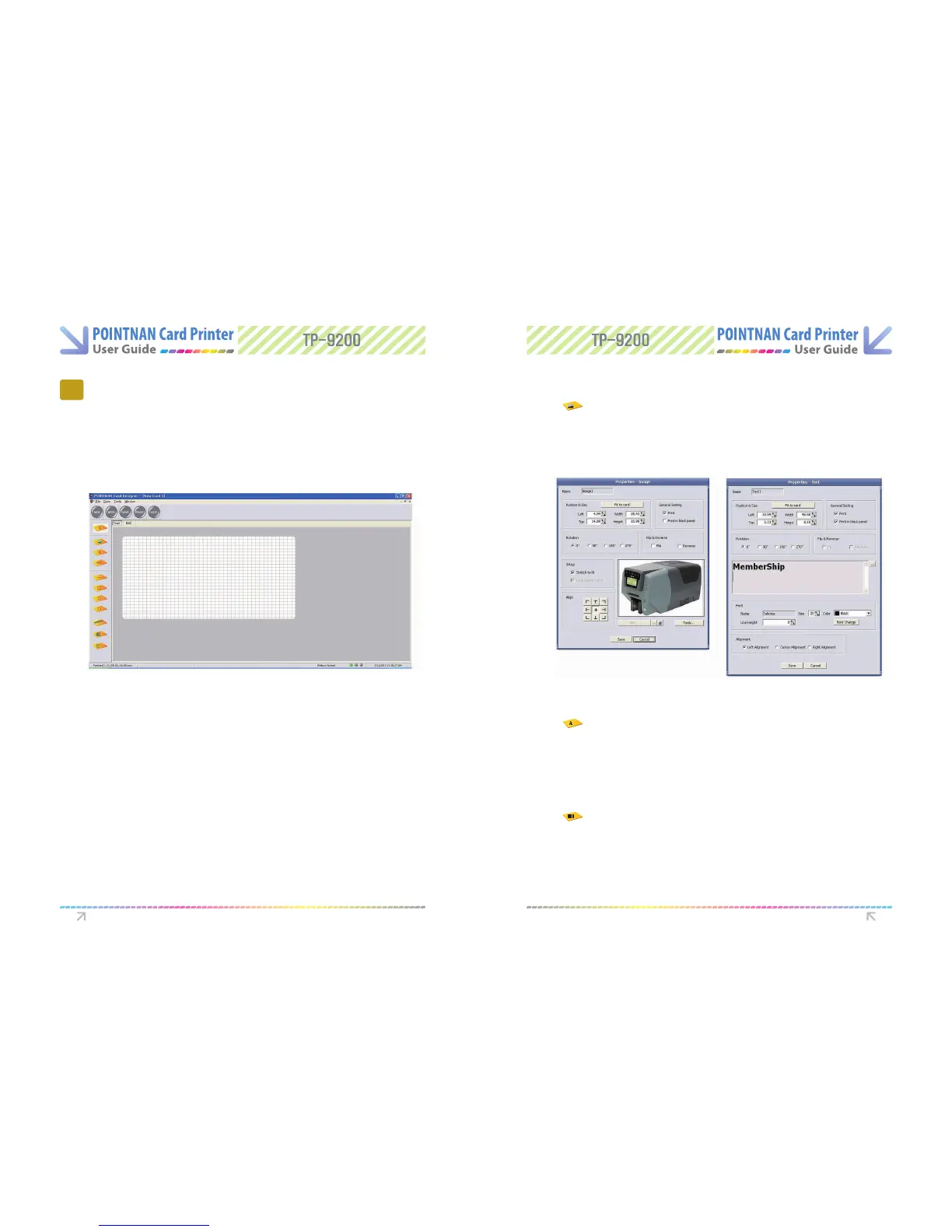
Card Designer is software that allows user to design and issue cards. Follow the steps below
to create cards.
CardDesigner is software that allows user to design and issue cards.
Follow the steps below to create cards.
Go to “Start -> All Programs -> POINTMAN -> Card Designer-> Card Designer”
6.1 Getting Started
6.3 Designing Card
6.2 Description on Features
6
Software Operations
- NEW : Design new card. Up to 10 windows can be created at the same time.
- OPEN : Read a saved card design.
- SAVE : Save a card design.
- ISSUE : Print a card.
- EXIT : Terminate the window.
IMAGE designing
TEXT designing
BARCODE designing
1) Select icon to start image designing in Card Designer.
2) Drag mouse on the range where image is positioned on card.
3) When window of “Properties-Image” opens. Click “Select Image” button or “Cam” button.
Select image you wish to insert.
4) Click “Save”, then the selected image is inserted.
5) You can change properties of the inserted image.
1) Select icon to start TEXT designing in Card Designer.
2) Drag mouse on the range where TEXT is positioned on card.
3) When window of “Properties-TEXT” opens, insert “Code” you wish to insert.
4) Click “Save”, then the TEXT is inserted.
5) If you wish to change properties of the inserted text. double click on the TEXT.
1) Select icon to start bar code designing in Card Designer.
2) Drag mouse on the range where barcode is positioned on card.
3) When window of “Properties-barcode” opens. insert “Code” you wish to insert.
4) Click “Save”, then the bar code is inserted.
5) If you wish to change properties of the inserted text. double click on the bar code.
Software Operations Software Operations



 To Next Page