Printing with the TP-9XXX printer is similar with any other printer in windows environment.
The printer driver software is installed on your computer (see Page 18~22)
The printer is connected to the power source and the computer (see Page 17)
The printer is selected by either the operating system or the appropriate application software
program.
Printer properties are set (the factory default values will be appropriate for many applica-
tions).
Card printing is directed by the appropriate application software program
Printer properties can be set either at the operating system level or within the application
software program used for printing cards.
Note : In the following description of setting printer properties, only those properties and
options that are suitable for being set by the user are described. The user should not
make selections or set parameters unless they are specically described in this section.
Preference settings can congure the printer for landscape (wide) or portrait (tall) printing
orientation, and allow the user to verify that the desired ribbon is installed in the printer.
Ribbon is selected via the output tab.
If the printer includes the optional magnetic card stripe encoder, encoding parameters and
coercivity can be set.
5.1 Printing a Card
5.2 Setting printer properties
5
Printer Operation
Printer Driver Settings Printer Operation
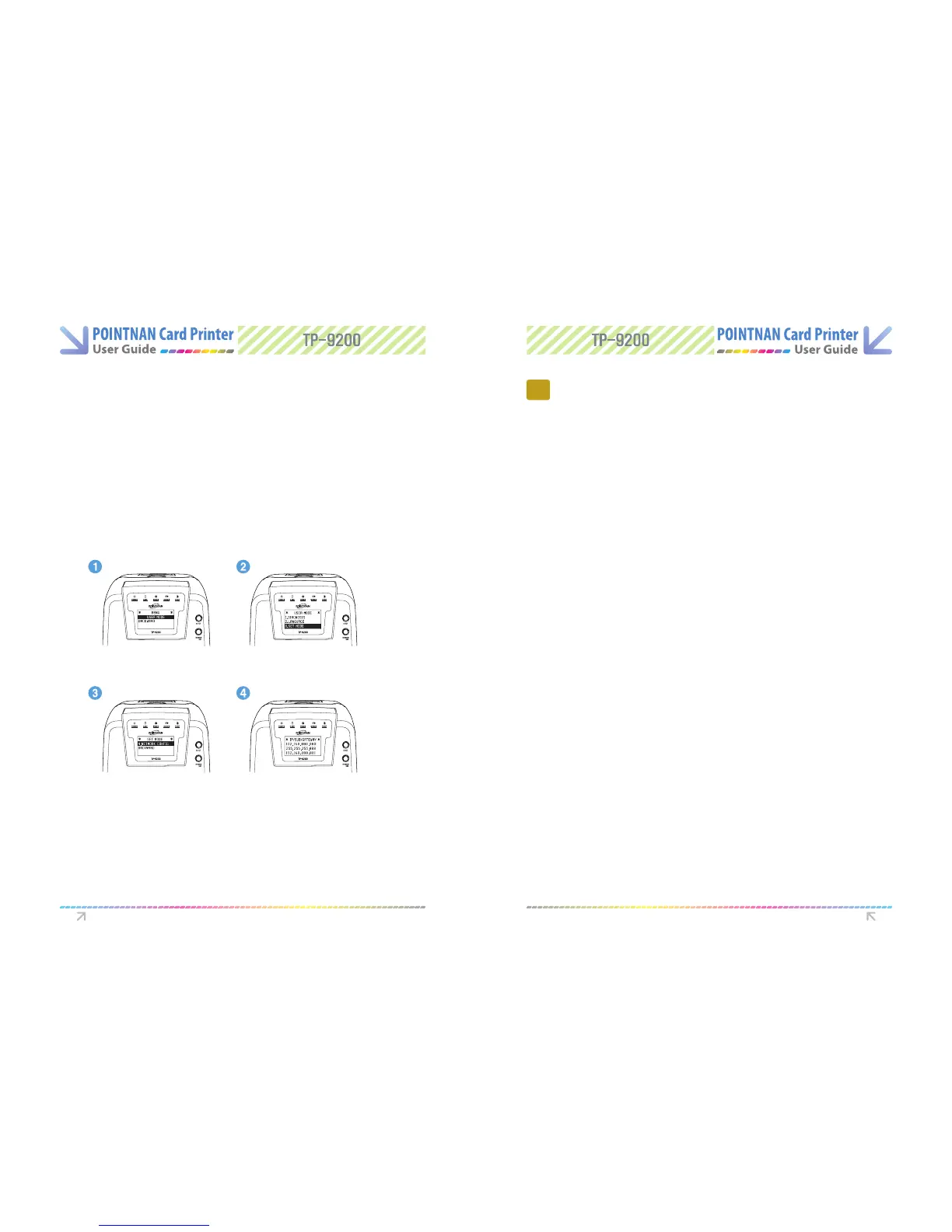
Self-Check IP Address
Turn Power on the Printer
1
“Push the EJECT and RIBBON SET button together” at the same time until the LCD
displays “User Mode”. Please “Push RIBBON SET button” till the user mode menu
comes up then “Push RIBBON SET button longer on 4. NETWORK CONFIG” to check
IP Address.
2
“Push the EJECT button and RIBBON SET button together” when checking IP
Address is done. LCD display would be backward.
3
User Mode
Network Cong
Set Mode
IP/SUB/Gateway



 To Next Page