9 Transferring Pictures and Video Clips to a Computer
• Before Transferring Files
IMPORTANT! - FOR PC USERS
BEFORE YOU CONNECT YOUR DIGITAL CAMERA TO THE COMPUTER, MAKE
SURE THAT YOU HAVE INSTALLED THE SOFTWARE FROM THE ENCLOSED
CD. PLEASE REFER TO “8 Installing the Software Onto a Computer”.
• Connecting to Your Computer
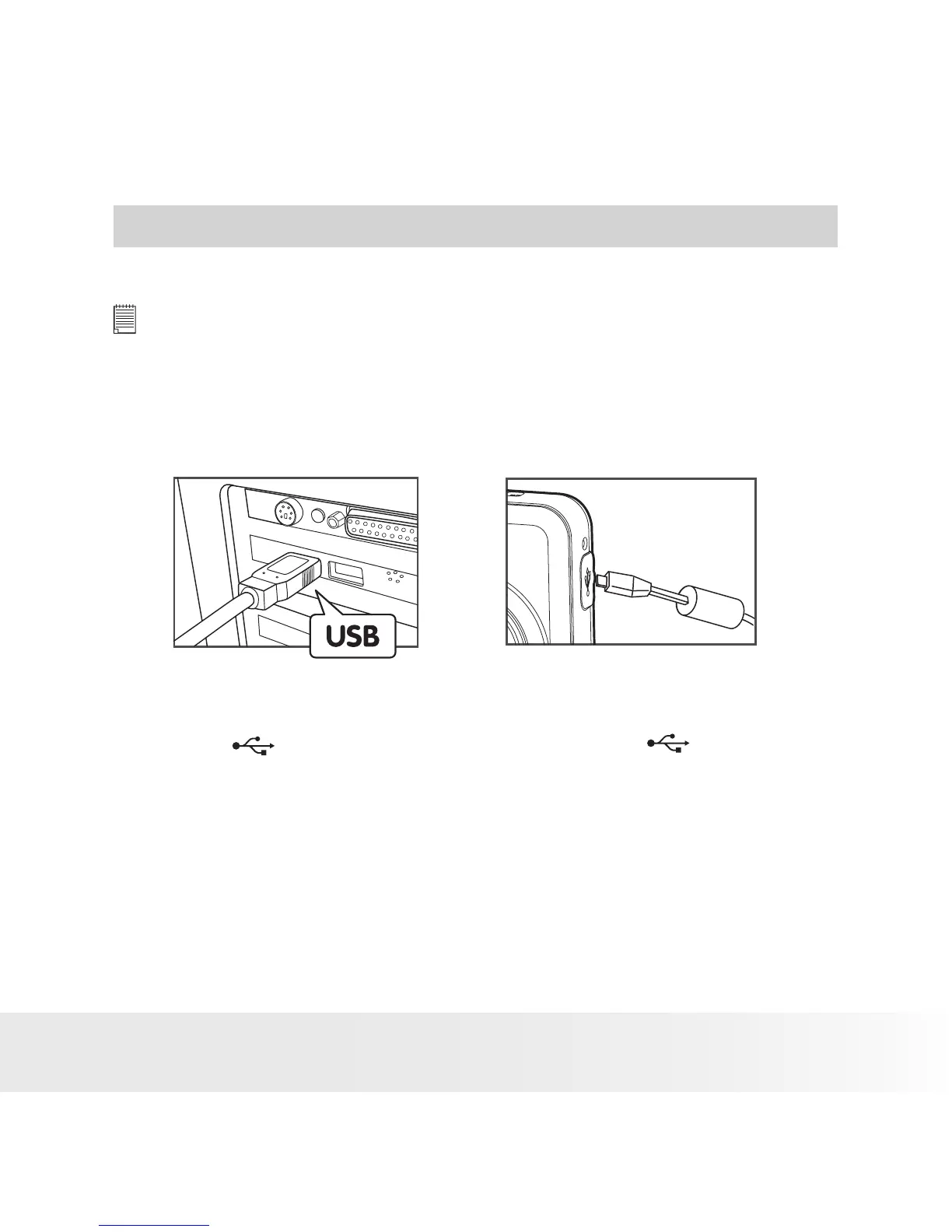
Connect the camera directly to your computer
USB Series “A” plug connects to
your computer
Plug mini USB cable into the port of your
camera
1. Turn on the camera.
2. Plug the labelled end of the USB cable into the marked socket
on your computer.
3. Plug the other end of the USB cable into the port on your camera.
4. Select “ Computer/Mass Storage” option on current LCD display.
5. An interface “New Hardware Found” will show on the computer
desktop.
6. When the connection is finished, two new disk drives will be installed
onto “My Computer”, one is dummy CD-Rom drive “Polaroid”, the
other is camera mass storage device “Removable Disk”.


 To Next Page
 Loading...