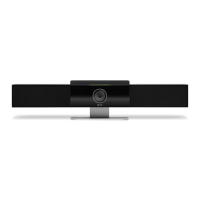
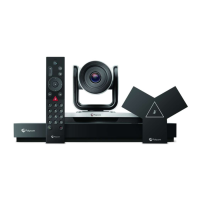
■
Connect an Ethernet cable from the system LAN port to your network.
The system supports Cat5e and above cables up to 100 meters (328 feet).
Connecting a system controller
Connect a system controller to navigate the conferencing application user interface.
NOTE: Poly recommends using the out-of-box setup process on the Poly TC10 or Poly TC8 to set up your
system.
In Poly Video mode and Poly Device Mode you can use the following devices to control the system:
● Poly TC10 or Poly TC8 touch controller
● Poly Bluetooth remote control
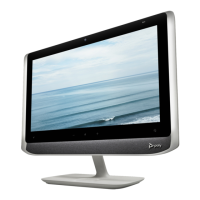
● Touch monitor
In provider modes, such as Microsoft Teams Rooms and Zoom Rooms, you can use the following devices to
control the system:
● Poly TC10 or Poly TC8 touch controller
● Touch monitor (not supported in all provider modes)
Connecting a Poly TC10 or Poly TC8 as a system controller
You can connect one or multiple Poly TC10 or Poly TC8 controllers to your system depending on the provider
you choose.
NOTE: Poly recommends using the out-of-box setup process on the Poly TC10 or Poly TC8 to set up your
system.
When you first power on your Poly TC10 or Poly TC8 touch controller and your Poly Studio X system, you can
use the touch controller to out-of-box both devices. If necessary, reset your Poly TC10 or Poly TC8 to revert it to
the out-of-box state.
To pair a Poly TC10 or Poly TC8 controller to the system without using the out-of-box process, see the
Poly TC10
Administrator Guide
at http://docs.poly.com.
Connecting a Poly Bluetooth remote control to the system
You can use a Poly Bluetooth remote control to navigate the Poly VideoOS or Poly Device Mode user interface.
In provider modes other than Poly Video mode or Device Mode, the remote control offers limited functionality and
isn't supported.
For information on connecting a remote to your system, see the
Poly Video Mode Administrator Guide
on the Poly
Documentation Library.
Powering the System On and Off
The system powers on when you plug it in to a power source.
Poly recommends the following when powering off or restarting your system:
● Don’t restart or power off the system during maintenance activities (for example, while a software update is
in progress).
8
Chapter 3Hardware installation


 To Next Page