Using the system6
After connecting peripherals and powering on your system, you can begin using your Poly Studio X72 system
with your chosen conferencing provider.
For instructions on using Poly Video mode, see the
Poly Video Mode User Guide
on the Poly Documentation
Library.
For instructions on using partner applications such as Microsoft Teams Rooms, Zoom Rooms, or Google Meet,
see the partner application website.
Navigating the Poly Studio X72 system interface
The conferencing provider that you choose determines the options for navigating the system.
After setting up your system, you can navigate the system using one of the following controllers:
In Poly Video mode and Poly Device Mode
● Poly TC10 or Poly TC8 touch controller
● Poly Bluetooth remote control
● Poly IR remote control
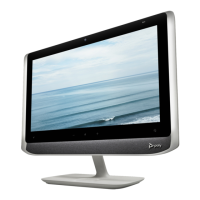
● Touch monitor
In provider modes:
● Poly TC10 or Poly TC8 touch controller
● Touch monitor (not supported in all provider modes)
Using Device Mode
Connect your computer to the Poly Studio X72 system USB Type-C and HDMI input ports to use the system
camera, speakers, microphone, and displays from your computer.
For more information on using Device Mode, see the
Poly Video Mode Administrator Guide
and the
Poly Partner
Mode Administrator Guide
at https://www.docs.poly.com.
LED status indicators for Poly Studio X72 systems
Use the LED on the right side of the system to help you understand the system's behaviors.
14
Chapter 6Using the system


 To Next Page