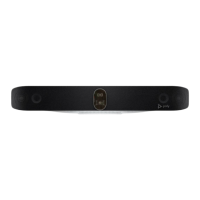
Table 2-3 Poly Studio X72 privacy shutter behavior
System event Shutter behavior
You wake the system Shutters open
You wake the system and the Poly Studio X72 built-in camera isn’t
the primary camera
Shutters remain closed
You select the Poly Studio X72 built-in camera as the primary
camera
Shutters open
The system receives an incoming call Shutters open
The system is sending video Shutters are open
The system is in an active call and the video is muted Shutters are open
Locate the System Serial Number
Use the system serial number to help technical support troubleshoot issues with your system.
The last 6-digits of the system serial number is the default system password.
■
Do one of the following:
● In the system web interface, go to Dashboard > System Detail.
● On a paired Poly TC8 or Poly TC10 device, go to Menu > Settings > Connected Room System.
● Locate the printed serial number on the bottom or rear of your system.
● In Poly Lens, go to Details > Device Information.
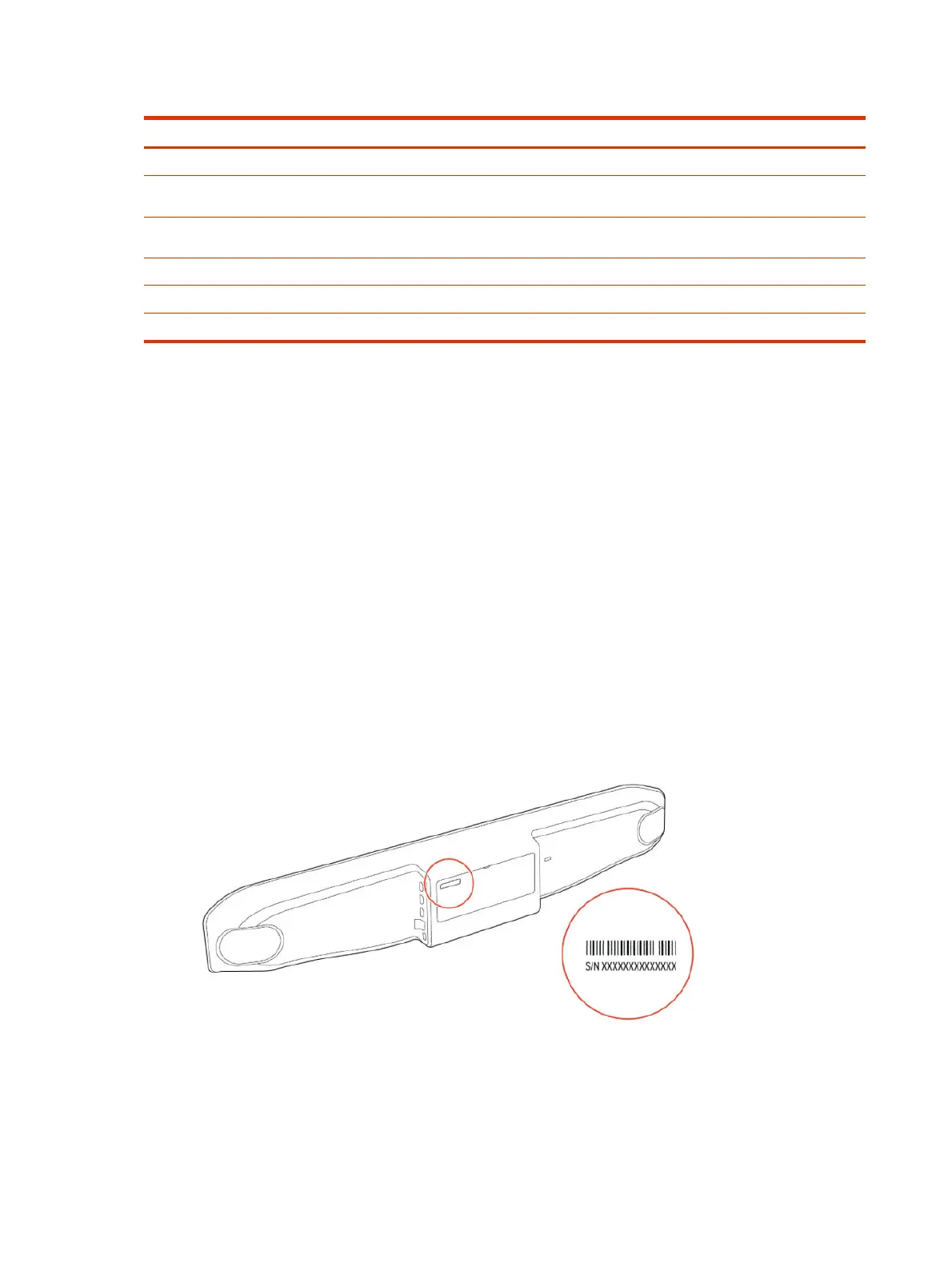
Locate the serial number label on your Poly Studio X72
Find your system serial number located on the system label.
1. Find the serial number tag as shown in the illustration:
2. Write down the entire serial number (typically 14 characters), not the shorter number on the label.
4
Chapter 2Getting Started


 To Next Page