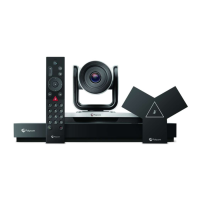
System Maintenance7
You can perform several functions to keep your Poly Studio X72 system running properly.
Updating the system software
You have multiple options for updating the system software.
NOTE: Software updates through the Poly update server are only available to supported systems.
For information on hardware that supports each Poly VideoOS version and the included peripheral software
versions, review the
Poly VideoOS Release Notes
on the Poly Documentation Library.
Automatically Update Software
Automatically update the software for your system and some of its paired devices.
1. In the system web interface, go to General Settings > Device Management.
2. Select Enable Automatic Updates.
Unless you specify a maintenance window, your system tries to update 1 minute after you enable this
setting. If an update isn’t available at the time, the system tries again every 4 hours.
3. Optional: Select Only Check for Updates During Maintenance Hours to specify a range of time to
automatically update the software.
4. Optional: Choose times for Maintenance Hours Begin and Maintenance Hours End.
The system calculates a random time within the defined maintenance window to check for updates.
NOTE: If these settings are provisioned, the provisioning profile defines the polling interval. The default
interval is 1 hour.
Manually Update Software
Manually update the software for your system and some of its paired devices.
1. In the system web interface, go to General Settings > Device Management.
2. Select Check for Updates.
3. If the system finds updates, select Update All.
Update your system using a USB flash drive
Update the software for your system and some of its paired devices using a USB flash drive.
16
Chapter 7System Maintenance


 To Next Page