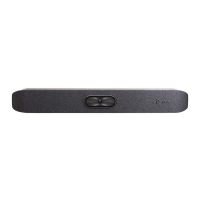
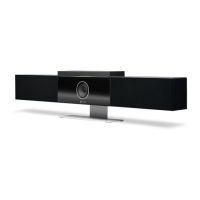
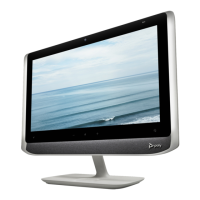
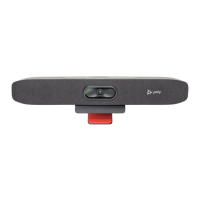
1. Log in to http://lens.poly.com and go to Manage > Software Versions.
If you don't have a Lens Cloud account, you can sign up for an account.
2. In the Search Device Model / Lens App drop down, type in the name of the device or search.
3. Select your device from the list.
The latest software version displays.
4. Select the software version you want to download and then select Download.
5. Extract the files to a folder on your computer and move the content to the root directory of a FAT32
formatted USB flash drive.
The root directory of your USB flash drive should contain the file titled "softwareupdate.cfg" along with
the individual folders for each product. The extracted files provide the required structure for the system to
recognize the update package.
6. Connect the USB flash drive to a USB port on the back of the system.
When the system detects the USB flash drive, a prompt displays on the monitor to confirm that you want to
update the software. If there’s no input to the system, it automatically starts the update after a short delay.
Factory Restore the System
A factory restore completely erases the system’s flash memory and restores it to a stable software version.
See the
Poly VideoOS Release Notes
, Version History section, for the current factory restore version.
The system doesn’t save the following data with a factory restore:
● Current software version
● Logs
● User-installed PKI certificates
● Local directory entries
● Call detail record (CDR)
1. Disconnect the power supply to turn off the system.
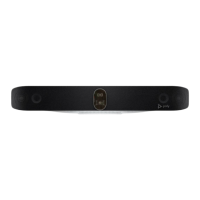
2. On the bottom of the Poly Studio X72 , insert a straightened paper clip through the factory restore pinhole.
3. While continuing to hold the restore button, reconnect the power supply to turn the system on.
4. When the system LED indicator light turns amber, stop pressing the restore button.
You can only view the restore progress on a display connected to the secondary monitor HDMI output port.
Factory Restore the System
17


 To Next Page