SX™ Operator Manual
©
Original Printed in English
4-3
LOADING A LABEL
This section will briefly guide you through creating and
loading labels using Labelview™. Labelview™ is la-
beling software available from Sharp Packaging Sys-
tems. This software can be used for creating text, bar
codes, graphics, lines, and boxes. For more detailed
instructions on using Labelview™ refer to the Help
section within the software.
Note: Software other than Labelview™ may re-
quire different settings.
Once Labelview™ is installed on your PC, perform the
following steps.
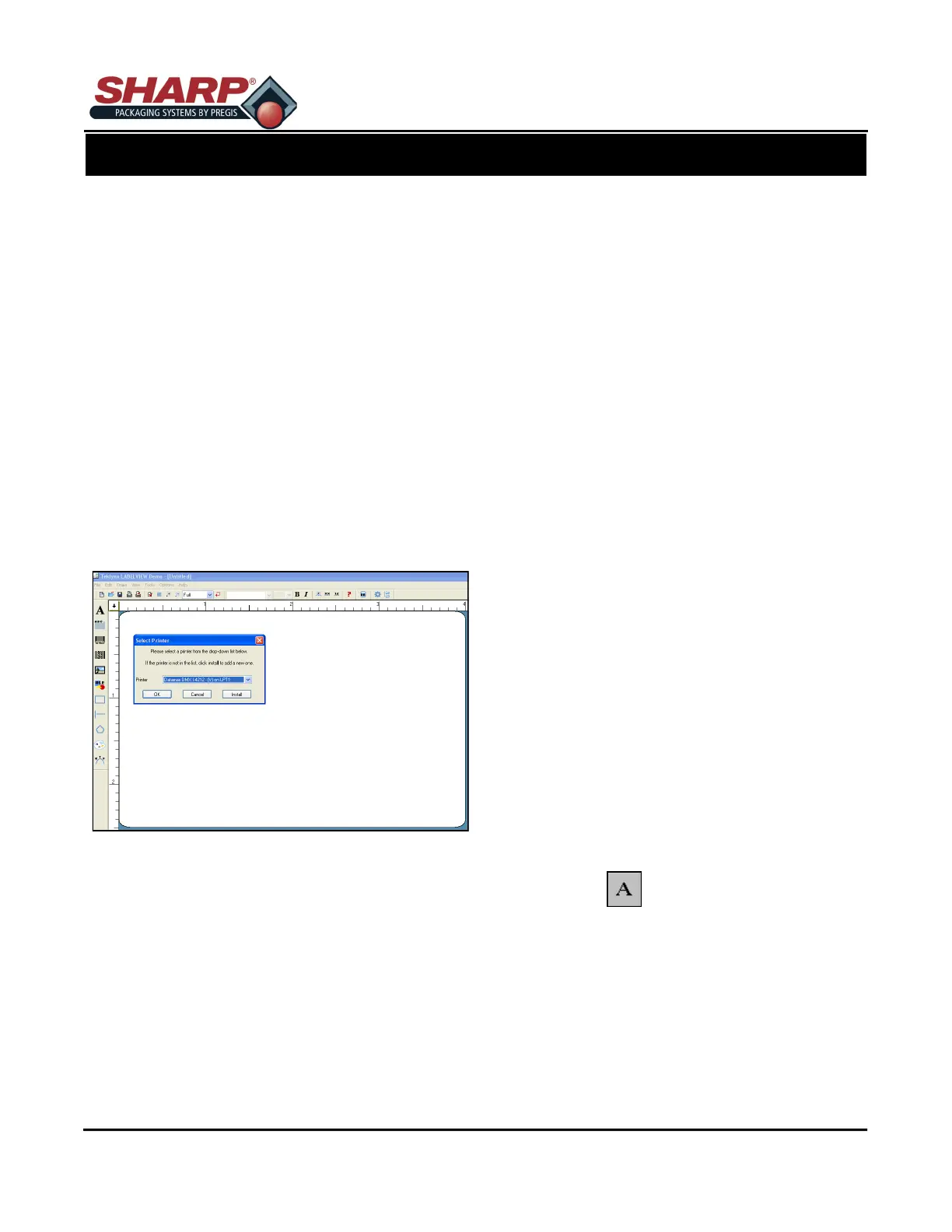
SELECTING A LABEL PRINTER
1. Go to File + Select Printer.
2. Choose the Datamax
®
DMX I-4212printer from the
list.
3. If the Datamax
®
driver is not in the list select In-
stall.
4. Select the Datamax
®
DMX I-4212 and click install.
5. Click Close.
6. Click OK.
CONFIGURING LABELVIEW™
1. Go to Options + Configuration.
2. Under the General tab, uncheck all of the boxes
except TrueType Fonts as Graphics.
CREATING A NEW LABEL
1. To Create a new Label format, go to File + New or
click on the icon.
2. Fill out the Label Setup tab of the Label Setup
dialog box. The following are some recommended
settings for this tab.
Print Speed – Start at 8 and adjust for optimal print
quality. (Range is 2 – 11.5)
Temperature – Start at 12 and adjust for optimal print
quality. (Range is 0 -30)
3. Click on the Options tab and fill in the boxes. The
following are some recommended settings for the
options tab.
Print Rotation – Normal
Label Stock – Non Inventory
Sensor Type – Continuous
Cut – Don’t Cut
Dots per Inch – 203
Back Feed – 0
Increment Method – Printer
Note: Label names and paths can contain up to
250 characters. Longer path and file names are
not supported.
4. Click OK.
ADDING FIELDS TO LABELS
Adding any field to a label involves all of the same
steps.
Adding Text
1. Click on the button.
2. Non-Resizable means the picture cannot be
changed.
3. Pictures = Specify the name of the picture file
you wish to insert.
4. Preview = Check this box to see a thumbnail of
the full picture before you place it on
the label.
PRINTER
PRINTER CONTROLS


 To Next Page