26 PI-MAX
®
3 System Manual Version 1.A
Making the Camera to Dry Nitrogen Source Connections
Equivalent Background Illumination (EBI) can impose limitations on ultra-low-light or
photon-counting applications. Reduction of EBI can be achieved by directly cooling the
photocathode via a dry nitrogen source.
1. Remove the 3 foot (approximately 1 meter) clear PVC tubing from the accessories
kit.
2. Slip one end of the tubing on the plastic hose barb on the front of the PI-MAX3.
3. Connect the other end to a source of dry nitrogen.
Entering the Default Camera System Parameters into WinX
(WinView/32, WinSpec/32, or WinXTest/32)
WinX Versions 2.5.25.X or higher
1. Make sure the PI-MAX3 is connected to the host computer and that its power supply
is turned ON.
2. Run the WinX application. The Camera Detection wizard will automatically run if
this is the first time you have installed a Princeton Instruments WinX application
(WinView/32, WinSpec/32, or WinXTest/32) and a supported camera. Otherwise, if
you installing a new camera type, click on the Launch Camera Detection
Wizard… button on the Controller/CCD tab page to start the wizard.
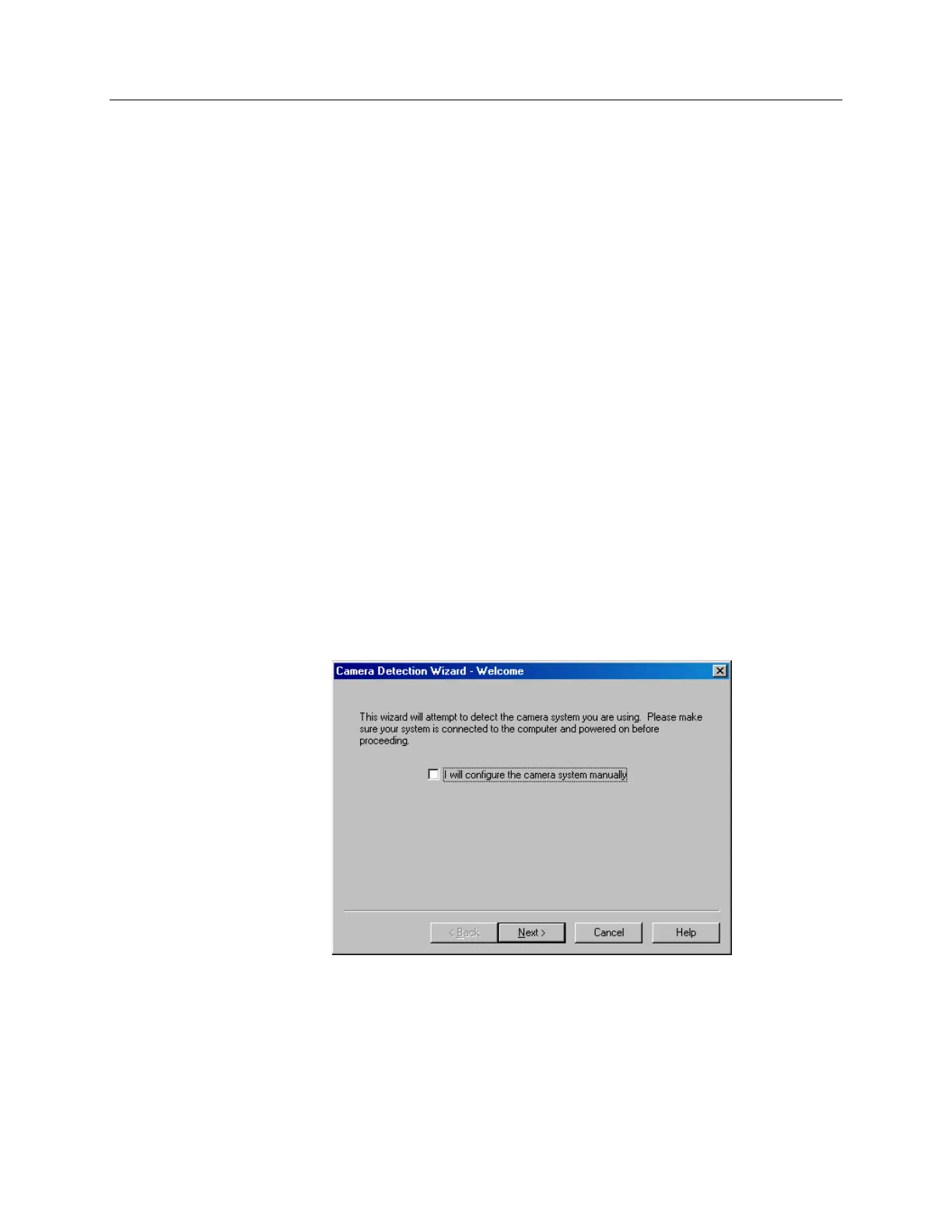
3. On the Welcome dialog (Figure 5), leave the checkbox unselected and click on
Next.
Figure 5. Camera Detection Wizard - Welcome dialog box
4. Follow the instructions on the dialog boxes to perform the initial hardware setup: this
wizard enters default parameters on the Hardware Setup dialog box tab pages and
gives you an opportunity to acquire a test image to confirm the system is working.


 To Next Page