283
D Standard And Heavy-Duty
Media Cutter Installation
Prepare The Printer
NOTE: Before you begin, please note that steps 1 through 3 below are
applicable for both the standard and heavy-duty media cutters. When
you get to step 4, you will directed to separate instructions specific to
the standard or heavy-duty cutter.
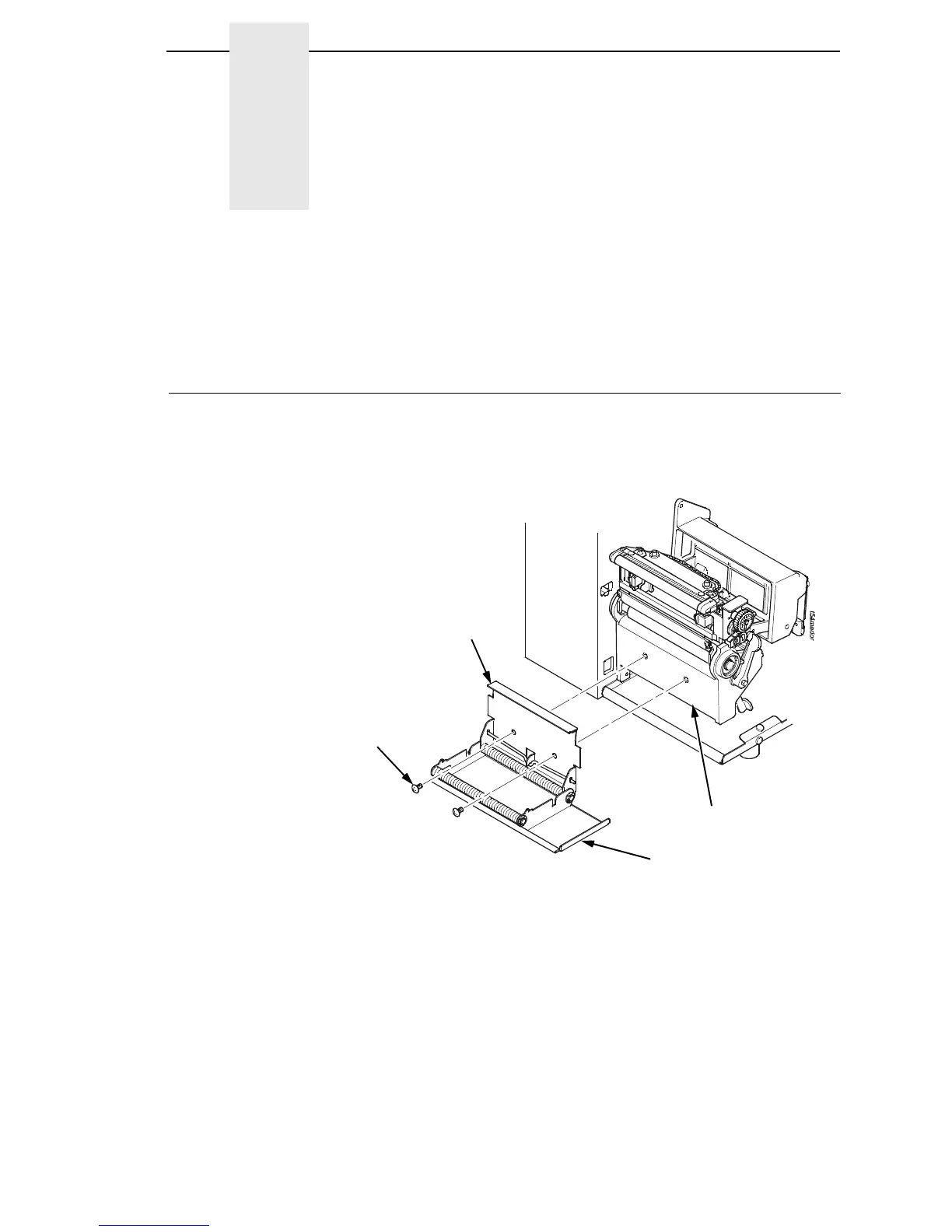
Figure 1. Peel/Tear Assembly
1. Set the printer power switch to O (OFF).
2. Open the peel/tear door by pulling it upward, then forward.
3. Using the appropriate metric hex key, remove the two screws attaching
the peel/tear assembly to the lower support assembly.
NOTE: Keep the two screws you have removed; you will use them to attach
the cutter assembly to the lower support assembly.
4. To install a standard cutter, go to “Installing The Standard Cutter” on
page 284. To install a heavy-duty cutter,goto“InstallingTheHeavy-
Duty Cutter” on page 286.
Screw (2)
Peel/Tear
Assembly
Lower Support Assembly
Peel/Tear Door












 To Next Page