EasyManua.ls Logo

Printronix T8000 - User Manual

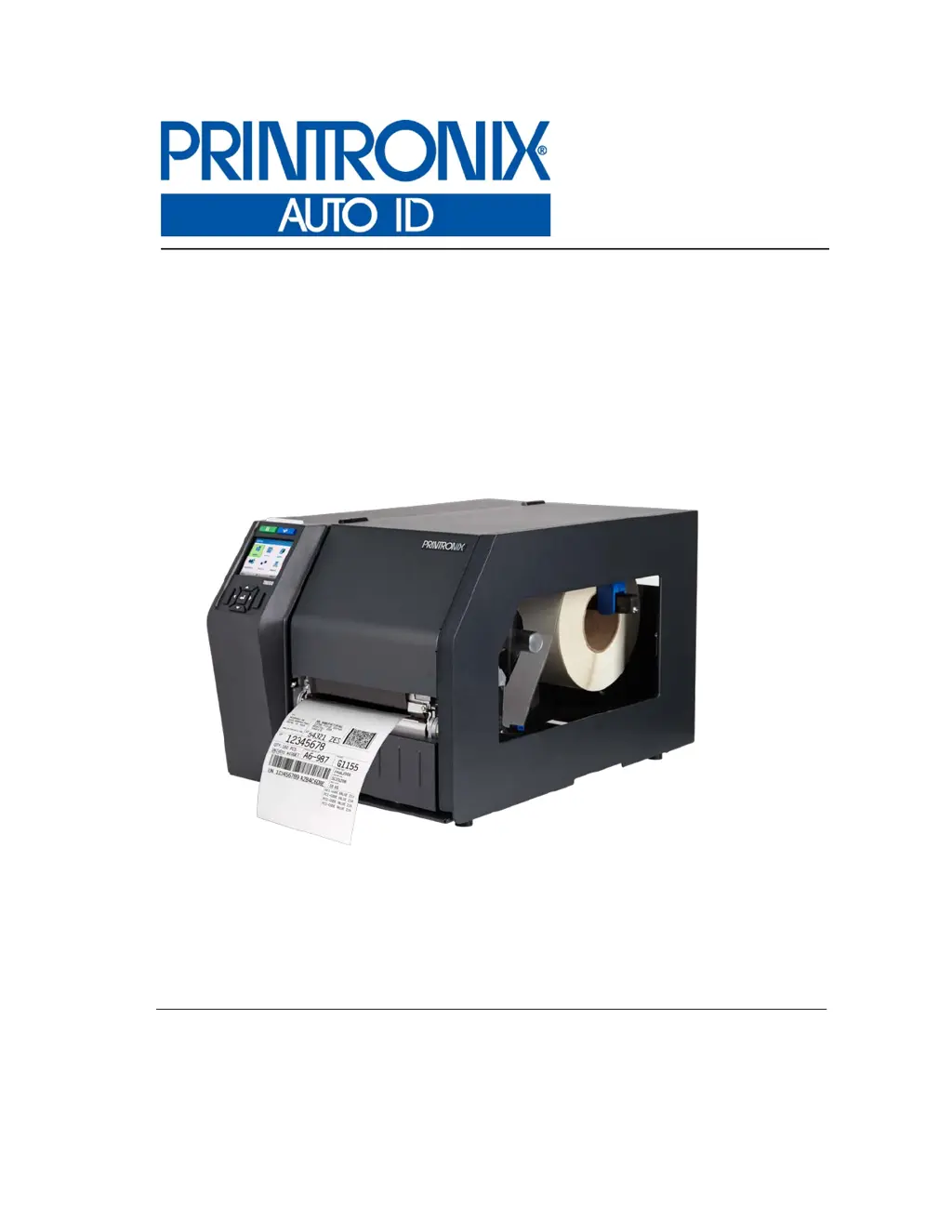
Printronix T8000
338 pages
Print Icon
To Next Page IconTo Next Page
Loading...
Administrators Manual
T8000
Thermal Printers

Table of Contents

Questions and Answers

  • K
    Kevin PetersonSep 8, 2025
    What to do if Printronix T8000 Printer shows 'Invalid Data'?
    • S
      Stephen SloanSep 8, 2025
      If the Printronix Printer's LCD shows ONLINE, it appears working, but nothing prints and “Invalid Data” displays, you can: 1. If the emulation and SFCC are correct, additional diagnostic information can be obtained by selecting the desired option under the “xxx Diagnostics” menu, found in the Application > Control section. 2. After selecting the desired option, run the job again to obtain the additional diagnostic information.
  • J
    John WhiteDec 1, 2025
    What to do if Printronix Printer LCD shows ONLINE but nothing prints?
    • J
      Jaime HorneDec 1, 2025
      If the Printronix Printer LCD shows ONLINE and the printer appears to be working, but nothing is printing, try the following: 1. Verify that the Active IGP Emulation shown on the control panel matches the emulation data sent to the printer. 2. Verify that the SFCC selection(s) in the APPLICATION section of the menu match the SFCC utilized within the emulation data that is sent to the printer. 3. Make sure the labels are the correct type (direct or thermal transfer). 4. If using direct thermal media, ensure it's loaded with the direct thermal side facing up. 5. Check that the transfer ribbon is correctly routed, with the ink side down as it passes under the printhead. 6. Ensure the printhead assembly is properly closed by fully engaging the printhead latch. 7. Verify that the ribbon...
  • N
    Nicole MoodyNov 25, 2025
    How to resolve smears or voids in printed image on Printronix Printer?
    • M
      Mary MccallNov 25, 2025
      To troubleshoot smears or voids in the printed image from your Printronix Printer: 1. Clean the printhead. 2. Ensure that the printhead temperature (Print Intensity) is not too high by adjusting the Print Intensity value in the Media > Image section. 3. Verify that the printhead pressure blocks are correctly positioned to match the media width. 4. Make sure the printhead pressure dial is properly set for the media thickness. 5. Wipe the label stock with a cloth to remove any skin oils or fingerprints. 6. Check that the media has not been mishandled and is installed correctly, not inside out. 7. Ensure the correct ribbon and media combination are being used, and check the ribbon for creases or folds. 8. Reduce the Print Speed value through the Media > Speed section or via host soft...
  • E
    Elizabeth SpencerSep 18, 2025
    Why does my Printronix Printer skip every other label?
    • S
      Sabrina HughesSep 18, 2025
      If your Printronix Printer's print quality is good, but the printer skips every other label, try these solutions: 1. Make sure that the label is not formatted too close to the top edge of the form. Leave white space equal to eight dot rows at the top of the label. 300 dpi = .0264 inches. 203 dpi = .04 inches. 2. Check that Media > Image > Clip Page = Enable. Clip Page = Enable causes any printable data to be clipped off and lost once the next TOF position (transmissive gap, notch, hole, or reflective mark) is detected. Clip Page = Disable allows the printer to ignore a gap or mark. The printer looks for the gap or mark after the specified Label Length is first reached.
  • J
    John SmithSep 16, 2025
    What to do if Printronix Printer advances media but ribbon doesn't?
    • J
      jordanmarkSep 16, 2025
      If your Printronix Printer advances media, but the ribbon does not advance, here are some things to consider: 1. Make sure the ribbon is installed correctly. 2. A poor ribbon/media combination can cause insufficient friction between the media and ribbon. Verify that the correct ribbon and media are being used. 3. The printhead pressure may not be set high enough. Set the pressure higher. 4. There may be adhesive on the printhead. Clean the printhead. 5. Verify that Media > Handling > Print Mode menu is set for Transfer and not Direct Thermal.
  • A
    Ariel BarnettSep 15, 2025
    Why is the print light on one side of the label with my Printronix Printer?
    • A
      abigailpowellSep 15, 2025
      If the print is light on the left or right side of the label when using your Printronix Printer, check if the pressure blocks are set for the width of the media being used. Set each block near the edge of the media.
  • J
    joe68Sep 13, 2025
    How to fix faded or poor quality printing on Printronix T8000?
    • A
      Alexander ChavezSep 13, 2025
      If the printing from your Printronix Printer is faded or of poor quality, try the following: 1. Clean the printhead. 2. Check that both latches on the pivoting deck are closed and latched. Close the printhead by pressing down on both sides of the pivoting deck and rotating the deck lock lever fully counterclockwise. 3. Verify that the head pressure adjustment dial is properly set. Try increasing the pressure. 4. Verify that the Print Speed and Print Intensity values are correct. Adjust Print Speed and Print Intensity in the Media > Speed and Media > Image sections, respectively, or via host software.
  • S
    Steven ChangSep 12, 2025
    Why is my Printronix Printer advancing media but not printing in Direct Thermal mode?
    • M
      Megan DaughertySep 12, 2025
      If your Printronix Printer media moves, but no image prints in Direct Thermal mode: 1. The media may not be the correct type for direct thermal printing. Install direct thermal media. 2. The direct thermal media may be installed wrong side up. Reinstall the media with the correct side facing the printhead.
  • T
    Tracy KellerSep 10, 2025
    Why is my Printronix T8000 advancing media but not printing in ONLINE mode?
    • C
      Christian TannerSep 10, 2025
      If your Printronix Printer media moves, but no image prints in ONLINE mode: 1. Make sure the J402 power supply cable has a good connection to the right side of the printhead. 2. Place the printer OFFLINE and print the Checkerboard diagnostic test pattern in Tools > Print Tests section. If the pattern prints, there is a communication problem between the host computer and the printer.
  • J
    Jared SmithAug 21, 2025
    What to do if Printronix Printer LCD shows ONLINE but nothing prints and ‘Invalid Data’ displays?
    • C
      Courtney RandolphAug 21, 2025
      To resolve the issue of the Printronix Printer displaying 'ONLINE' but not printing and showing 'Invalid Data', begin by verifying that the emulation and SFCC settings are correct. If they are, you can get additional diagnostic information by selecting an option under the 'xxx Diagnostics' menu, located in the Application > Control section. After selecting the desired option, run the job again to get the additional diagnostic information.

Summary

Introduction

Standard Features

Lists and describes the standard features of the T8000 printers, including memory, bar codes, emulations, and connectivity.

Optional Features

Details various enhancement options available for the T8000 printers, such as Andalé Fonts, Media Cutter, and QCMC.

Thermal Printer Technology

Explains the technology behind thermal printing, the printing process, and dynamic print control features.

Warnings and Special Information

Provides important safety and operational warnings, including definitions of warning symbols and notes.

Operation

Controls and Indicators

Identifies and describes the printer's physical controls and indicators like the power switch and control panel.

Operating Modes

Explains the different operating modes such as Online, Offline (Home), Settings, Wizard, and Fault.

Media Handling Modes

Details the different ways the printer handles media, including Continuous, Tear-Off Strip, Tear-Off, Peel-Off, and Cut.

Cleaning

Provides instructions for cleaning the printer's exterior, interior, printhead, platen roller, and sensors.

Configurations

Setting Printer Configuration Parameters

Explains how to set configuration parameters from the control panel and store them in flash memory.

Saving a Configuration

Details the options for saving the current printer configuration permanently into FLASH memory.

Downloading Firmware

Firmware Download Methods

Lists and describes various methods for downloading firmware, including Web Page and Windows Driver.

Web Page Download

Provides instructions for downloading firmware via a web page using the printer's IP address.

Windows Driver Download

Guides users on downloading firmware using the Windows driver and printer properties.

Automatic Download (.exe)

Explains how to download firmware using the .exe file via a command prompt and printer sharing.

Manual Two-Key Download Sequence

Details the steps for downloading firmware using a two-key power-up sequence.

Reprogramming the Security Key

How to Program the Security Key

Provides step-by-step instructions on how to program the security key using an SPX module.

Diagnostics and Troubleshooting

Printer Tests

Describes automatic tests and how to invoke test patterns for operation and quality checks.

Troubleshooting Common Situations

Lists common problem situations and potential solutions, including interfacing issues.

Hex Dump Mode

Explains how to enable and use hex dump mode for diagnostic examination of data.

Controlling Print Quality

Discusses factors affecting print quality and how to adjust them.

Specifications

Print Method

Details the printing methods supported by the T8000 series printers.

Media

Provides general information about media types, supply rolls, and label materials.

Host Interfaces

Lists the characteristics of supported host interfaces including Serial, USB, Ethernet, and Parallel.

Power

Specifies the power source requirements and power consumption details.

Printer Options

Hardware Options

Lists and describes optional hardware components like Media Cutter, Internal Rewinder, and Validator.

Interface Options

Details interface options such as Wireless NIC, IPDS over Ethernet, and Parallel interfaces.

ASCII Control Codes

Media Cutter Installation

Installing the Cutter

Provides step-by-step instructions for physically installing the cutter assembly onto the printer.

Media Cutter Tray Installation

Assembling the Media Cutter Tray

Guides on how to assemble the cutter tray bin and base components.

Installing the Media Cutter Tray

Explains how to place and install the media cutter tray onto the printer.

Loading WLAN Certificates

Loading Wifi Certificate file(s) from Windows

Provides instructions for loading WLAN certificates using the Windows utility.

Loading Wifi Certificate file(s) from Linux

Details how to load WLAN certificates from a Linux command line.

PTX_SETUP Commands

General Commands

Documents existing PTX_SETUP commands common across platforms for printer configuration.

Quick Change Memory Card (QCMC)

Installing the QCMC

Provides instructions for installing and removing the QCMC SD card.

Saving the Printer’s Configuration to the QCMC

Guides on saving the printer's configuration and settings to the QCMC.

Custom Configuration Module (CCM)

Creating a CCM

Provides instructions for creating a CCM SD card by downloading configuration files.

Using CCM To Configure A Printer

Explains how to use a programmed CCM SD card to configure multiple printers.

Customer Support

Printronix Customer Support Center

Lists contact information and required details for contacting Printronix Customer Support.

Glossary

Communication Notices and Warranties

Communication Statements

Contains FCC, Industry Canada, CISPR 22, and VCCI compliance statements.

Software License Agreement

Details the terms and conditions for the printer's software license.

Warranty Information

Outlines the printer warranty, thermal printhead warranty, and supplies coverage.

Printronix T8000 Specifications

General IconGeneral
Maximum Print Width8.5 inches
Print TechnologyThermal Transfer
ConnectivityUSB, Ethernet, Serial
Memory128MB RAM
Media HandlingRoll-fed, fanfold
DisplayColor LCD
TypeIndustrial
Print MethodThermal Transfer
Resolution300 dpi
Paper HandlingRoll-fed, fanfold
InterfaceUSB, Ethernet, Serial
EmulationPGL
Print Resolution203 dpi, 300 dpi, 600 dpi (depending on model)

Related product manuals