239
Firmware File Types (.fls) and (.exe)
Using firmware with an .exe extension FILENAME.exe is convenient.
However, firmware with the .exe
extension may not be available in all
situations. Download methods described in Table 11 which require
the .fls
extension, FILENAME.fls, is required (e.g., Windows Drivers and Web
Page).
The FILENAME.fls file can be extracted from the FILENAME.exe file by
executing the command in a
Windows Command Prompt session:
FILENAME<Enter>
This will extract the FILENAME.fls file in the same directory where
FILENAME.exe was executed.
IMPORTANT Be sure to copy the FILENAME.exe file to your computer’s local drive
before
executing commands in the Windows Command Prompt.
Web Page Download
This download method requires firmware with the .fls extension FILENAME.fls.
1. Make sure the printer is powered up, in ONLINE mode, and that the
Ethernet cable is connected.
2. Get the IP address from the front panel ONLINE screen (or under Network in Settings ).
3. Enter the printer’s IP address in your browser (e.g., http://10.224.5.21
).
4. When prompted for a user name and password, enter “root” for user
name and click OK.
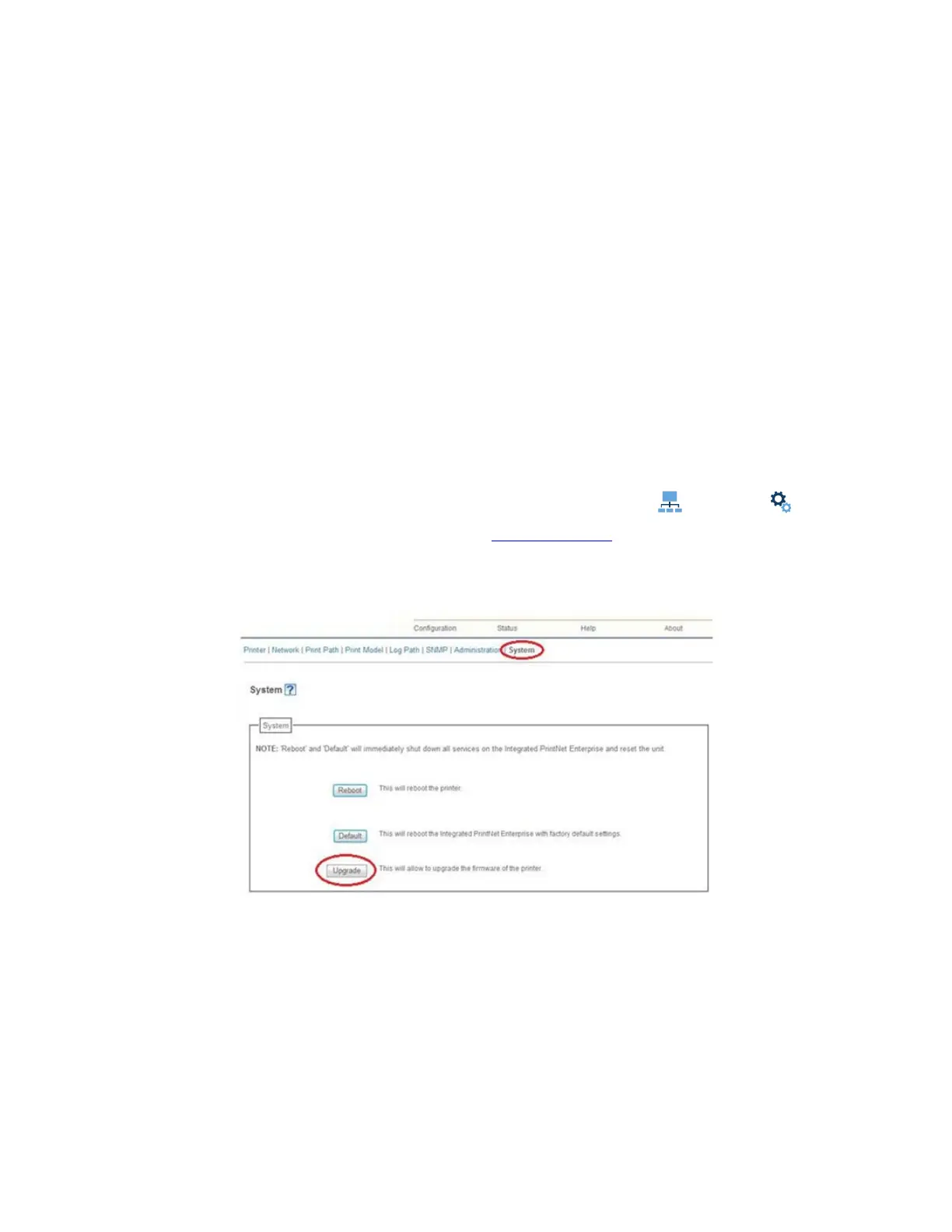
5. Click “System” in the Configuration box.
Figure 16 System Configuration Upgrade
6. Click the “Upgrade” button.
7. Browse to the directory or enter FILENAME.fls in the “File to upload”
field of the Wireless Firmware
Upgrade box and click “Upgrade”. A Warning message opens.













 To Next Page