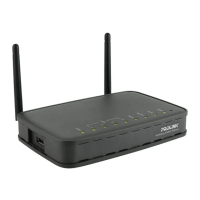
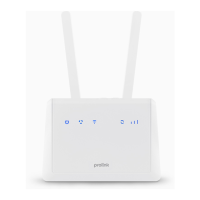
PROLiNK® PRN3006L 4G LTE Wireless Router
3.2 Enter Into Web Configuration
PRN3006L is equipped with Web-based Utility configuration. Web Configuration is design for easy to
setup the PRN3006L for beginner user and advanced user. Web Configuration can be open by multiple
OS such as Windows, macOS and Linux. Web Configuration is not restricted to Microsoft Edge only,
but user are also able to enter from Mozilla Firefox, Chrome, Opera or Apple Safari.
The following steps are for you to enter the Web Configuration of PRN3006L:
1. Run a web browser that available in your computer (Microsoft Edge, Chrome, Mozilla Firefox,
Chrome, Opera or Apple Safari).
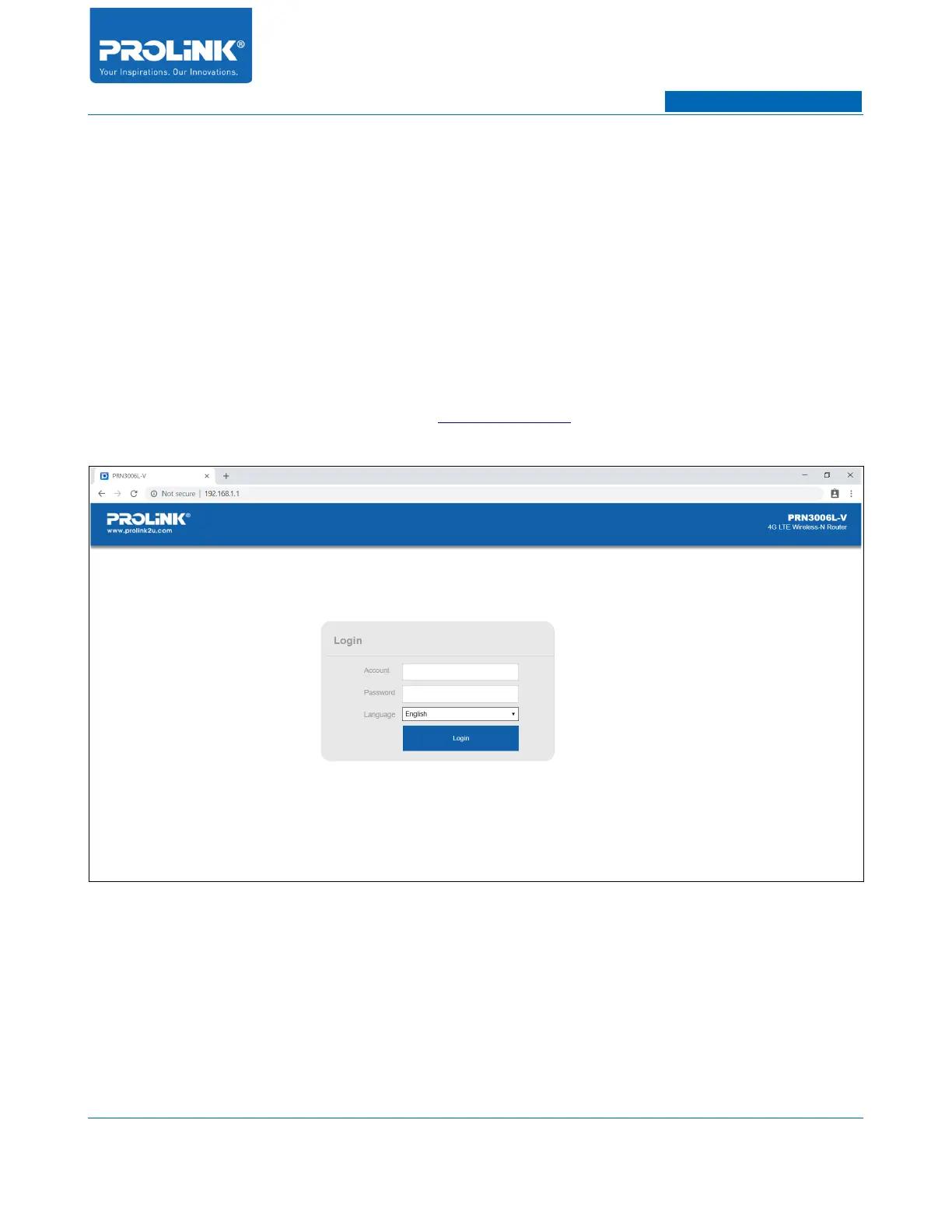
2. Enter PRN3006L default IP Address (http:// 192.168.1.1 ) onto the URL Address box. You will
be redirect to PRN3006L’s Login page.
3. Enter the default Account and Password for PRN3006L. Default Account and Password is
“admin” and “password”. If the login is unsuccessful, you will be prompt with notification of
incorrect password entered. If you forgot the password, factory reset PRN3006L by press and
hold the Reset button using pin for 10 seconds. Reset button can be located on bottom side of
PRN3006L (refer to page 3).
9


 To Next Page