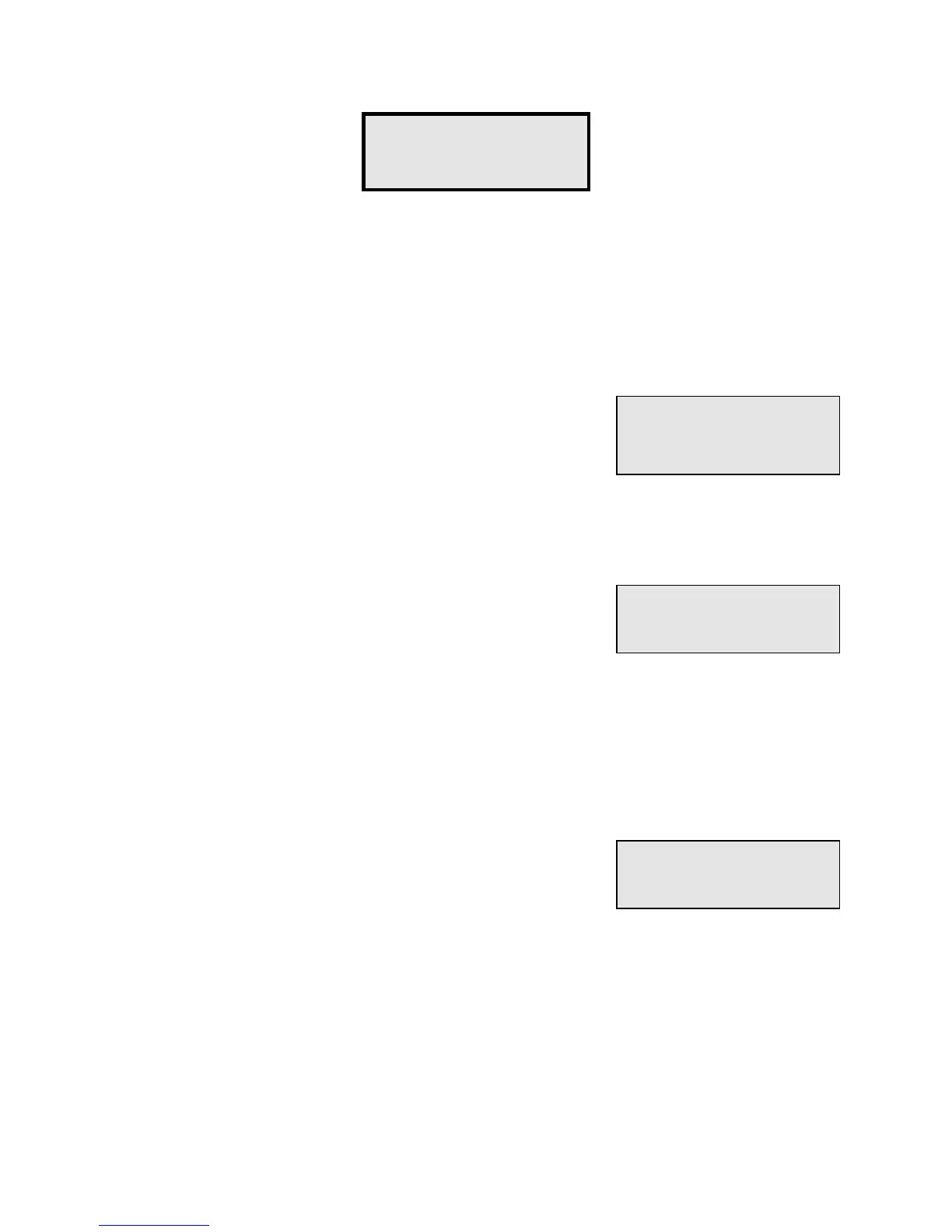
Function #1 - Set Time/Date is used to enter the correct time and date into the PTI Falcon.
The date is entered in Month-Day-Year format, with two digits required for each. Even
though no punctuation marks (slashes) are entered from the keypad, the PTI Falcon will
provided them on the display. For example, to set the date to January 9, 1991, you must
enter
01
/
09
/
91
. Note that years from 85-99 refer to 1985-1999, and years from 00-84 refer
to 2000-2084.
In the example at the right, the bold face type has been
entered to change the date from the initial setting of
01/01/87 to 01/09/91. Press "#" to set the new date.
After entering the correct date, you may enter the correct time. The time is entered in Hour-
Minute format, with two digits required for each. Even though no punctuation marks (colon)
are entered from the keypad, the PTI Falcon will provide them on the display.
For example, to set the time to 3:00 PM, you must enter
03
:
00
from the keypad. The display will then alternately blink
between 03:00
AM
and 03:00
PM
. Press the "#" key when
PM
is displayed to select 3:00 PM. The example at the right
indicates the screen appearance when entering the time.
At times, you may wish to change only the time without affecting the date, or only the date
without affecting the time. This is possible by pressing the "*" key as the first key entered
when you are asked to enter a new date or time. If the "*" key is pressed first, the entry will
be skipped (and thus remain at its present value) and the PTI Falcon will proceed to the
next entry.
Whenever the date or time is changed, the PTI Falcon will
recalculate the proper day of the week. The PTI Falcon
display will indicate the day of the week, the correct date,
and the correct time on the display when no other function is
being performed. An example of the display appearance is
shown at the right.
Function #1 -
Set Time/Date?
Enter 01/01/87
Date:
01
/
09
/
91
Enter 12:00 AM
Time:
03
:
00
PM
Wed, 01/01/91
03:00 PM


 To Next Page