22
7.3 Play from cloud storage
The uPlay Stream allows you to stream tracks from cloud
storage including Dropbox and SkyDrive. To stream from
Dropbox or SkyDrive, you will need to have a Dropbox or
SkyDrive account and some tracks in the cloud. Please visit
https://www.dropbox.com/ for more information on using
Dropbox, or visit https://skydrive.live.com for more information
on using SkyDrive.
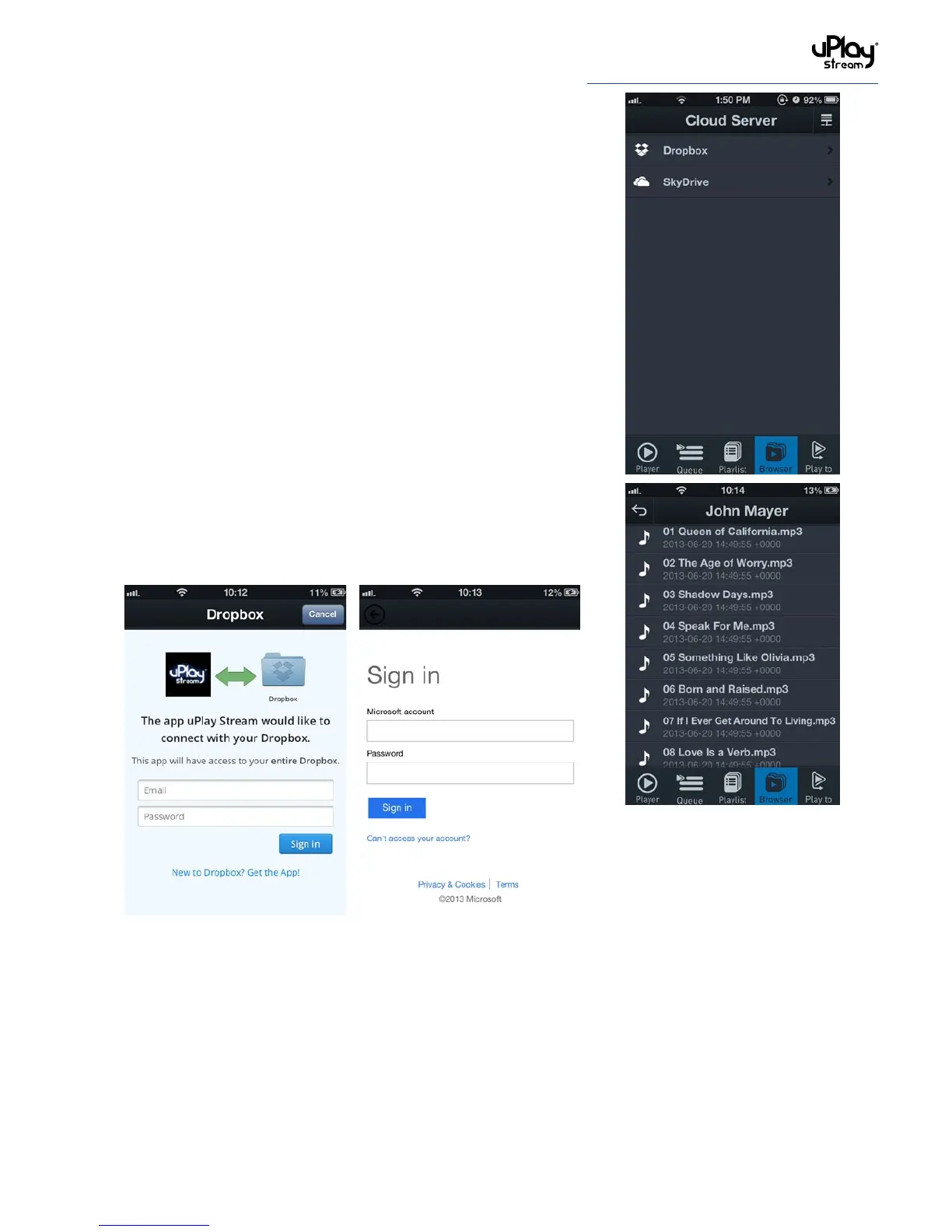
To browse the Dropbox content, press the Cloud Storage button
as described in section 6.6 to go to the cloud server list. You will
also need to enable cloud storage support as shown in section
6.3 to view the content in the cloud server list.
Select Dropbox or SkyDrive in the cloud server list. You will
be asked to sign in and allow the uPlay Stream to access your
Dropbox or SkyDrive content.
You will now be able to browse the cloud content and stream
tracks to the uPlay Stream.
Unsupported files will be shown in dark grey.
To log out or use a different Dropbox SkyDrive account, please
refer to section 6.3.
Note: Dropbox / SkyDrive playback performance relies on the
network and server condition. It is recommended not to stream
high resolution lossless audio tracks.



 To Next Page