24
8.2 Edit / delete groups
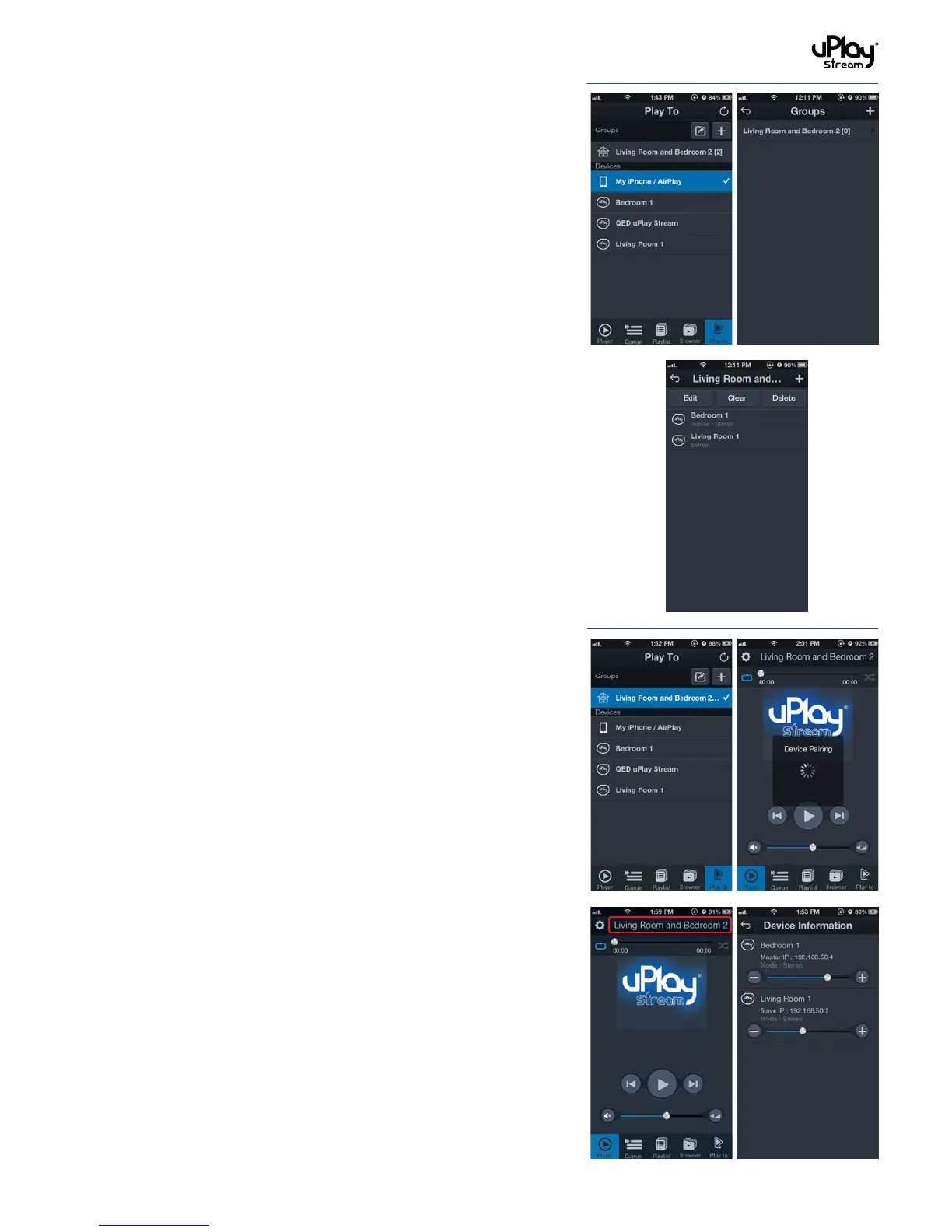
1. Press the Edit button to show the Group list.
2. Select the group to enter the group detail page.
3. Press the Edit button to remove or re-order the devices. The
device at the top of the list is the master device.
4. Press the Clear button to clear all the devices in the group.
5. Press the Delete button to delete the whole group.
6. Press the Add button to add devices to the group.
Note: The group cannot be edited, cleared or deleted when
it is selected for playback.
8.3 Playback and individual volume controls.
1. Select the group in the Play To tab to stream music to the
group.
2. It will take a few seconds for the devices to pair up and
synchronize.
Note:
• Themoredevicesinthegroup,themoretimeisrequired
for paring up.
• For some low sample rate audio files, the first few
seconds of the track may be muted while the devices
synchronise.
3. The volume control in the Player tab acts as a master volume
control for the whole group.
4. Tap on the group name at the top of the Player tab to show
the Device Information list.
Individual uPlay Stream volumes can be controlled in the
Device Information list.


 To Next Page