29
11 Using Windows Media Player
The uPlay Stream can be used with other DLNA / UPnP players
or control software. This section will show an example of using
Microsoft Windows Media Player to stream music to the uPlay
Stream. It will show how to configure Windows Media Player as
a media server.
11.1 Configuring Windows Media Player
1. To support audio streaming to the uPlay Stream, you will need
Windows Media Player 11 or higher.
2. Be sure your computer is connected to the same network as
the uPlay Stream.
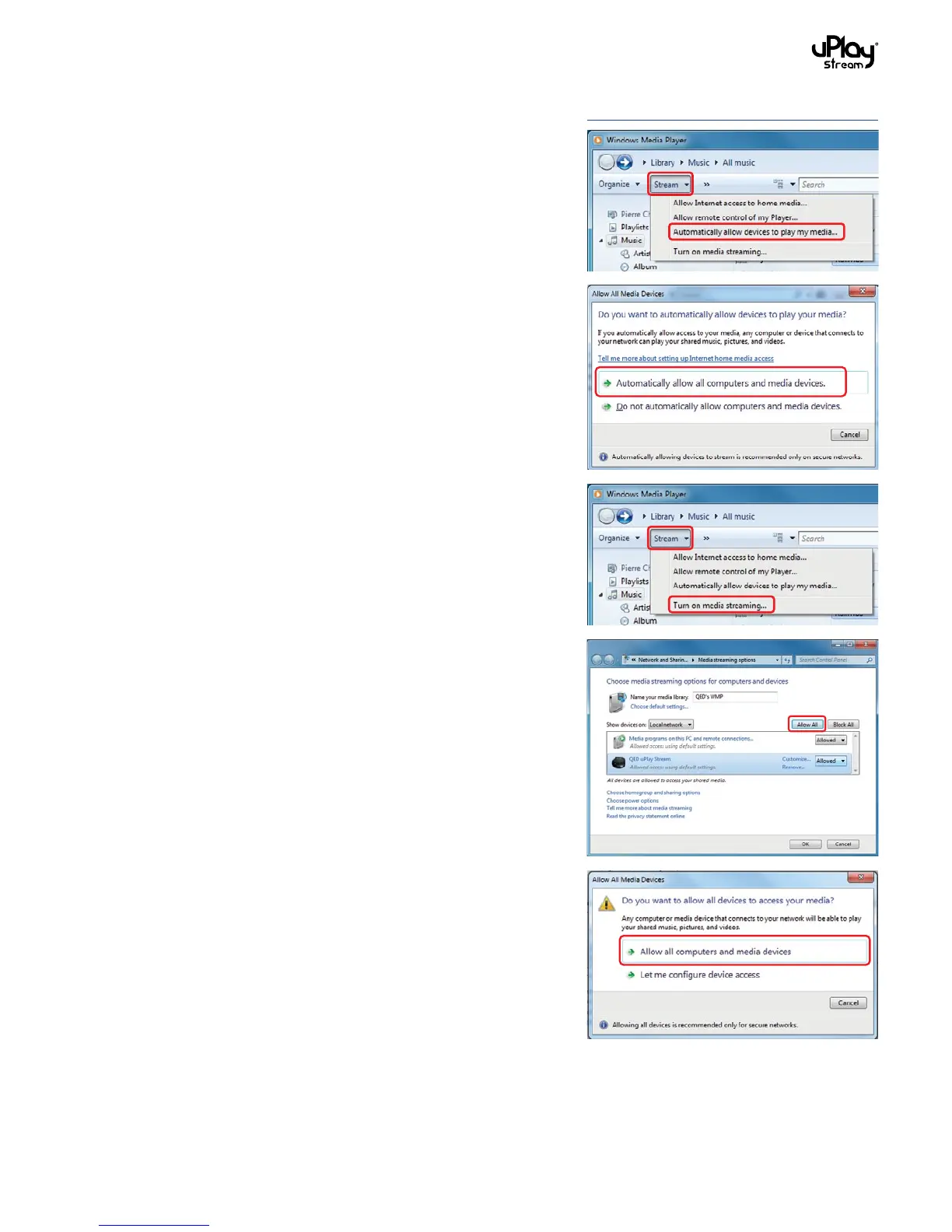
3. Open Windows Media Player on your computer.
4. Click the Stream menu.
5. Select Automatically allow devices to play my media. This
means that your PC is ready to act as a media server, allowing
other devices to pull media files stored in your PC.
6. A confirmation window will show to confirm the setting.
7. Click Turn on media streaming. A new window will show.
8. Click Allow All and confirm to allow computers and media
devices to access your media.


 To Next Page