10. Connect the power cables to the new expansion unit.
11. Power on the new expansion unit.
12. Log on to QES as administrator.
13. Go to Main Menu > Storage Manager > Storage > Disks .
14. Click Recover, and then select Reinitialize enclosure ID.
QES scans for and detects the new expansion unit and installed disks.
15. Bring all offline storage pools back online.
Rail Kits
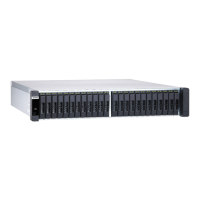
The ES2486dc package contains a RAIL-E03 rail kit for installing the NAS onto a rack. For details on the
RAIL-E03 rail kit, contact an authorized reseller or go to http://shop.qnap.com.
Model Compatible Rail Kit
ES2486dc RAIL-E03
You can find installation information in the rail kit package.
QES Installation
The ES2486dc uses the QNAP QES operating system. If the NAS is connected to your local area network,
you can install QES using Qfinder Pro.
Method Description
Quick setup Install QES and configure basic settings.
For details, see the following topics:
• Installing QES Using a Static IP Address
• Installing QES Using a Dynamic IP Address
Manual setup Install QES and configure advanced settings such as device type
access and the QES system file storage pool.
For details, see Installing QES Using Manual Setup.
Installing QES Using a Static IP Address
Warning
Installing QES deletes all data on the drives. Back up your data before proceeding.
1. Power on the NAS.
2. Connect the NAS to your local area network.
3. Run Qfinder Pro on a computer that is connected to the same local area network.
Tip
To download Qfinder Pro, go to https://www.qnap.com/utilities.
4. Locate the IP address of the storage controller from the device list.
ES2486dc User Guide
Installation and Configuration 43


 To Next Page