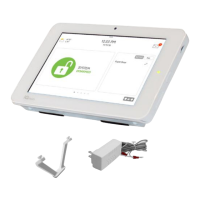
1- Insert an SD card into your computer. !(*We recommend a class 4 or higher SDHC card with 4gb – 16gb storage space)!
2- Download the current software from dealers.qolsys.com (requires login)!
3- Once the file is downloaded, right click the file and select "Unzip" or “Open”!
4- Drag all files to your SD card. !Delete ANY other files, and safely remove the SD card
from your computer!
5- Slide your SD card into the slot on the upper right side of the IQ Panel 2.!
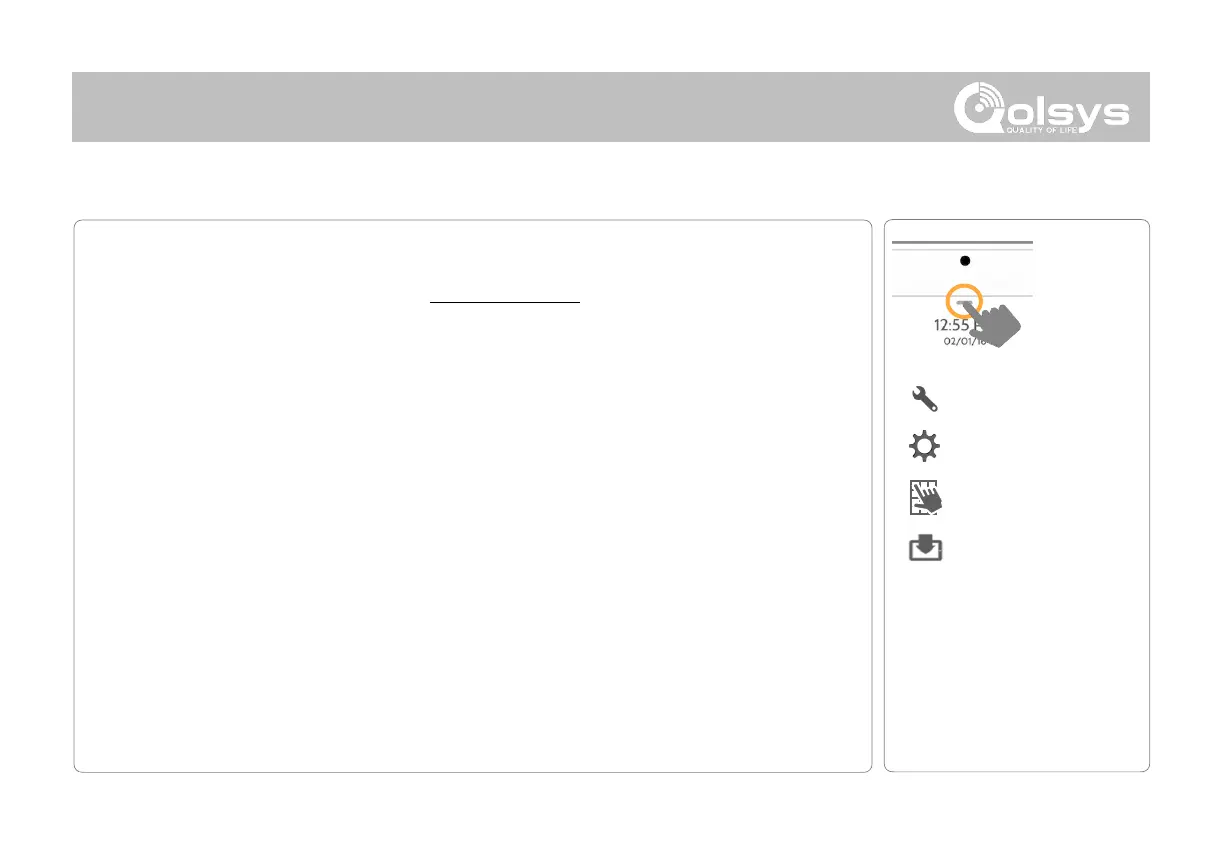
6- From the drop down menu Touch “Settings”
7- “Advanced Settings” and enter a valid Installer code (default is 1111)!
8- Touch “Upgrade Software”!
9- Touch “Upgrade using SD Card”!
10- The panel will search the SD Card for the patch and begin downloading it automatically. !
11- Once complete touch "OK" to reboot the panel. !DO NOT TOUCH THE SCREEN. !The
process will take about 5 minutes and the LED may turn red, screen may turn off, etc. !After
the panel reboots the home screen will appear and the LED will turn green. !For the next 5
minutes the panel will update the backup partition. !Do not power down or use the panel
during this time!
11- Eject the SD Card: (“Settings” then touch "SD Card” then “Unmount SD Card”
!
IMPORTANT: Failure to perform these steps in the proper sequence may result in data corruption and/or panel
failure.


 To Next Page