Keeping your panel up to date is essential in ensuring it receives the newest features and is
free from bugs.
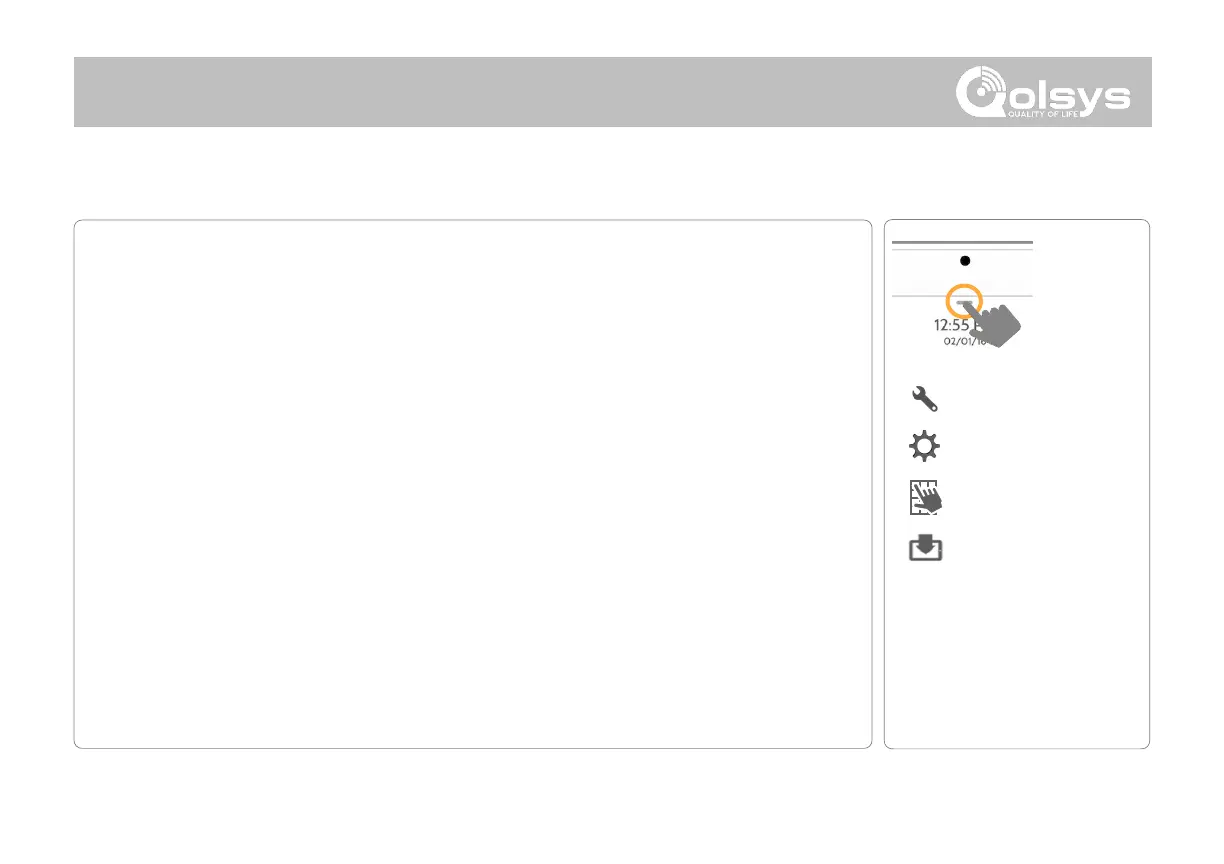
To perform a software update using Wi-Fi follow the steps below:!
1- Ensure your panel is connected to Wi-Fi and has an internet connection.
2-!From the drop down menu select “Settings" then “Advanced Settings”. (Installer/Dealer
Code)
3- Touch "Upgrade Software"
4- Touch "Upgrade Using Network" !The IQ Panel 2 will check for the latest software
update. If your panel is up to date you will see a message confirming that you have the
most recent software version. !
5- If a software update IS available the panel will automatically begin downloading it. !
6- Once the download is complete a pop up message will appear informing you that in
order to install the software you must restart the panel. !Touch "OK." !Your panel will install
the update and automatically restart. !


 To Next Page