7. If example mail set is OK: tap [Start].
If the example mail set is not OK: adjust the address position or envelope stop position
or check and re-adjust the job settings.
If desired tap the counter button to set the counters. See Counter
settings.
8. Tap [Start] to start the job.
9. Press the [Stop] button to finish the job.
10. Tap [Job list] to return to the job list.
Create a New Job
To create a new job:
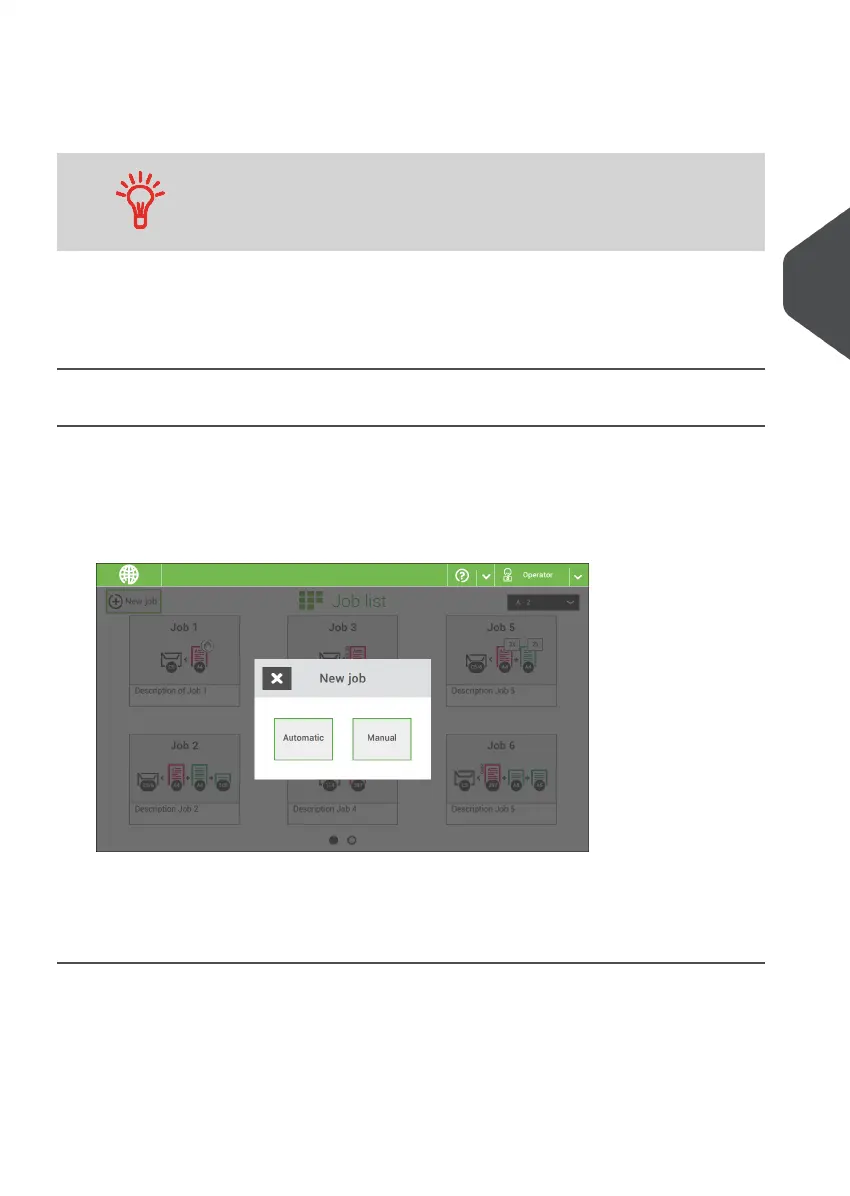
From the Job list menu, tap [New job].1.
2. Choose [Automatic] or [Manual] to create a new job.
3. If you choose 'Automatic' follow the description as can be found in Create an Automatic
job.
4. If you choose 'manual' follow the description as can be found in Create a Manual job.
4
English
25
| Page 25 | Nov-25-2020 04:16 | Working with Jobs


 To Next Page