4. Make sure that the address position and the envelope stop position is correct. If
not, adjust the address position and envelope stop position.
5. If necessary, tap the counter symbol to set the counters. See counter settings.
6. Tap [Start] to start the job.
7. Tap [Stop] to finish the job.
Tap [Save] if you want to save the settings of the Automatic job to a new job.
Create a Manual Job
Introduction
Creating jobs manually is easy: the user interface guides you through the job definition with
clear steps.
These steps are:
• Define the mail set: envelope type, main document and optional enclosures.
• Define how to fold the document set.
• Define the exit of the system that should be used for this job.
Create a Manual Job
To create a job manually:
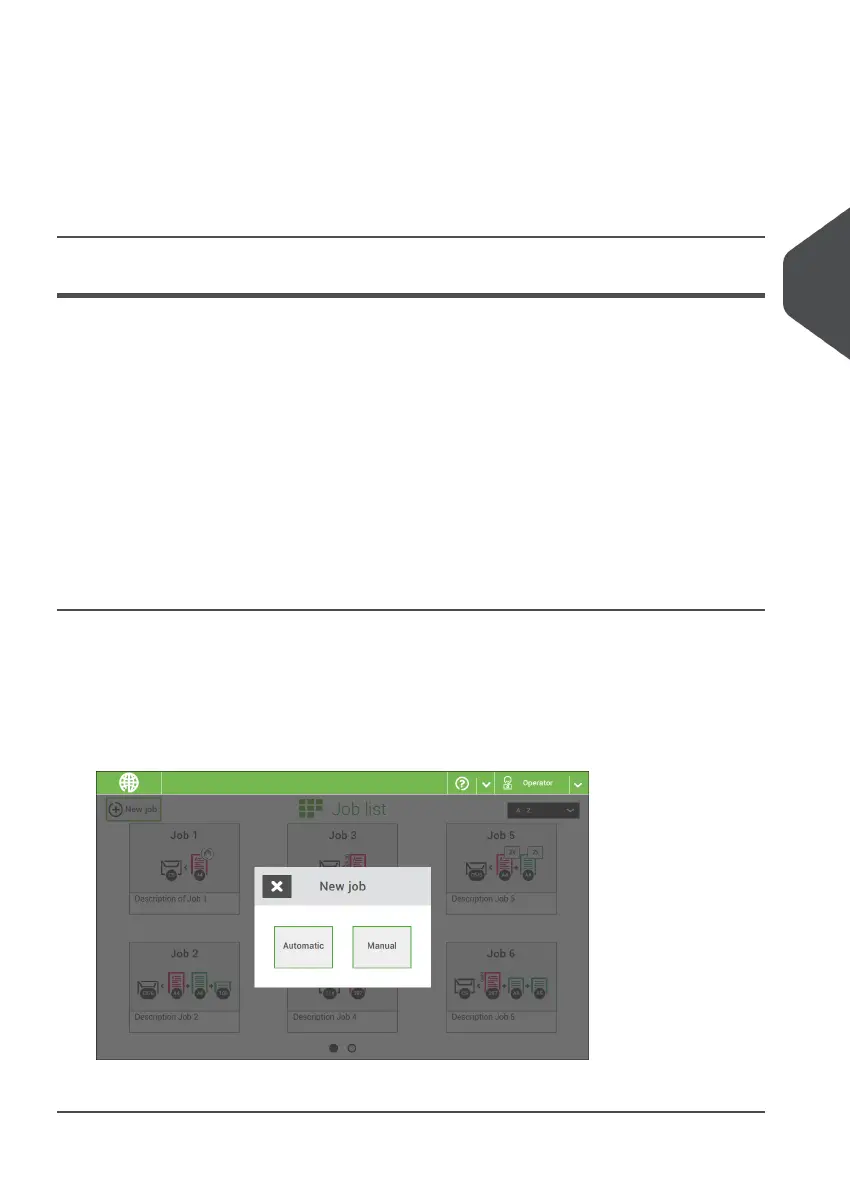
1. From the Job list menu, tap [New job].
2. Choose [Manual] to define the job settings.
Continue with the envelope settings (see Envelope).
4
English
27
| Page 27 | Nov-25-2020 04:16 | Working with Jobs


 To Next Page