Q-Drive Installation Manual Issue 1.5
Page 34 Copyright © 1996 Quin Systems Ltd.
Run the configuration program by typing;
QDRIVE <Return>
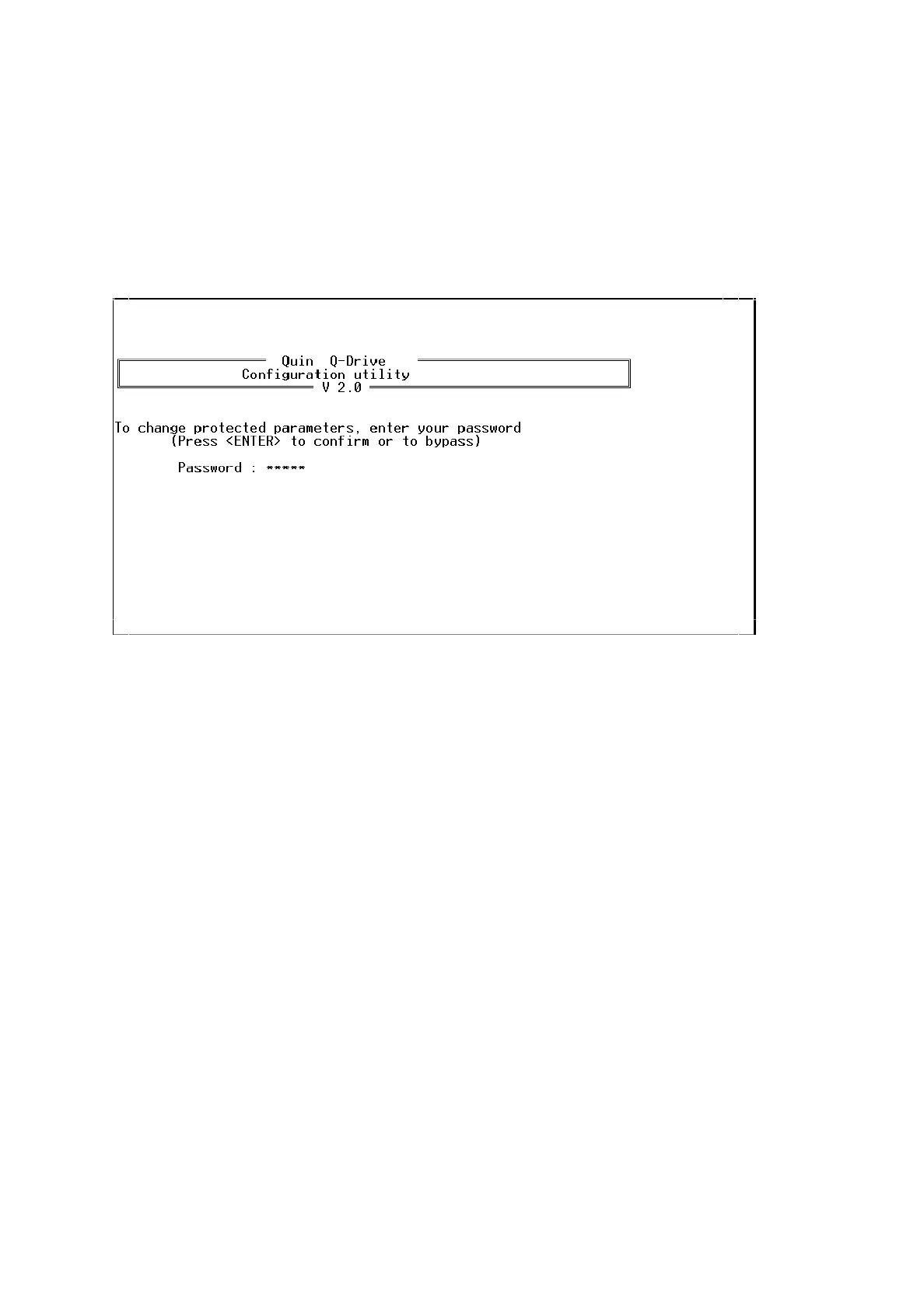
The initial screen, shown below, appears asking for the password motor to be entered.
The program will allow changes to be made only if the password is correct, but will still
run if the password is incorrect to allow parameter monitoring only.
Figure 12. Q-Drive.exe: password entry page
The
QDRIVE.EXE
program presents the servo parameters using nine pages or screens.
The first three pages involve the setup of the servo-amplifier and the absolute position
of the resolver. The last page is used to monitor the inputs and alarm states. Only the
parameters on the first three pages can be modified through the computer program. In
order to change the parameters it is necessary to “Connect” to a particular drive. This
is achieved in the following way.
1 Press the <F8> function key to put the program “On-Line”, the program will
immediately start trying to communicate with drive 1.
2 If drive 1 is not connected then press function key <F4> to scan for active
drives, Figure 13. on page 35 shows the program scanning for drives and
finding drive 1. When the active drive has been identified use the procedure
in steps 3 to 5 to connect to it.
3 To change to the required drive press and hold down the <Shift> key and
then press a function key from <F1> to <F10>, this will access drives 1
through to 10.
4 To access drives 11 to 15 press and hold down the <Ctrl> key and then
press a function key from <F1> to <F5>
5 When the desired drive has been selected, the message near the top of the
screen will show “ONLINE Connected”



 To Next Page