236 MULTIMEDIA
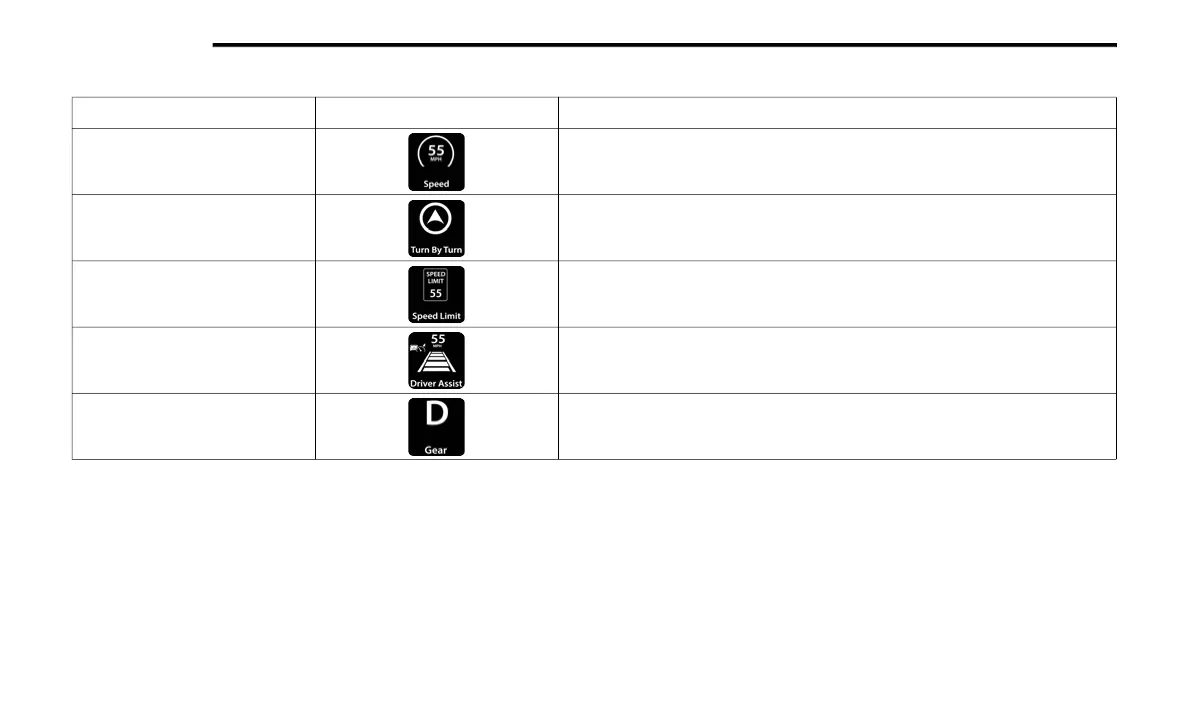
The following are the available icons that can be customized in the cluster:
NOTE:
After the HUD layout customization is completed, press the Save button located towards the bottom of the touchscreen, and then the OK button under the
“Save changes?” screen. Once saved, the instrument cluster will display a message “Setting Saved”.
Press the X button located in the upper right corner of the touchscreen, and then press the Cancel button to exit out of customizing the HUD layout. Doing this
will not retain any information customized in the layout view. The instrument cluster display will return to the layout options screen.
Pressing any other menu item on the touchscreen, for example “Climate”, will take the user back to whatever screen they were previously on before accessing
the HUD layout Ú page 109.
Feature Name Icon Description
Speed This icon will show the vehicle’s current speed.
Turn-By-Turn — If Equipped This icon will show the upcoming direction for Navigation.
Speed Limit This icon will show the current speed limit of the area you are driving in.
Driver Assist/Adaptive Cruise
C
ontr
ol/Cruise Control And
LaneSense — If Equipped
This icon will show information related to Driver Assist, Adaptive Cruise Control,
Crui
se Control, and LaneSense.
Gear This icon will show the current gear the vehicle is in.


 To Next Page