MULTIMEDIA 253
Uconnect 3 With 5-inch Display
NOTE:
You must have Bluetooth® enabled on your
phone to complete this procedure.
The vehicle must be in PARK or at a standstill.
Follow the steps below to pair your phone:
1. P
lace the ignition in the ACC or ON/RUN
pos
ition.
2. Press the Phone button.
NOTE:
If there are no phones currently connected
with the system, a pop-up will appear asking
if you would like to pair a mobile phone.
This pop-up only appears when the user
enters Phone Mode and no other device(s)
have previously been paired. If the system
has a phone previously paired, even if no
phone is currently connected with the
system, this pop-up will not appear.
3. Select “Yes” to begin the pairing process.
4. S
e
arch for available devices on your
B
l
u
etooth®-enabled mobile phone.
Press the Settings button on your mobile
phone.
Select “Bluetooth®” and ensure it is
enabled. Once enabled, the mobile phone
will begin to search for Bluetooth® connec
-
tions.
NOTE:
During the pairing procedure, you may receive a
pop-u
p on your touchscreen asking you to make
sure the PIN on the touchscreen matches the PIN
from the pop-up on your mobile phone.
5. If “No” is selected, and you still would like to
pai
r a mobile phone, press the Pairing or
Settings button from the Uconnect Phone
main screen.
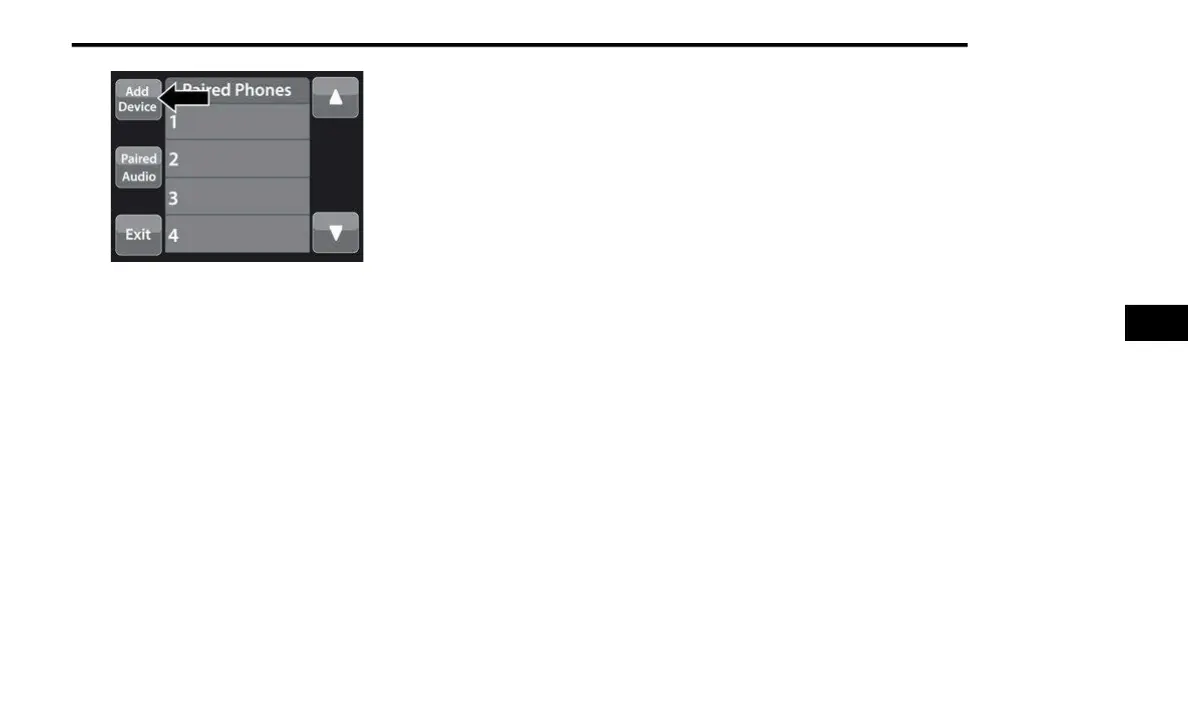
Press the Paired Phones button or the Add
Device button.
Search for available devices on your
Bluetooth®-enabled mobile phone (see
below). When prompted on the phone,
select “Uconnect” and accept the connec
-
tion request.
6. U
connect Phone will display an in-progress
scr
een while the system is connecting.
7. When your mobile phone finds the Uconnect
sys
tem, select “Uconnect.”
8. When prompted on the mobile phone, accept
the
connection request from Uconnect.
9. When the pairing process has successfully
comp
leted, the system will prompt you to
choose whether or not this is your favorite
phone. Selecting “Yes” will make this phone
the highest priority. This phone will take
precedence over other paired phones within
range and will connect to the Uconnect system
automatically when entering the vehicle. Only
one mobile phone and/or one Bluetooth®
audio device can be connected to the
Uconnect system at a time. If “No” is selected,
simply select “Uconnect” from the mobile
phone/audio device Bluetooth® screen, and
the Uconnect system will reconnect to the
Bluetooth® device.
NOTE:
For phones which are not made a favorite, the
phone
priority is determined by the order in which
it was paired. The most recent phone paired will
have the higher priority.
5


 To Next Page