254 MULTIMEDIA
NOTE:
During the pairing procedure, you may receive a
pop-u
p on your mobile phone for the Uconnect
system to access your “messages” and “contacts”.
Selecting “Ok” or “Allow” will sync your contacts
with the Uconnect system.
You can also use the following VR command to
brin
g up the Paired Phone screen from any screen
on the radio:
“Show Paired Phones”
NOTE:
Software updates on your phone or the Uconnect
syst
em may interfere with the Bluetooth®
connection. If this happens, simply repeat the
pairing process. However, first make sure to delete
the device from the list of phones on your
Uconnect system. Next, be sure to remove
Uconnect from the list of devices in your phone’s
Bluetooth® settings.
CONNECTING TO A PARTICULAR MOBILE
PHONE OR AUDIO DEVICE AFTER PAIRING
Uconnect Phone will automatically connect to the
highest priority paired phone and/or Audio Device
within range. If you need to choose a particular
phone or audio device follow these steps:
1. Press the
Set
tings
button on the touchscreen.
2. Press the Paired Phones/Audio Sources
but
ton.
3. Press to select the particular phone or the
par
ticular audio device. A pop-up menu will
appear; press “Connect Phone”.
4. Press the X to exit out of the Settings screen.
DISCONNECTING OR DELETING A PHONE OR
AUDIO DEVICE
Uconnect 3 With 5-inch Display
1. Press the Uconnect Phone Pairing or Settings
but
ton.
2. Press the Paired Phones/Audio Sources
but
ton.
3. Press the Settings button located to the right
of t
he device name for a different phone or
audio device than the currently connected
device or press the preferred Connected
Phone from the list.
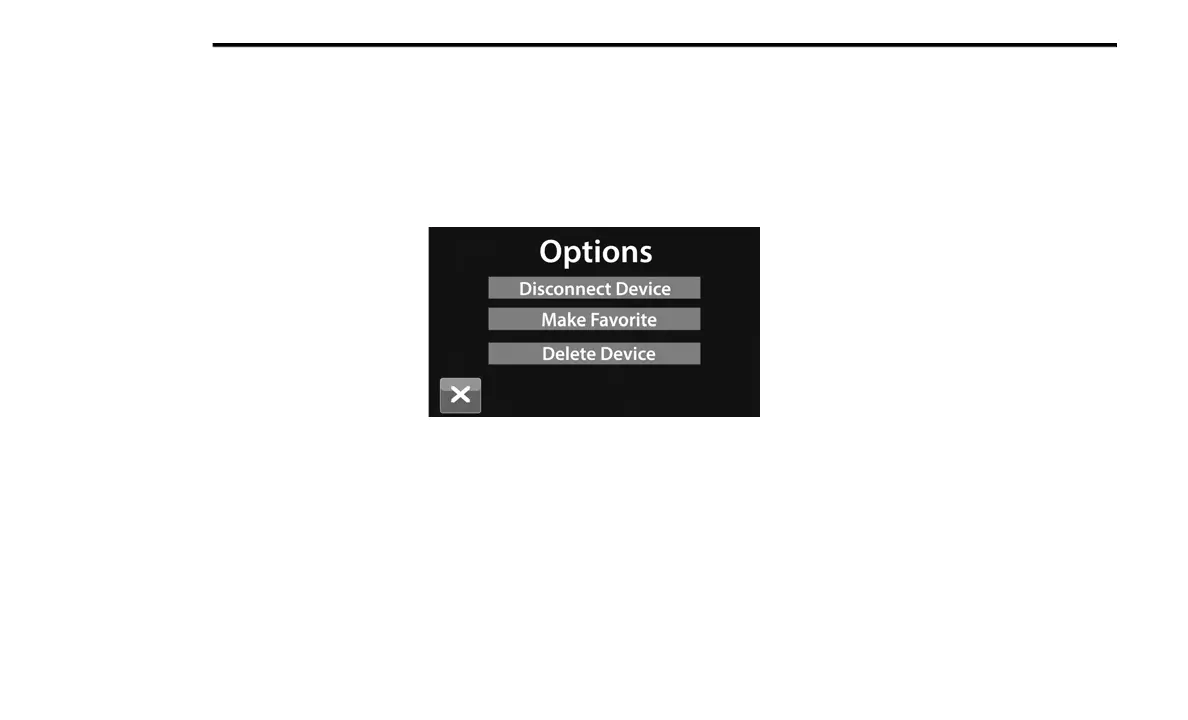
4. The option’s pop-up will be displayed.
5. P
ress the Disconnect Device or the Delete
Dev
ice button on the touchscreen.
6. Press the X to exit out of the Settings screen.
MAKING A PHONE OR AUDIO DEVICE A
FAVORITE
1. On the Paired Phone/Audio Sources screen,
press the Settings button located to the right
of the device name for a different phone or
audio device than the currently connected
device or press the preferred “Connected
Phone” from the list.
2. The option’s pop-up will be displayed.
3. P
r
ess the Make Favorite button on the
t
ou
c
hscreen; you will see the chosen device
move to the top of the list.
4. Press the X to exit out of the Settings screen.
PHONEBOOK DOWNLOAD (AUTOMATIC
PHONEBOOK TRANSFER FROM MOBILE
PHONE) — IF EQUIPPED
If supported by your phone, Uconnect Phone has
the ability to download contact names and number
entries from the mobile phone’s phonebook.
Specific Bluetooth® Phones with Phonebook
Access Profile may support this feature. Your
mobile phone may receive a pop-up asking for


 To Next Page