ERVICE
S
48 6823346-R3
3.3 Display
3.3-1 Pairing The Display To iForks
For situations where the dual Bluetooth
®
pc board has been
replaced or the complete display is replaced, it is necessary
to pair the display to each of the iForks Bluetooth
®
receivers.
Example using a PDA:
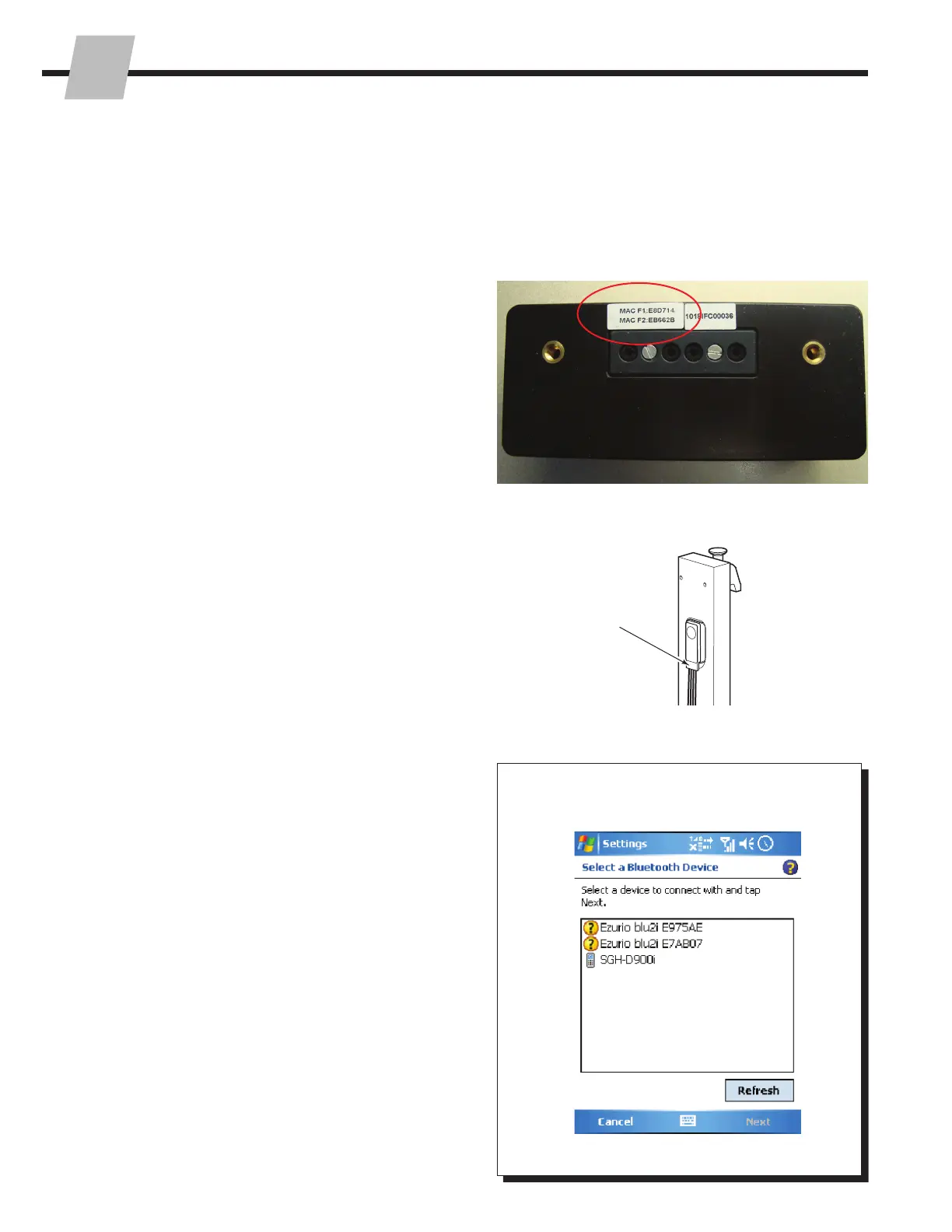
1 Determine the MAC address for each iFork receiver.
• Option 1 – Locate MAC address sticker.
Early Models – If the complete display was not
replaced, look on the back of the display (some
displays).
NOTE: Remove display from mounting bracket to find
the mac addresses.
IMPORTANT: If the MAC address sticker is missing,
contact Cascade.
IMPORTANT: For displays wired directly to the truck
power, disconnect the display from the power source
before opening the display.
Current Models – Remove the shank cover plate on
each iFork. The MAC address for the iFork is located
on the lower front face of the receiver.
IMPORTANT: If the MAC address sticker is missing,
contact Cascade.
IMPORTANT: If iForks are NTEP certified, use Option 2.
• Option 2 – Use any device that has Bluetooth
®
pairing capabilities: PDA, Mobile Telephone, PC,
Terminal, etc.
IMPORTANT: The following procedure can not be
performed with Apple
®
products (iPhones, iPads,
etc).
A Turn on Fork 1.
B In the device's settings, select "Search for devices"
or similar command.
C The device will show all active bluetooth devices
available. The iForks will start with "008098" or
"Ezurio Blu2i". The last 6 characters is the Mac
address and record this.
D Turn off Fork 1 by holding the blue battery button
until the bluetooth receiver illuminates constantly.
Release button.
E Repeat the Steps A thru D for Fork 2.
IMPORTANT: Shut off iFork assemblies when continuing
to Step 2.
Option 1
Option 2
Early Models
Current Models
Receiver MAC
Address Sticker


 To Next Page