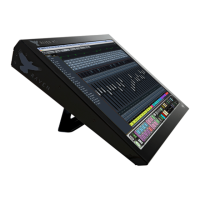
Once the QuickList button has been pressed a menu will appear with multiple
tabs of preset Batch Commands labeled, “General,” “Music,” and “Post.”
Additionally, there is a “User” tab that will allow you to create and save your
own Batch Commands within your RAVEN software.
Use two fingers on the menu to scroll through the lists on the various tabs and
use the LOAD button to place a QuickList item into the command line.
CUSTOMIZING A QUICKLIST BATCH COMMAND:
We have pre-programmed over one hundred preset Batch Commands for you,
however there is a lot of potential for customization. As an example, we have
included a “Pitch Shift +12 Cents” Batch Command, however you want it to
“Pitch Shift +5 Cents.” This is how it’s done.
First, push and hold an empty Batch Command to open the programming menu.
Note: You can overwrite an existing Batch Command by pushing and holding a
button and hitting Clear All. Now you can either program a fresh Batch
Command, or hit CONFIRM to leave it empty.
Now, from the QuickList “Music” tab, scroll down to “OPEN PITCH SHIFT &
MODIFY SETTINGS (AudioSuite).” Hit the select button on the QuickList window
and watch the selection move into your command sequence on the Batch
Command System menu. Next, in the “DELAY” box next to the Action Item


 To Next Page