EC9000i / 9100i / 9600i Series Scanner User Guide Maintaining your scanner
Maintaining your scanner
Removing the covers
RDM EC9000i / 9100i / 9600i scanners have two covers that can be removed in order to clean the image
sensor, replace cartridges, or clear paper jams.
Front cover
Remove the front cover when you need to clear paper jams, replace the franker cartridge, or to clean the
image sensor.
1. Disconnect the power cord from the scanner.
2. Pull the insertion extensions forward.
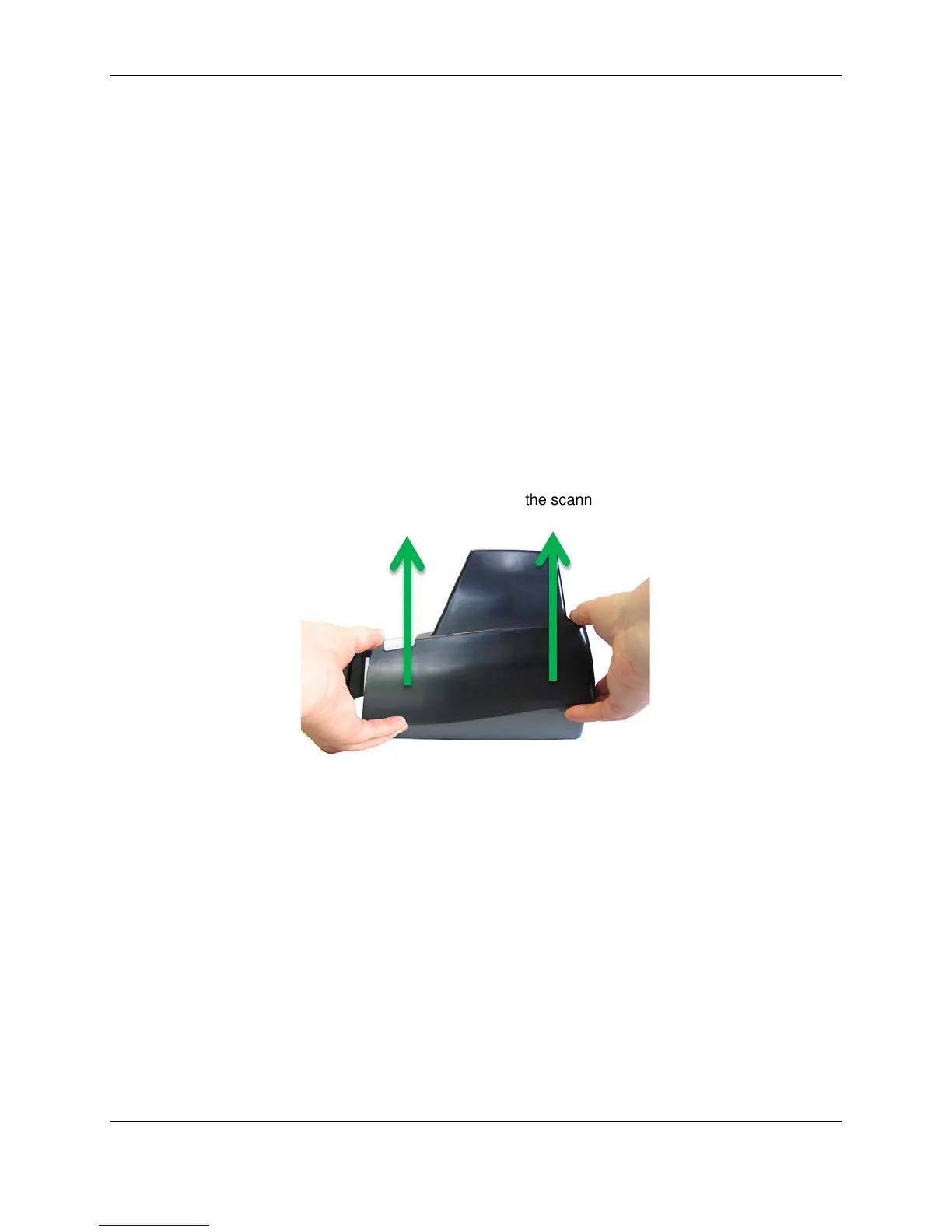
3. Grasp the front and the back end of the front cover.
4. Gently pull the cover upwards until it detaches from the scanner.
To replace the front cover:
Caution: Before you replace the front cover, make sure the insertion extensions are pulled forward.
Otherwise, you might damage the front cover.
1. Carefully place the front cover over the scanner assembly. Make sure that the cover overlaps the
assembly correctly by lining it up with the metal posts.
2. Gently push the cover down until it snaps into place.
Endorsement printer cover
Remove the endorsement printer cover when you need to clear paper jams, to insert or replace the
endorser inkjet printer cartridge, or to clean the image sensor.
1. Grasp the top of the endorsement printer cover.
2. Gently pull the cover upwards until it detaches from the scanner.
©2015 RDM Corporation Page 25


 To Next Page