EC9000i / 9100i / 9600i Series Scanner User Guide Maintaining your scanner
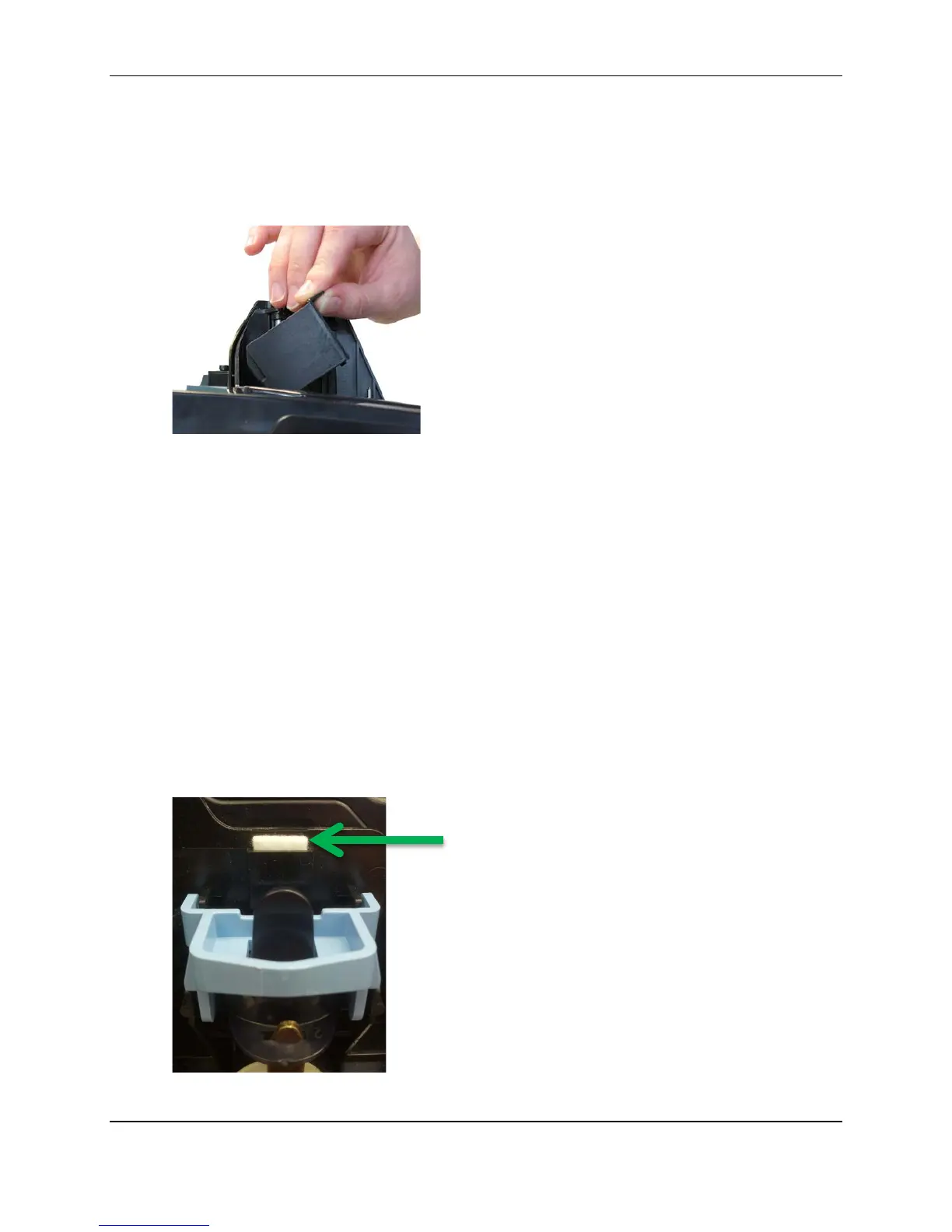
5. To insert the new inkjet cartridge, pull the inkjet latch back and place the inkjet cartridge into the
holder. The cartridge needs to be at an angle so that the back of the cartridge is lower than the
front of the cartridge.
6. Push the cartridge down into the holder until the cartridge snaps into place.
Once installed, the inkjet cartridge sits on a slight angle with the back of the cartridge lower than
the front.
7. Make sure there is no gap between the inkjet cartridge and the endorsement channel.
8. Replace the endorsement printer cover.
Replacing the inkjet blotter
Scanners with endorsement printers include an inkjet blotter that absorbs excess ink from the
endorsement process. Over time, the blotter might stop absorbing ink effectively and so should be
replaced. Scanners with endorsement printers come with five replacement blotters.
To replace the inkjet blotter:
1. Disconnect the power.
2. Remove the front cover of the scanner.
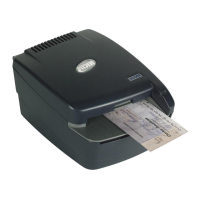
At the back of the scanner, above the franker cartridge, you can see the top of the inkjet blotter,
as shown below:
3. With your finger or tweezers, remove the inkjet blotter from its slot.
©2015 RDM Corporation Page 28


 To Next Page