EC9000i / 9100i / 9600i Series Scanner User Guide Maintaining your scanner
4. Dispose of the used blotter.
5. Insert the replacement inkjet blotter into the slot.
Replacing the paper roll for the printer
If your scanner has a printer, the following steps describe how to replace the paper roll.
1. Press the printer cover release button and completely open the printer cover.
2. Remove the empty paper roll from the paper compartment.
3. Insert the new paper roll into the compartment, with the end of the paper roll rolling from the top.
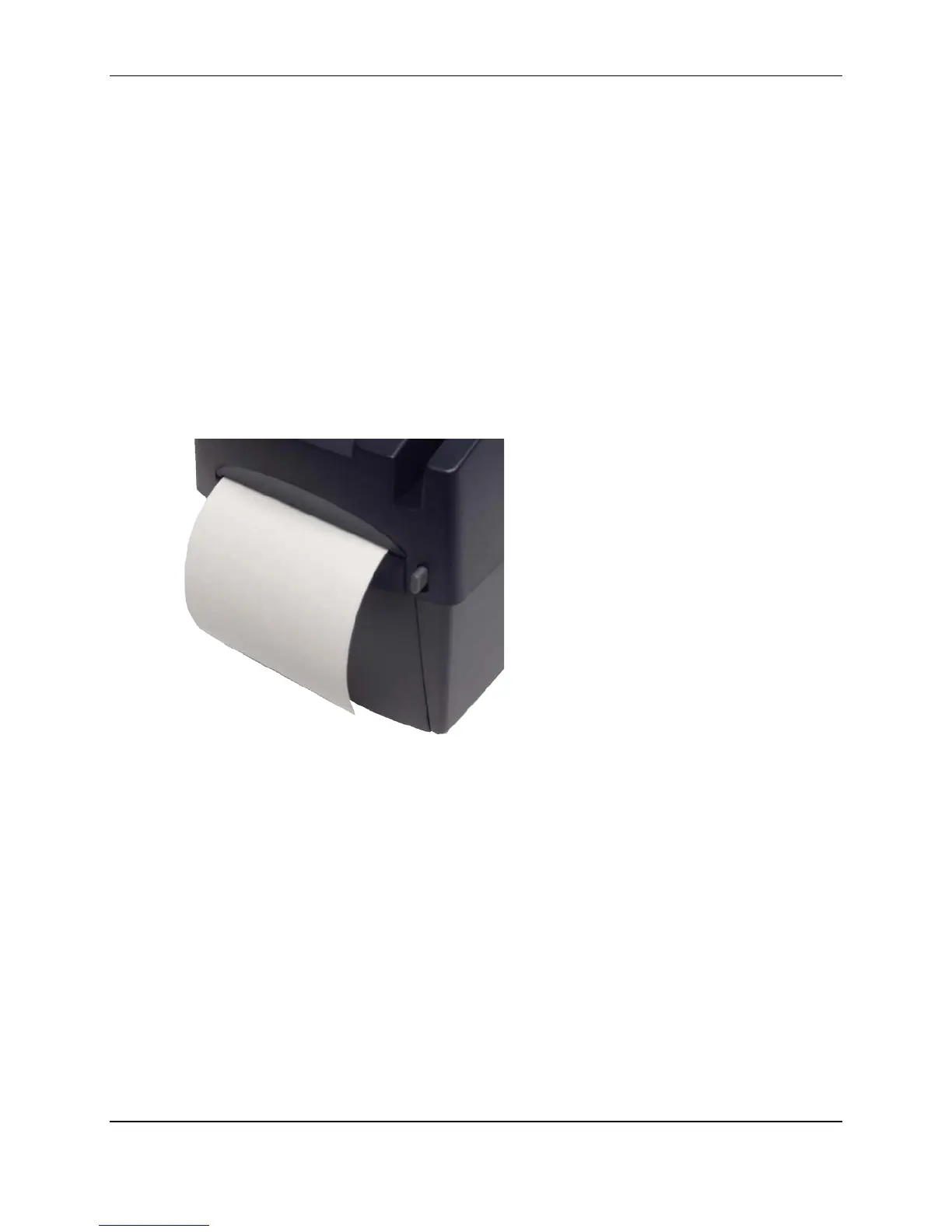
4. Pull the paper out of the compartment and close the printer cover so that the end of the paper
sticks out of the compartment (as pictured). Push the cover closed in the center of the printer
cover.
Make sure the cover is completely closed. If you push the cover from the sides, the cover might
not close completely. When closed correctly, both sides of the printer cover are flush with the
scanner.
5. Rip off any access paper sticking out of the printer cover.
Cleaning the scanner
The EC9000i / 9100i / 9600i series scanners perform best when all working surfaces are clean and free of
foreign material.
Caution:
• Always disconnect the scanner from its power source before cleaning it.
• Solvents or harsh cleaners might damage or discolor the cabinetry.
©2015 RDM Corporation Page 29


 To Next Page