EC9000i / 9100i / 9600i Series Scanner User Guide Operating the scanner
Operating the scanner
Caution: Do not open the cover or try to access the inside of the scanner while it scans a document.
Preparing documents
To reduce the possibility of errors and damage to the unit:
• Remove all folds and creases in the document.
• Remove any paper clips and staples from the document.
• Make sure that documents are not stuck together.
• Make sure that documents are dry.
Feeding documents
The scanner unit is ready to accept documents when the LED is flashing green. Insert the documents
either one at a time (single-feed mode), or in a batch (auto-feed mode).
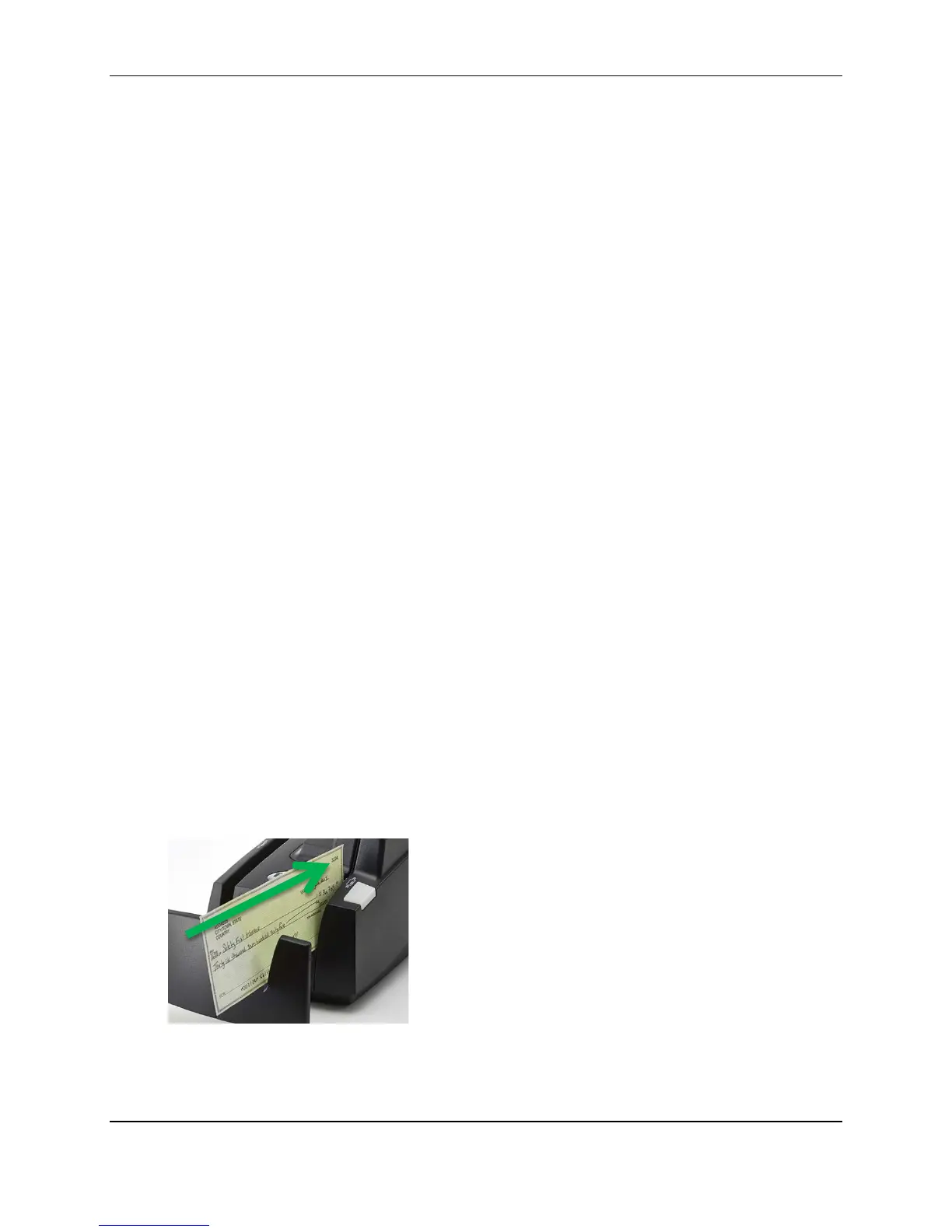
Make sure that you place the documents into the feeder with the MICR line at the bottom and facing
towards the outside of the scanner.
Caution: Adjust the exit extension or the exit pocket tab to fit the documents that you are scanning.
Documents can be damaged or jam in the scanner if the exit extension or pocket tab is not fitted to the
documents.
Single-feed mode
1. Start the scanning process. For example, click Scan on your scanning application.
2. Place a document in the insertion hopper so that the scanner pulls the document into the
scanner. If you are using an EC9111f or EC9112f model, you must push the document into the
scanner manually.
The document is scanned and processed.
3. Repeat steps 1 and 2 until you have scanned all of your documents.
©2015 RDM Corporation Page 21


 To Next Page