Installing the iPad Mount and App Recon Blockage Plus™ Installation Manual
600840-000069, rev 1.0 Page 27 of 35
Installing the iPad Mount
1. Connect the iPad mount (356070-000089) to the tablet mount arm (352004-000003) and
rail attachment (352004-000004) according to the instructions provided with the mount.
Then, mount it to the cab’s mounting bar or other desired installation location.
2. Place the iPad into the iPad mount.
3. Plug the USB charger (254040-000002) into the tractor’s cigarette lighter receptacle.
Use it to keep the iPad charged while using the system.
Downloading the Recon Blockage Plus app
To interface with the system, you need to download the Recon Blockage Plus app from the
Apple App Store and install it onto your iPad.
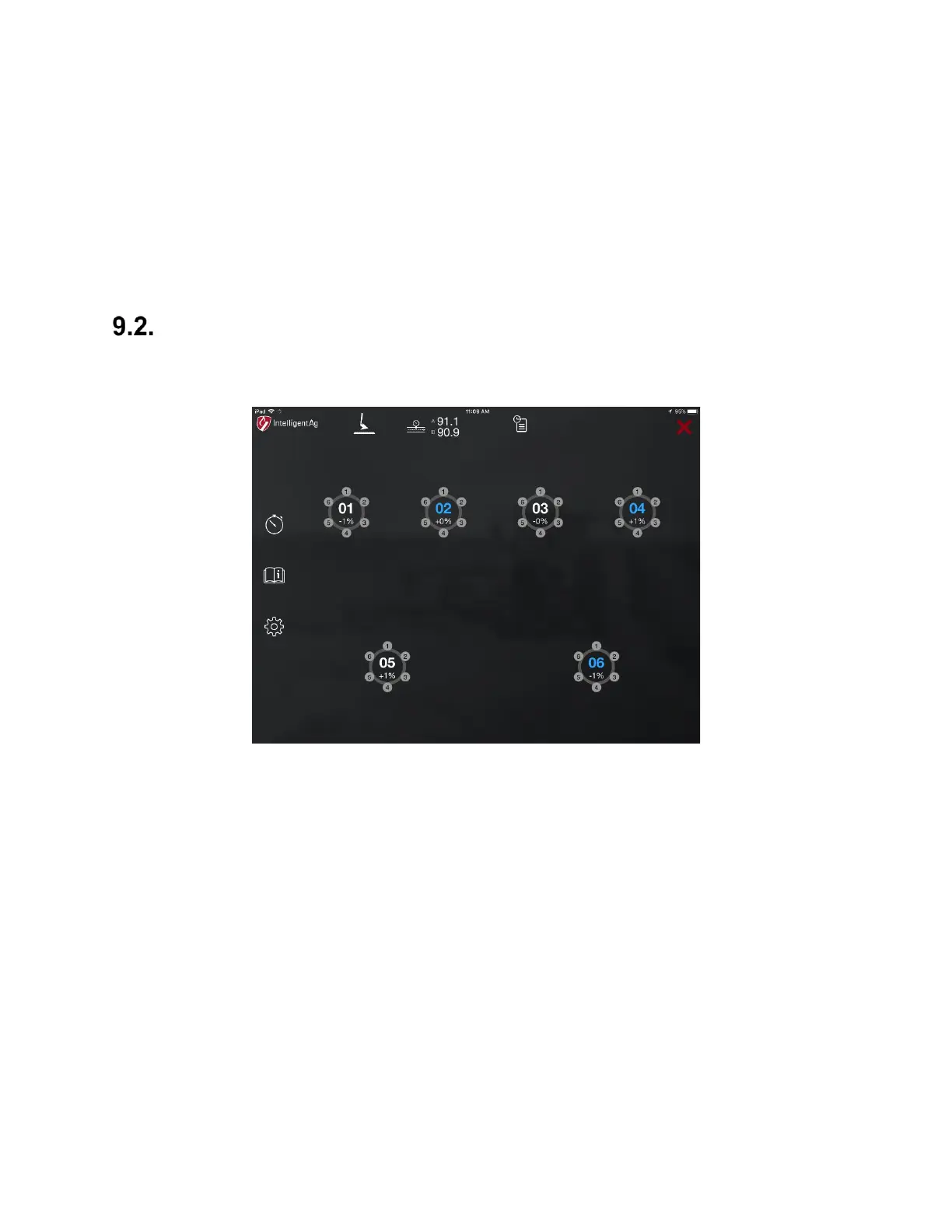
Figure 24: Recon Blockage Plus app
1. Connect the iPad to the internet.
2. Tap the App Store icon from the iPad’s home screen.
3. Tap Search in the bottom right corner of the App Store screen.
4. Type Intelligent Ag in the search field, then tap Search.
5. Tap the Recon Blockage Monitor app when it appears in your search results.
6. Tap the Get button, and then tap Install. Enter your Apple ID and password, if
prompted. A progress bar will appear over the app’s icon while it is downloading.
IMPORTANT: When you open the app for the first time, you will be prompted to enable location
services. Select Only While Using the App or Always Allow. If you select Don't Allow, this
will prevent the iPad from connecting to the “IASBlockage” network.


 To Next Page