15
16
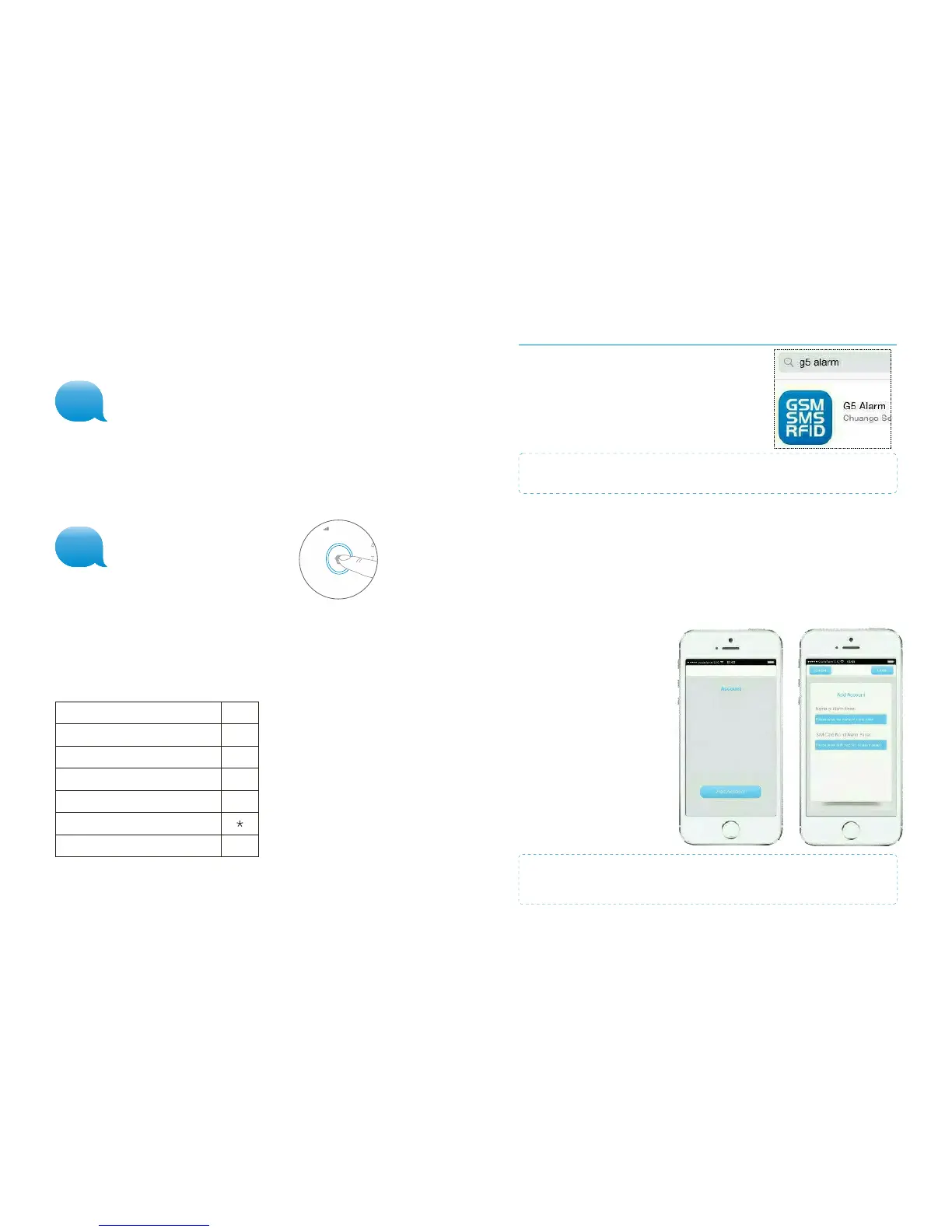
Apple and Android App
The G5 alarm system can also be operated with an
App. You can download the App by searching for the
keywords ‘G5 Alarm’ in the App Store or Google Play.
Download and install the App on your smartphone.
Adding an account
The alarm system can be operated with the G5 Alarm App. When using the iOS App the
SMS text message will be set up automatically for every function. Press the ‘send’ button
to send the text message. When using the Android App the text message will be sent in
the background without the need for additional confirmation.
Launch the App on your phone and
select ‘Add account’.
Enter a name for the G5 alarm (e.g.
Home Alarm) and enter the mobile
number of the SIM card installed in
the Control Panel, press ‘Done’.
Once the account is added it will
appear on the home screen of the
App.
IMPORTANT: Starting the SIM card telephone number with the area code of your
country (e.g. 0044 for the UK) will allow you to operate the alarm system abroad.
3
Two-way talk
Text ‘3’ to the telephone number of the SIM card in the Control Panel. You will be called
back by the system and will be able to listen and speak to the person there.
Leaving a message by phone call
Text ‘4’ to the telephone number of the SIM card in the Control Panel. You will be called
back by the system. Answer the phone and leave a 10 second message. The message
can be played back from the Control Panel by pressing the blue circle.
Phone operation when receiving Emergency Call
When the alarm system is triggered the Control Panel will call the set telephone
numbers. The following commands can be used to command/operate the alarm
system:
SMS command
Disarm
Arm
Turn off siren
Turn on siren
Two-way talk
Replay alarm voice message
Input
0
1
6
9
#
IMPORTANT: The Android and iOS App both make use of SMS Text messages
(not the internet) to send commands to and from the Control Panel.
4


 To Next Page