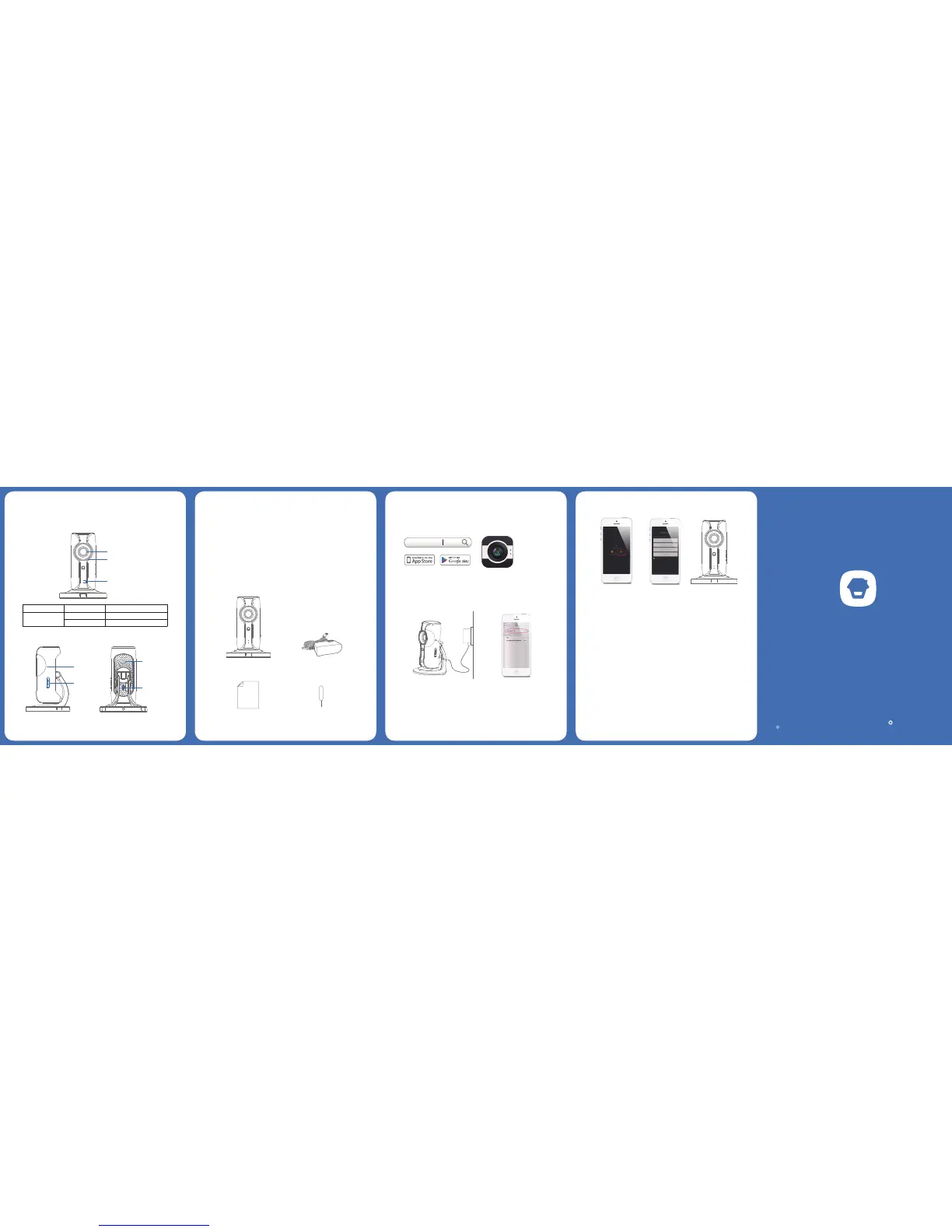
LED Indicators
Camera
Microphone
Red indicator Blinking Enter WiFi pairing state
Blue indicator
Blinking Searching network
On Network connected
•
Side View
•
Back View
DC5V
Mi
c
ro
S
D
Reset Button
microSD Card
Slot
Heat Ven
t
Power Jac
k
microSD Card (Not included)
Support 32GB microSD card maximum; please do not insert the
card after the camera is powered on.
This camera automatically records and saves video once every 20
minutes; the video recorded at the earliest will be replaced with the
latest ones if the microSD card is full.
Note: Please format your microSD card before inserting into this slot if any
le had been written in.
Check What You Have
WiFi Camera×1 AC Adapter×1
Quick Guide×1 Reset Pin×1
Download the App
Download the App by searching “IP116 camera” from Apple Store
or Google Play.
IP116 Camera
WiFi Pairing
1. Preparation
• Hold the reset button by using
the supplied reset pin until the
camera beeps once, and then
the red indicator starts to blink
• Find and choose the
WiFi named “HD
WiFi Cam” from your
phone’s WiFi list
2. Pairing Camera with WiFi through App
• Launch the App,
tap [+] to add a
new camera
• Name your
camera, enter
the password
(default: 888888)
and input your
home WiFi name
& password
• When the blue
indicator is on,
it means the
camera has
connected with
WiFi
The paired camera will be displayed in the video list.
Note: For safety, it is recommended to change the password of your camera
on the setting menu after pairing.
Printed in China
PA: IP116-UM-EN-V1.0
2015 Chuango. All Rights Reserved.


 To Next Page