M
Michelle PrattSep 22, 2025
How to fix scanned image that is too dark or too light on Ricoh All in One Printer?
- BBrandy HickmanSep 22, 2025
Adjust the image density on Ricoh All in One Printer.


 To Next PageTo Next Page
How to fix scanned image that is too dark or too light on Ricoh All in One Printer?
Adjust the image density on Ricoh All in One Printer.
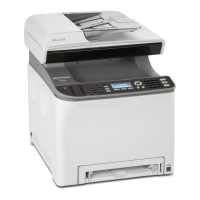
How to fix a moire pattern on Ricoh Aficio SP C240SF?
If a moire pattern is produced by Ricoh All in One Printer, the original probably has heavily lined or dotted areas. Switching the setting for image quality between [Photo] and [Mixed] may eliminate the moire pattern.
Why is the photocopied paper dirty on Ricoh All in One Printer?
If photocopied paper is dirty when using Ricoh All in One Printer, adjust the image density as it may be too high. Avoid touching printed surfaces immediately after copying. Remove freshly printed sheets one by one, taking care not to touch printed areas. Clean the exposure glass or ADF. Before placing originals on the exposure glass, make sure that toner or correction fluid is dry.
How to align copies with the original on Ricoh Aficio SP C240SF?
When copying from the exposure glass with Ricoh All in One Printer, if the print area of the copy is out of alignment with the original, place the original copy side down, making sure that it is aligned to the rear left corner and pressed flat against the exposure glass.
Why is the scanned image dirty on Ricoh Aficio SP C240SF All in One Printer?
If the scanned image from Ricoh All in One Printer is dirty, clean the exposure glass or ADF. Before placing originals on the exposure glass, make sure that toner or correction fluid is dry.
How to prevent printed envelopes from creasing on Ricoh All in One Printer?
When printing envelopes with the Ricoh All in One Printer, if they come out creased, check the fusing unit levers and lower them.
Why Scan to E-mail, Scan to FTP, or Scan to Folder function does not work on Ricoh All in One Printer?
Check if a USB flash disk is inserted into the Ricoh All in One Printer. If a USB flash disk is inserted, scanning functions other than Scan to USB are not possible from the control panel.
How to fix Ricoh All in One Printer that does not turn on?
Ensure the power plug is firmly inserted into the wall outlet and that the outlet is functional by testing it with another device.
What to do if pages are not printed on Ricoh Aficio SP C240SF All in One Printer?
Wait until 'Printing...' appears on the screen. If 'Processing...' is displayed on the screen, the Ricoh All in One Printer is receiving data.
Why pages are not printed on Ricoh Aficio SP C240SF?
Reconnect the cable to Ricoh All in One Printer. Check that the interface cable is the correct type.
 General
| Duplex printing | Yes |
|---|---|
| Print technology | Laser |
| Maximum resolution | 2400 x 600 DPI |
| Time to first page (black, normal) | 14 s |
| Print speed (black, normal quality, A4/US Letter) | 16 ppm |
| Copier resize | 25 - 400 % |
| Maximum copy resolution | 600 x 600 DPI |
| Maximum number of copies | 99 copies |
| Copy speed (black, normal quality, A4) | 16 cpm |
| Scan to | E-mail, File |
| Scan drivers | TWAIN, WIA |
| Scanner type | ADF scanner |
| Maximum scan area | 216 x 356 mm |
| Image formats supported | JPG, TIF |
| Document formats supported | |
| Optical scanning resolution | 1200 x 1200 DPI |
| Faxing | - |
| Fax memory | 100 pages |
| Modem speed | 33.6 Kbit/s |
| Fax coding methods | JBIG, MH, MMR (Fax coding method), MR |
| Fax resolution (black) | 200 x 200 DPI |
| Printing colors | Black, Cyan, Magenta, Yellow |
| Maximum duty cycle | - pages per month |
| Number of print cartridges | 4 |
| Page description languages | GDI |
| Paper input type | Paper tray |
| Total input capacity | 250 sheets |
| Total output capacity | 150 sheets |
| Maximum input capacity | 751 sheets |
| Multi-Purpose tray input capacity | 1 sheets |
| Auto document feeder (ADF) input capacity | 35 sheets |
| Maximum print size | 210 x 297 mm |
| Paper tray media types | Plain paper |
| ISO A-series sizes (A0...A9) | A4, A5, A6 |
| Maximum ISO A-series paper size | A4 |
| Multi-Purpose Tray media weight | 60 - 160 g/m² |
| Product color | Grey, White |
| Market positioning | Business |
| Wi-Fi | No |
| Standard interfaces | Ethernet, USB 1.1, USB 2.0 |
| USB 2.0 ports quantity | 1 |
| AC input voltage | 220 - 240 V |
| AC input frequency | 50 - 60 Hz |
| Power consumption (PowerSave) | 10 W |
| Power consumption (average operating) | - W |
| Mac operating systems supported | Mac OS X 10.3 Panther, Mac OS X 10.4 Tiger, Mac OS X 10.5 Leopard, Mac OS X 10.6 Snow Leopard |
| Server operating systems supported | Windows Server 2003, Windows Server 2003 R2, Windows Server 2003 x64, Windows Server 2008, Windows Server 2008 R2, Windows Server 2008 x64 |
| Windows operating systems supported | Windows 7 Home Basic, Windows 7 Home Basic x64, Windows 7 Home Premium, Windows 7 Home Premium x64, Windows 7 Professional, Windows 7 Professional x64, Windows 7 Starter, Windows 7 Starter x64, Windows 7 Ultimate, Windows 7 Ultimate x64, Windows Vista Business, Windows Vista Business x64, Windows Vista Enterprise, Windows Vista Enterprise x64, Windows Vista Home Basic, Windows Vista Home Basic x64, Windows Vista Home Premium, Windows Vista Home Premium x64, Windows Vista Ultimate, Windows Vista Ultimate x64, Windows XP Home, Windows XP Professional x64 |
| Bundled software | PageManager, PC Fax Utility |
| Sustainability certificates | ENERGY STAR |
 Weight and Dimensions
| Depth | 493 mm |
|---|---|
| Width | 420 mm |
| Height | 476 mm |
Covers procedures for installing the machine and preparing it for use.
Guides on configuring printer driver settings for machine options and paper.
Outlines the basic procedure for performing printing operations.
Explains how to password-protect print jobs using the Locked Print function.
Guides on storing a Locked Print file using the printer driver.
Explains how to unlock and print a stored Locked Print file.
Outlines the basic procedure for making photocopies.
Explains how to specify reduction or enlargement ratios for current jobs.
Guides on setting the machine to combine multiple pages onto a single sheet.
Details copying front/back sides of small documents onto one sheet.
Explains how to set the machine for 2-sided copying.
Guides on registering scan destinations in the Address Book using Web Image Monitor.
Details scanning via control panel to e-mail, FTP, folder, or USB.
Describes scanning from a computer using TWAIN or WIA.
Explains how to register fax destinations in the Address Book.
Covers transmission modes and basic operations for sending faxes.
Describes using the fax function from a computer.
Covers fax reception functions and modes.
Outlines basic procedures for specifying and changing machine settings.
Describes how to configure the copy settings.
Describes network settings like Ethernet, IPv4, and IPv6.
Covers settings managed by the administrator.
Explains how to set user codes to restrict access to certain machine functions.
Describes network settings including Ethernet, IPv4, and IPv6 configurations.
Addresses issues where paper does not feed smoothly or jams occur.
Guides on locating and removing jammed paper from various machine parts.
Discusses causes and solutions for print quality issues.
Covers common printing problems and their solutions.
Addresses issues related to photocopying functionality.
Covers scanner-related issues and solutions.
Covers fax-related problems and their solutions.
Explains the meaning of on-screen messages and corresponding actions.