Catalog Explorer User Manual
______________________________________________________________________________
________________________________________________________________________________
Page 12 of 36
Visit our knowledgebase at: http://www.ricoh-usa.com/support/knowledgebase.asp
Copyright 2008 Ricoh Americas Corporation
5. Pull-down Menus
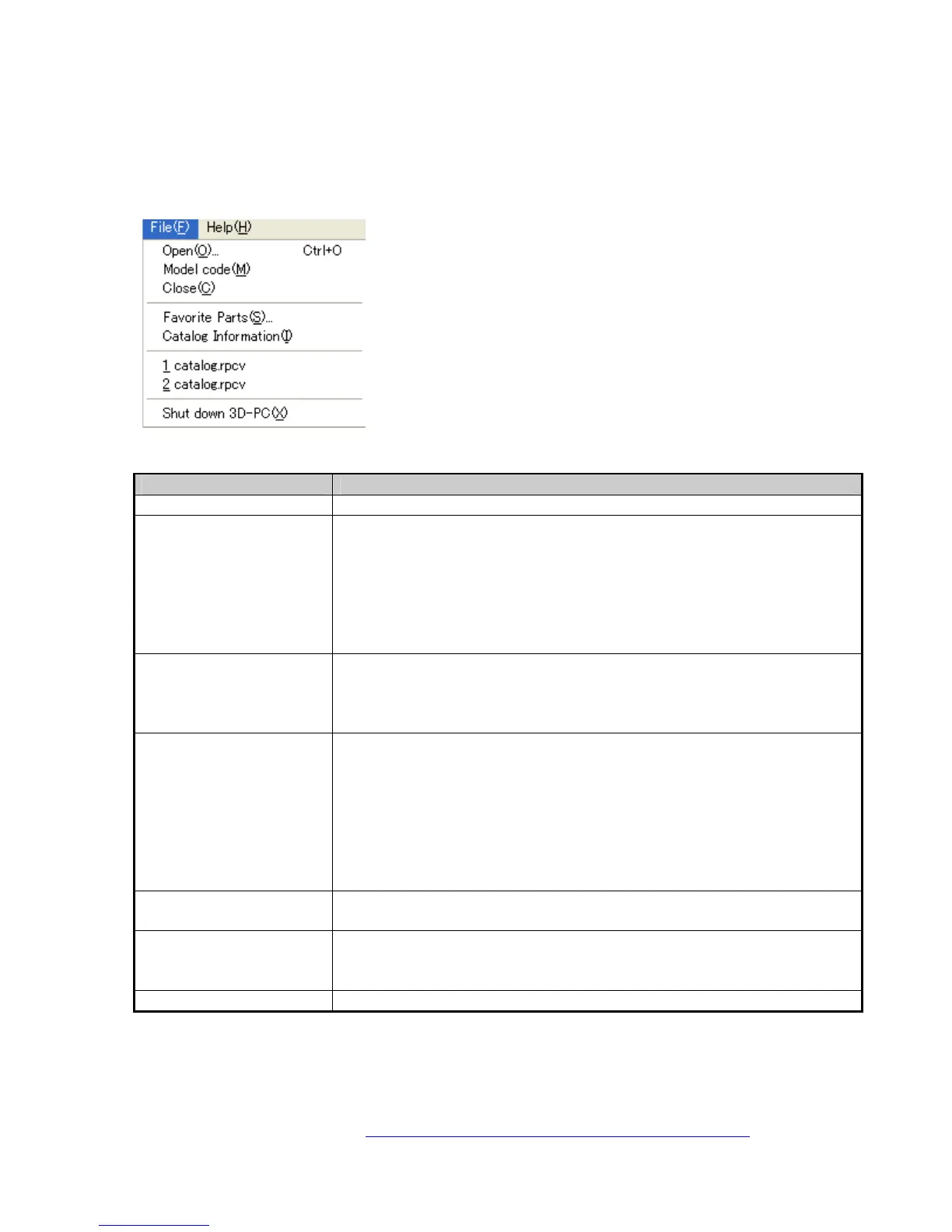
5.1 File Menu
Menu Selection Operation
Open Open a Parts Catalog (.rpcv) file.
Model Code Select a specific model code from the list.
This selection is made just after selecting an *.rpcv file from
“Open”, in order to specify the specific destination (e.g. EU model
versus NA model). It can also be made while an *.rpcv file is
already open, in order to switch over to the catalog data for another
destination.
Close Close a Parts Catalog file.
Note: When you go to close the file, a confirmation dialog is
displayed alerting the user that the Favorite Parts data will be
cleared when the file is closed.
Favorite Parts Displays the Favorite Parts list.
Note:
This list consists of parts that were added from the individual parts
list (thumbnail display).
The part name and part number for parts saved to this list can be
copied as a text string to the Windows clipboard. To do this, click on
the [Copy to clipboard] button in the Favorite Parts screen.
Catalog Information Display the model name, version and creation date of the catalog
data currently open.
(File names) Filenames of recently opened Parts Catalog files, if any, are
displayed in the middle of the pull-down menu. These files can be
opened simply by clicking on the filename.
Shut down 3D-PC Closes the Catalog Explorer.



 To Next Page