Catalog Explorer User Manual
______________________________________________________________________________
________________________________________________________________________________
Page 23 of 36
Visit our knowledgebase at: http://www.ricoh-usa.com/support/knowledgebase.asp
Copyright 2008 Ricoh Americas Corporation
9.2.3 Deleted Parts
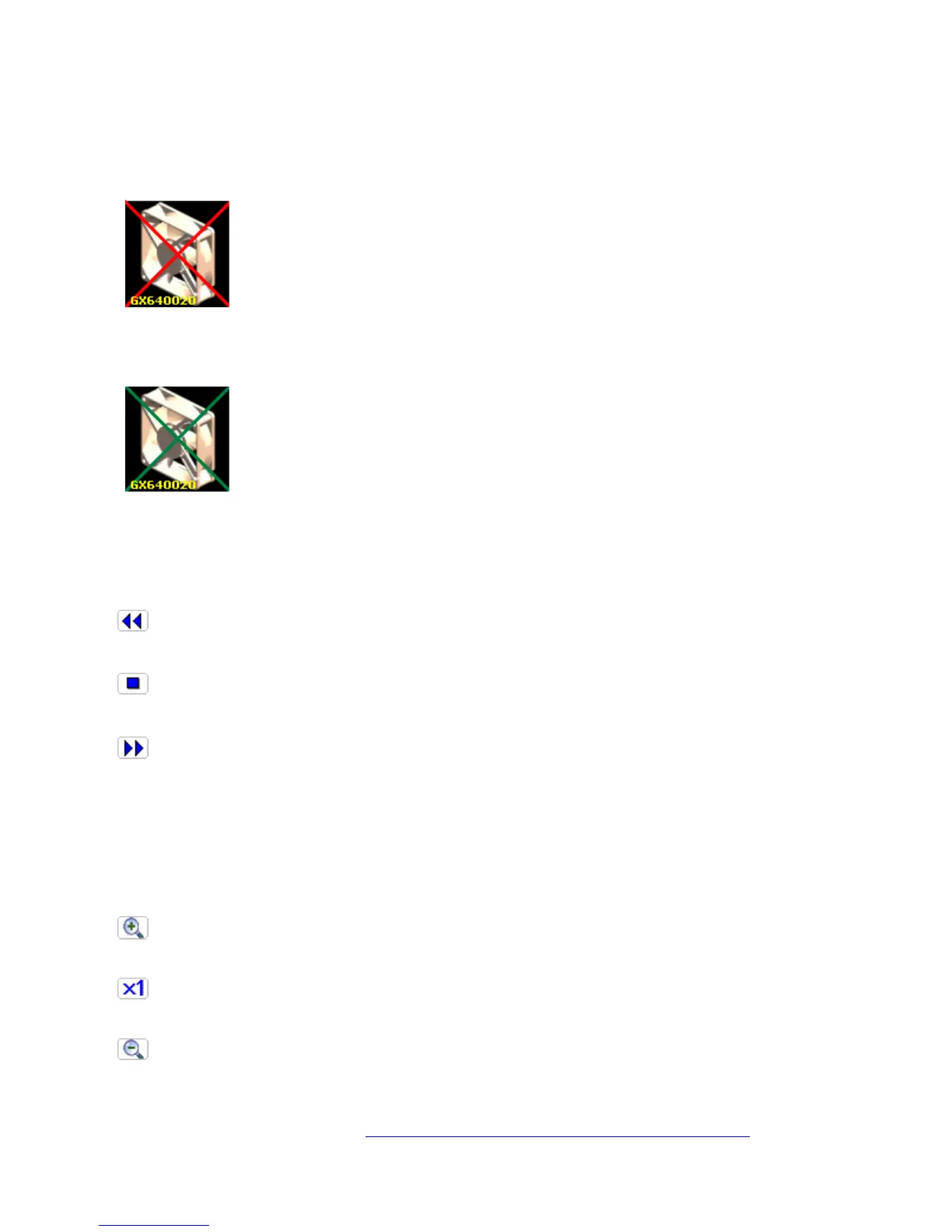
For parts that have already been deleted from service parts as of the issuing of the catalog
data, and were not substituted with another part, a large, red “X” appears over the
thumbnail image.
For parts that have already been deleted but were substituted with a new part, a large,
green “X” appears over the thumbnail image.
9.3 Rotating the Main Image
Rotate the main image clockwise or counter clockwise.
[Counter clockwise]
Rotate the main image 90 degrees counter-clockwise with each click.
[Standard view]
Return the main image to the standard (default) viewing position
[Clockwise]
Rotate the main image 90 degrees clockwise with each click.
9.4 Enlarging or Reducing the Main Image
9.4.1 Enlarge/Reduce
Adjust the display size of the main image.
Enlarge the main image (maximum 3 steps)
Displays the main image at default size
Reduce the main image back to default size (maximum 3 steps)



 To Next Page