Catalog Explorer User Manual
______________________________________________________________________________
________________________________________________________________________________
Page 9 of 36
Visit our knowledgebase at: http://www.ricoh-usa.com/support/knowledgebase.asp
Copyright 2008 Ricoh Americas Corporation
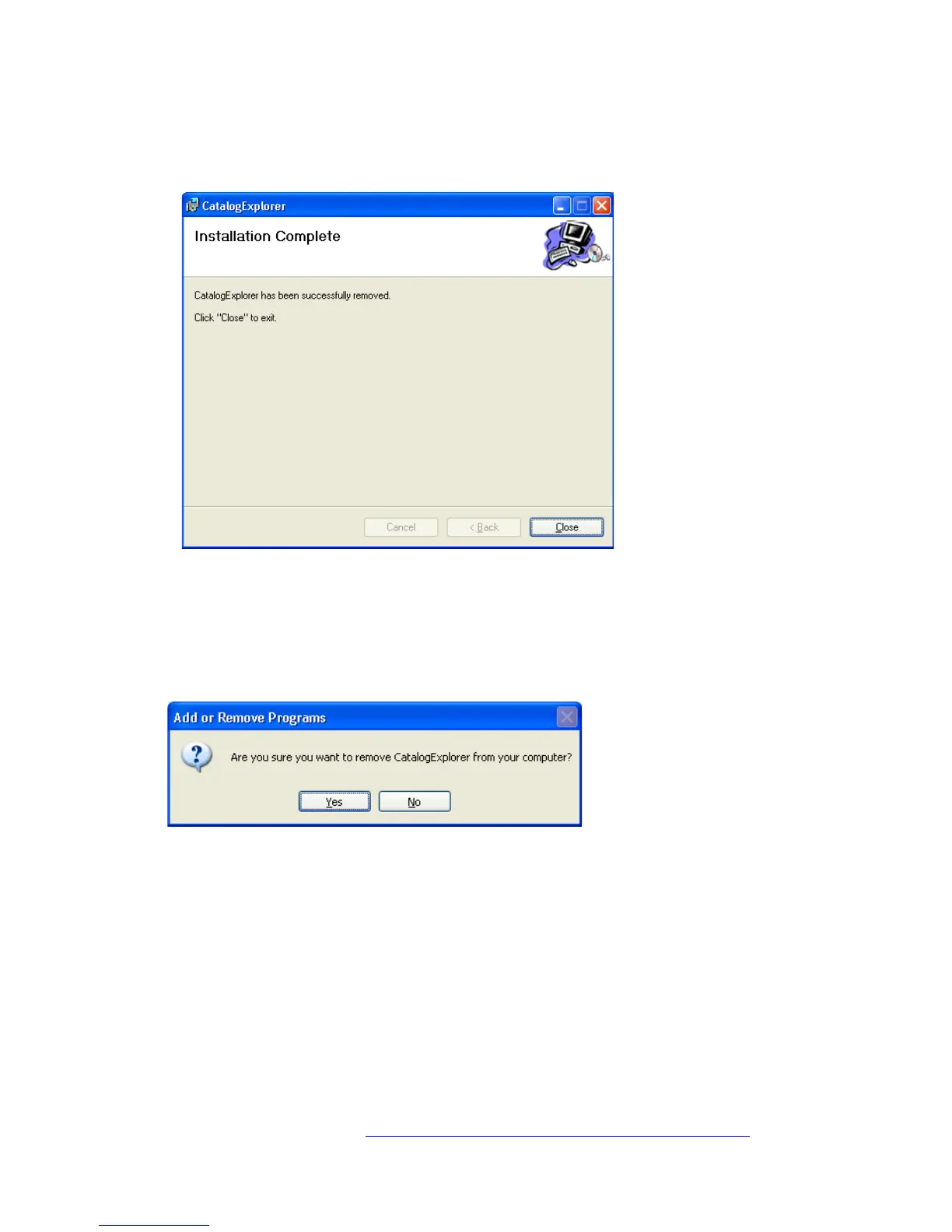
When the removal is completed, the following window will be displayed. Click “Close” to
close the Catalog Explorer Setup Wizard.
3.2.2 From the Windows Control Panel
Open up the Windows Control Panel, select “Add or Remove an Application”.
Select “Change or Remove”. From the list of installed programs, select “CatalogExplorer”
and then click “Remove”.
When the following dialog is displayed, click “Yes” to complete the removal of the
application.
3.3 Updating the Catalog Explorer to a Newer Version
Uninstall the current version of the Catalog Explorer using one of the two methods
described in section 3.2 above.
Install the new version of the Catalog Explorer using the method described in section 3.1
above.



 To Next Page