Catalog Explorer User Manual
______________________________________________________________________________
________________________________________________________________________________
Page 27 of 36
Visit our knowledgebase at: http://www.ricoh-usa.com/support/knowledgebase.asp
Copyright 2008 Ricoh Americas Corporation
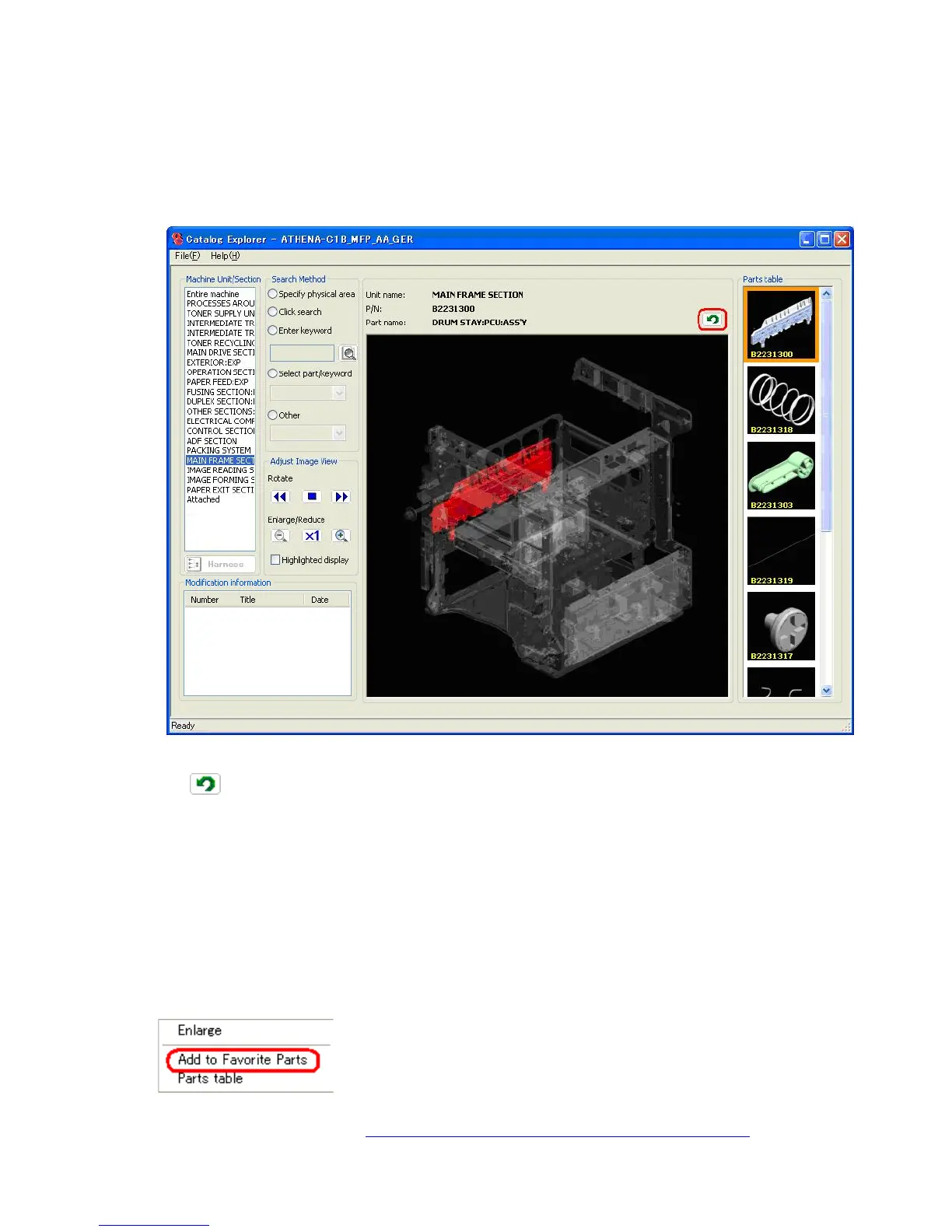
To view the details of any of the parts in the table, click on the part and press “Details” or
simply double-click on the part number or part name.
Note: When this is done, an image of the selected part will be displayed in the main image
area.
Note: To return to the image that was displayed before the above operation was performed,
click the
icon, which is located near the upper right-hand corner of the main image
area.
9.7 The “Favorite Parts” List
9.7.1 Adding a Part to the Favorite Parts List
Right-click on a part listed in the parts table.
Select “Add to Favorite Parts”.
Note: After this operation is performed, a checkmark will appear next to “Add to Favorite
Parts” in the menu displayed when right-clicking on this part.
To view the list, select “Favorite Parts” from the File menu.



 To Next Page