20
Exposure- the menu item allows you to choose a level (Low, Medium, High) of light intensity in the position circle
on the screen to see hidden objects from reason of high light intensity in the position circle on the screen. The
item Auto switches the function o.
DayNight mode- the menu item allows you to choose desired colour mode of the camera:
Auto - Normally, video output is set to Color but to B&W under low luminance.
Color - The video output is always in color.
B&W - The video output is always in black and white.
Reconnect- the item disconnects and again connects active camera to the RoboSpot. Use the item in case that
behaviour of the camera is not correct (e.g. long response time).
Factory Reset- use this item to set a camera to the current setting.
All items stated above relate to the selected camera in the menu bar.
Every camera holds information about position of the position circle, its size and picture rotation.
User menu
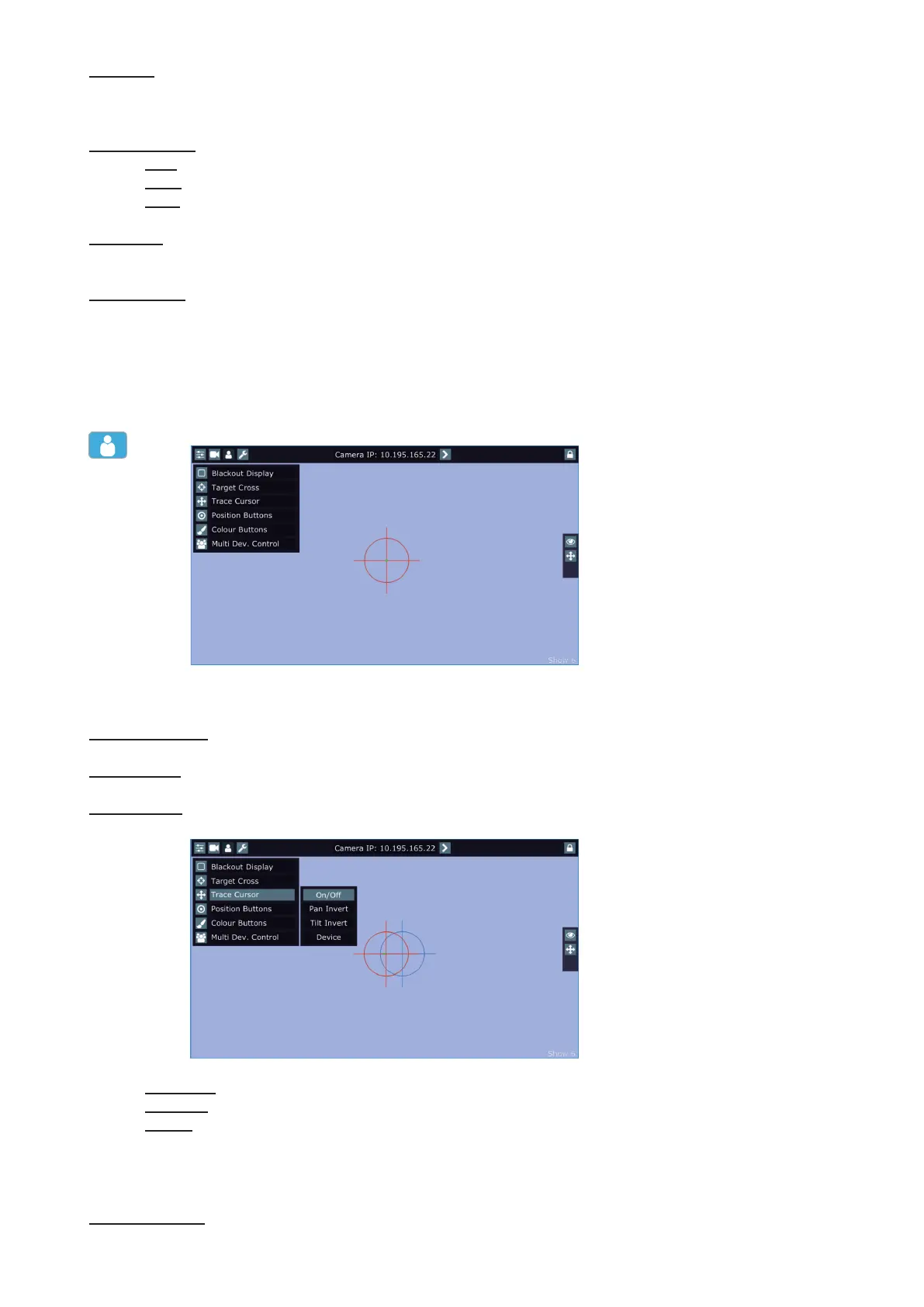
Blackout Display - use the item to darken the screen. To active the screen, touch it.
Target Cross - use the item to switch on/o the red position circle.
Trace Cursor - if the function is on, a blue circle will appear during (behind a red position circle) which gives a
target position of the position circle (beam image) during its movement.
Pan Invert - the item inverts a pan movement
Tilt Invert - the item inverts a tilt movement
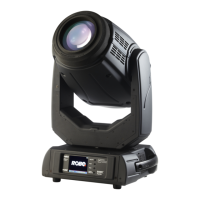
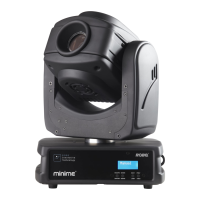
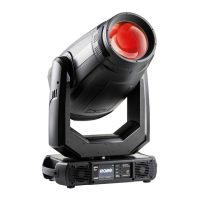
Device - the menu allows you to select a device with camera. Correct device has to be chosen
if the "Trace Cursor" function is to work correctly.
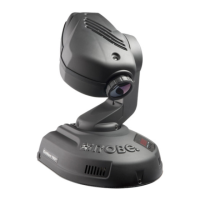
MotionCamera - select the item if you use the RoboSpot Motion Camera.
BMFL Follow Spot - select the item if you use the Robin BMFL FollowSpot with camera.
Position Buttons - if the function is on, the "+" button will appear at the bottom of the screen. Move the position



 To Next Page