18
Allowing a device to connect to Windows Media Player 12
7
Set up UPnP access on a Windows PC - cont.
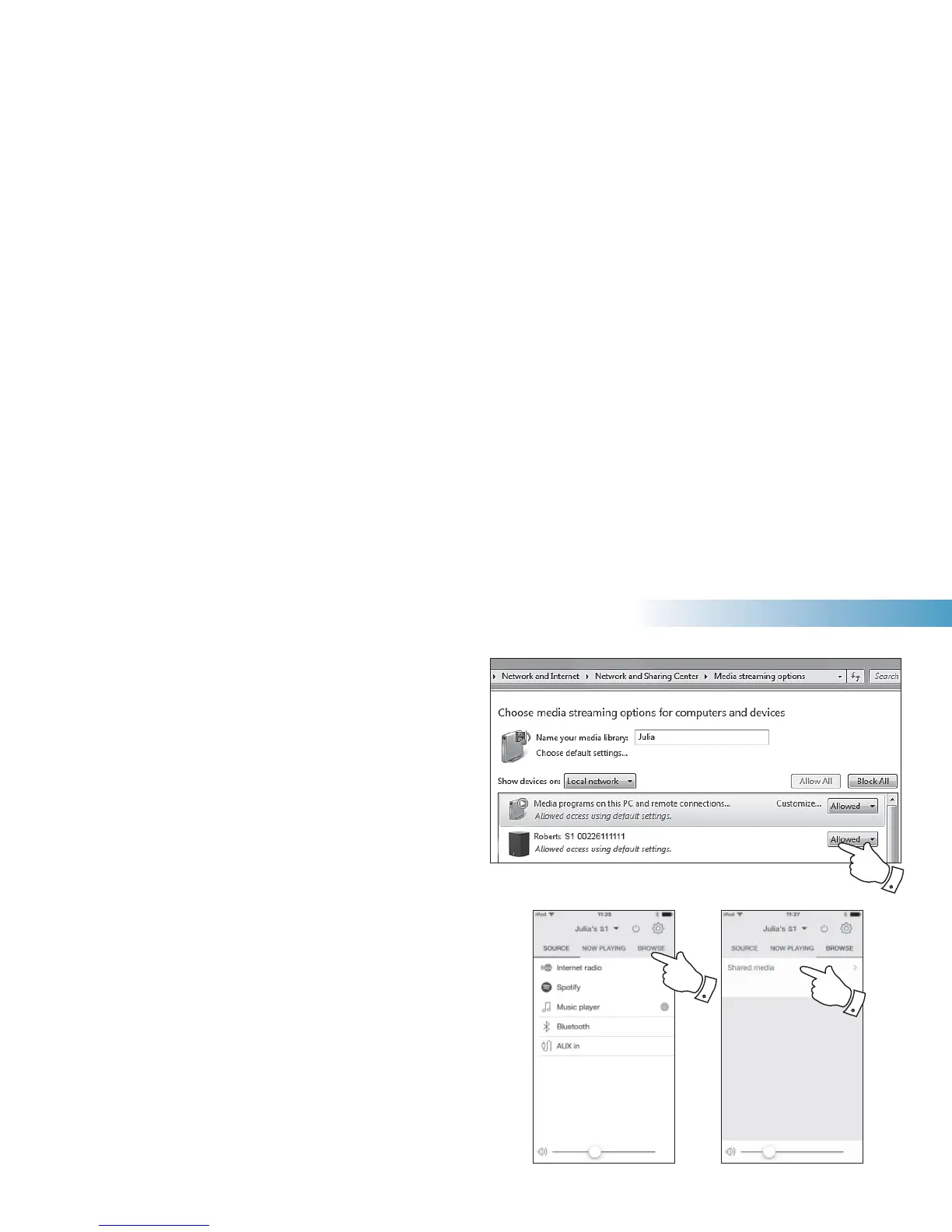
4. Select 'Browse' in the UNDOK app and select 'Shared media'. The
speaker will scan for all available UPnP servers. It may take a few
seconds for the speaker to complete its scan.
5. After scanning, select your UPnP server. If you allowed automatic
connection previously, your speaker should now connect and you
may skip to the next page.
6. Your PC may prompt you that there has been a connection to your
UPnP server. Whether prompted or not, in order that the speaker
may access the music fi les, you will need to click the 'Library' tab in
WMP 12 and select the 'Stream…' item to open the 'Media Streaming'
window. Select 'Automatically allow devices to play my media' then
select 'Automatically allow all computer and media devices'.
Alternatively select 'More Streaming options' to enable sharing on a
'per device' basis.
7. In the 'More streaming options' window, the speaker may be listed as
a blocked device. Click on the button shown to select 'Allowed'.
Note: If you are using Microsoft's Windows' fi rewall software, this
should be correctly confi gured by WMP 12. If you are using third party
fi rewall software you may need to manually confi gure it to allow your
unit and WMP 12 to communicate (see the 'Troubleshooting' section
on page 42).
8. Select the named server again. If WMP 12 is now able to communicate
with your speaker you will be presented with some media selection
options on the display.
Music Player
4
4


 To Next Page