17
2
Enabling Media Streaming in Windows Media Player 12
3
Accessing your audio fi les via a UPnP server
If your device or PC is running Windows 7, 8, 8.1 or 10, then Windows
Media Player includes a UPnP server which will make your fi les available
to your speaker. There are other UPnP server solutions available for non-
Windows users and for Windows users who may wish to use an alternative
(see the preceding page).
It is beyond the scope of this instruction book to cover all possible options
for UPnP. We explain the use of Microsoft's Windows Media Player here
since that will be the fi rst choice for the majority of users.
Set up UPnP access with Windows Media Player
1. At the time of writing, Windows 7, 8, 8.1 and 10 all use Windows Media
Player version 12 (referred to here as WMP 12), and the confi guration
is similar in each case. WMP 12 can create a library from all the media
fi les available to it on your device or PC. To add new media fi les to the
library, select 'Library', then 'Music', then 'All music' or 'Artist', 'Album'
etc. This will show you the current library contents. You may then simply
drag and drop fi les from other locations into the library. Alternatively,
with media fi les or folders on the screen, you may right-click on the
fi le or folder and select 'Include in library' and then select 'Music'. In
this way you can quickly add additional content to your music library.
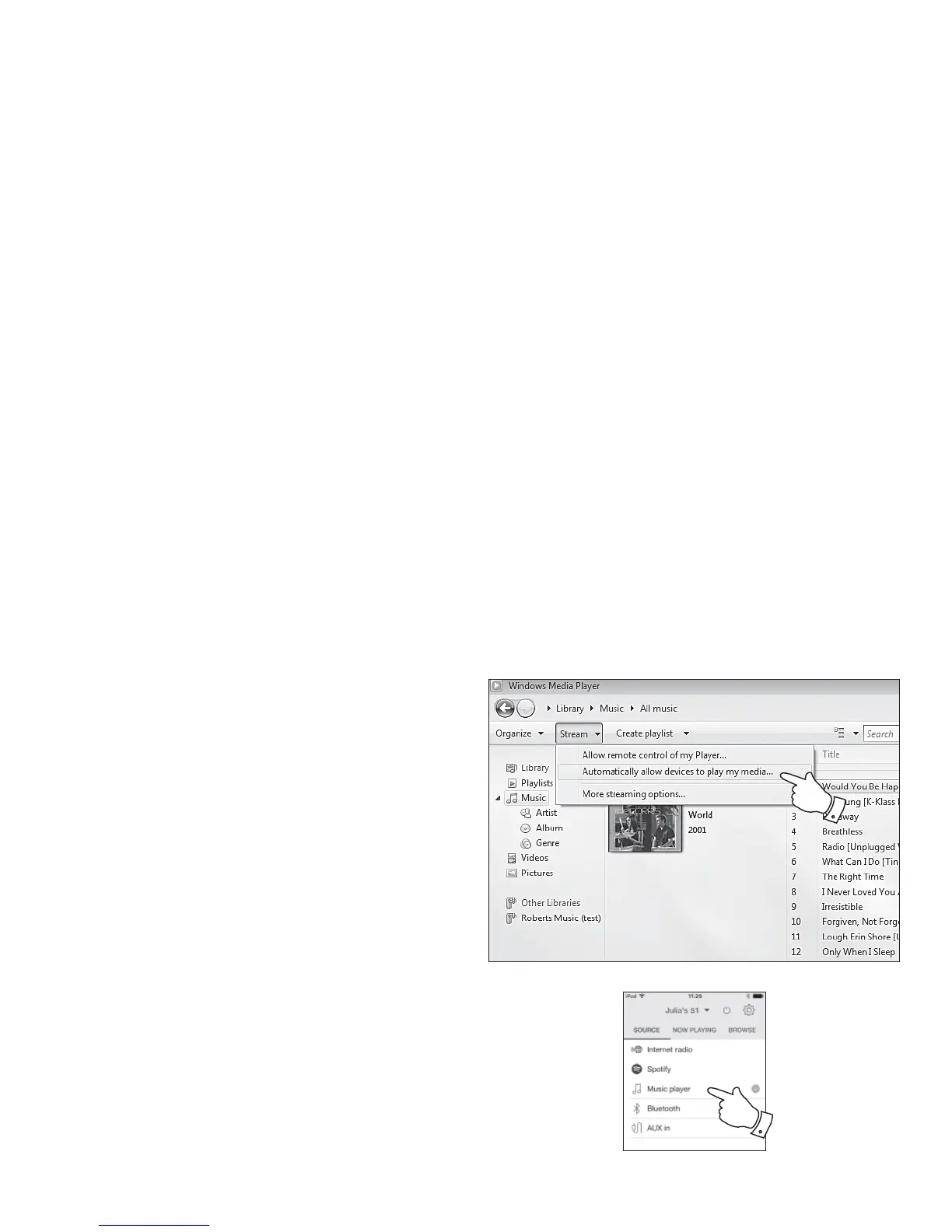
2. In WMP 12, click on 'Stream' (see picture at right) and then select
'Automatically allow devices to play my media'. Then accept the
'Automatically allow all computer and media devices' option. There
are other options (see overleaf) but this is the simplest if you just wish
to quickly enable media streaming to your speaker.
3. Ensure your speaker is switched on and select Music Player as the
music source.


 To Next Page