21
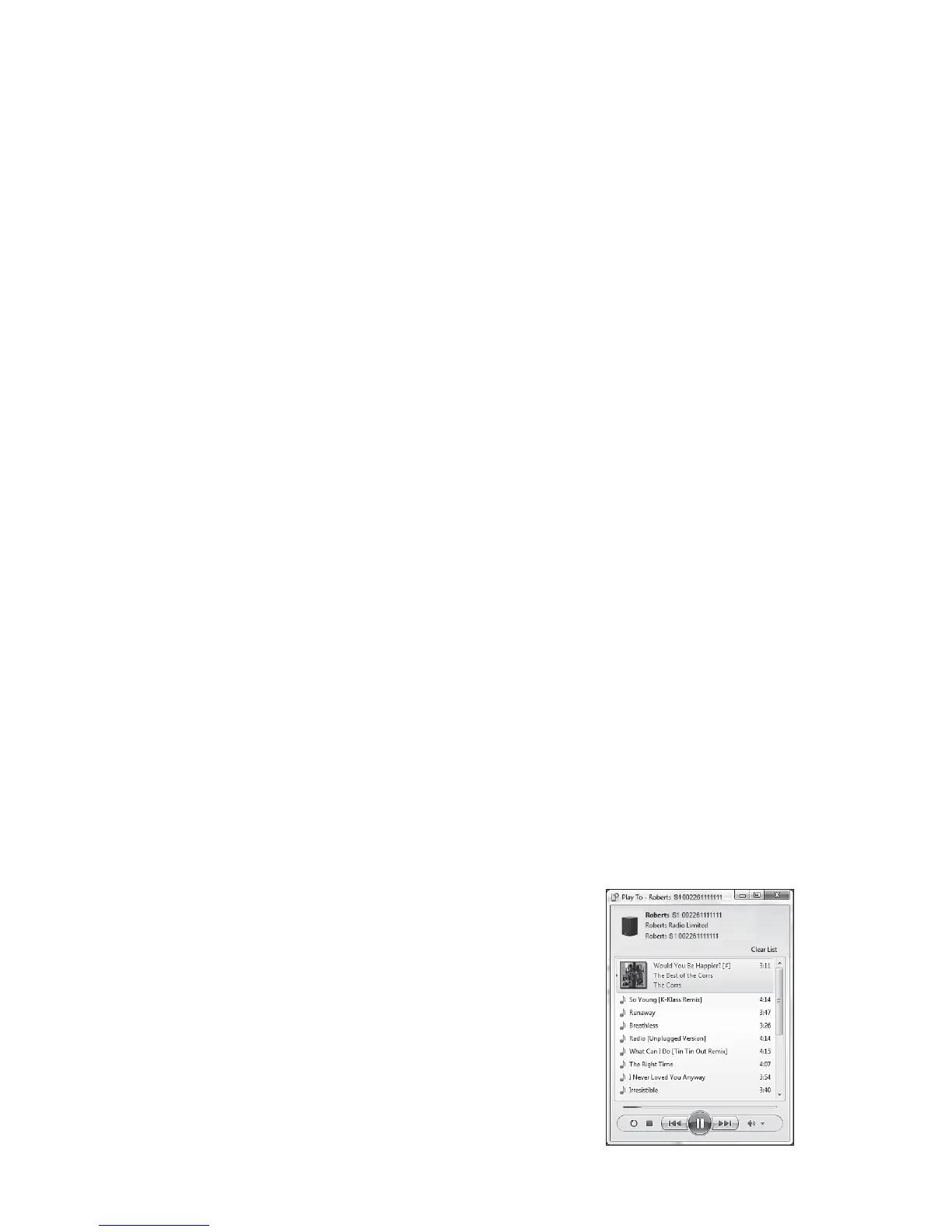
7. While playing, you may select additional content within Windows and
again use the 'Play to' / 'Cast to Device' function. The additional tracks
will be added to the playlist in the current 'Play to' / 'Cast to Device'
window. You may also delete or change the order of tracks within the
'Play to' / 'Cast to Device' window.
8. When you wish to exit DMR mode, simply either switch off your speaker
or select a different operating mode.
Note: Some Windows security software can prevent correct operation of
the 'Play to' / 'Cast to Device' function. Such software may have updates
or confi guration options which will permit 'Play to' / 'Cast to Device' to
operate correctly - please consult your anti-virus software supplier. The
'Play to' / 'Cast to Device' function in Windows 7, 8, 8.1 and 10 has been
tested successfully with the S1 and S2 speakers when using Microsoft’s
own security software without problems.
Windows 'Play to' / 'Cast to Device' function
If you use Windows 7, 8, 8.1 or 10 it is possible to choose a music album,
track or playlist at the computer and then tell Windows that this should be
played on the speaker using the 'Play to' function (called 'Cast to Device'
in Windows 10).
Similar functionality is available for other computer types and for handheld
devices using Apple's iOS or Android operating systems. In this mode the
speaker operates as a Digital Media Renderer (known as DMR mode).
1. Ensure your speaker is plugged in and connected to your network.
2. At your Windows PC, locate the fi le, album or playlist that you wish
to play on the speaker.
3. Use the right-hand mouse button to pop-up a menu of options for the
chosen item and select the 'Play to' / 'Cast to Device' option.
4. Windows should show you one or more devices, including your speaker,
to which you may choose to send the music. Highlight the speaker
item and click with the left mouse button.
5. Windows will then open a 'Play to' / 'Cast to Device' window showing
the track or tracks to be played. Your computer will then take control
of your speaker. Your speaker will enter the Digital Media Renderer
mode (DMR) and after a few seconds the speaker will start playing.
6. While the speaker is playing in DMR mode you can use the controls in
the 'Play to' / 'Cast to Device' window on your computer to skip tracks,
fast-forward or rewind, to pause or restart, and to change the volume
on the speaker.
You may also use the controls on your speaker to adjust volume or to
change operating mode.


 To Next Page