MODEL SOLU COMP II SECTION 5.0
PROGRAMMING THE ANALYZER
5.10 RESETTING FACTORY DEFAULT SETTINGS
5.10.1 Purpose.
This section describes how to re-install factory default values. The process also clears all fault messages and
returns the display to the first quick start screen.
5.10.2. Procedure.
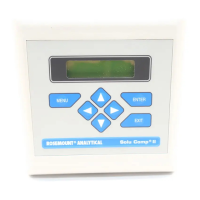
To choose a menu item, move the cursor to the item and press ENTER.
To store a number or setting, press ENTER.
1. Press MENU. The main menu screen appears. Choose Program.
2. Choose >>.
3. Choose >>.
4. Choose ResetAnalyzer.
5.
Choose Yes or No. If Yes is selected, previous settings are cleared and
the Quick Start Menu appears.
Noise Rejection
ResetAnalyzer >>
Load factory
settings?
YYeess
No
OOuuttppuuttss
Alarms
Measurement >>
TTeemmpp
Security
#Sensors >>
Calibrate Hold
PPrrooggrraamm
Display
26
5.9 SINGLE SENSOR OR DUAL SENSOR INPUT
5.9.1 Purpose
The Solu Comp II accepts input from a single sensor or from two sensors.This section describes how to program
the analyzer for single or dual sensors. COMPLETE THIS SECTION BEFORE DOING OTHER PROGRAMMING.
5.9.2 Procedure.
To choose a menu item, move the cursor to the item and press ENTER.
To store a number or setting, press ENTER.
1. Press MENU. The main menu screen appears. Choose Program.
2. Choose >>.
3. Choose #Sensors.
4. Choose One or Two. Changing from Two to One will cause some settings
to change.
5. The display returns to the # Sensors screen.To return to the main menu,
press MENU.To return to the main display, press MENU followed by EXIT.
# of sensors?
One
ΤΤωωοο
OOuuttppuuttss
Alarms
Measurement >>
TTeemmpp
Security
#Sensors >>
Calibrate Hold
PPrrooggrraamm
Display


 To Next Page