Setting up ASCII to PLC Communication
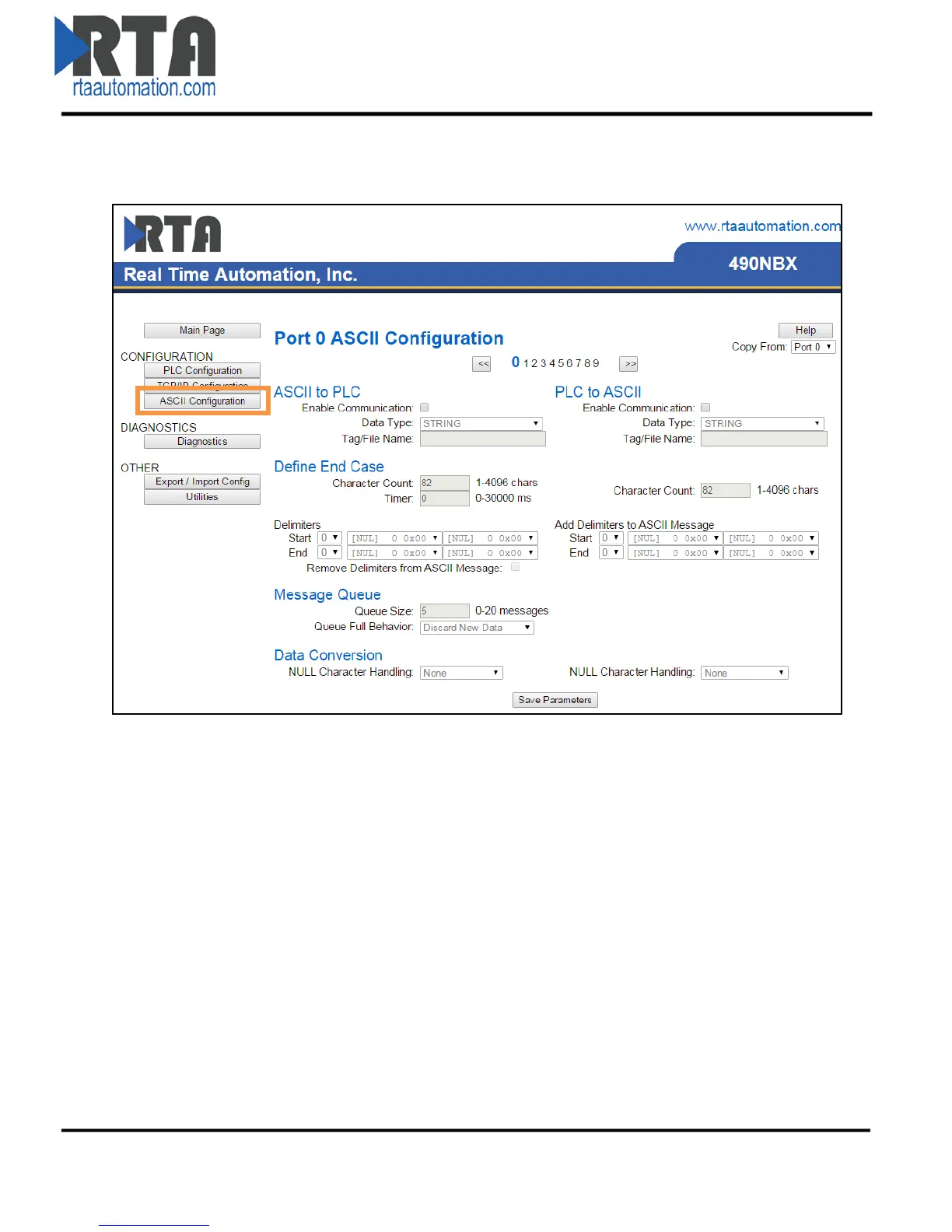
1) Click the ASCII Configuration button under the CONFIGURATION section.
2) Check the Enable Communication checkbox to modify the fields below.
3) Data Type: Select the Data Type for the Tag / File Name that you defined in the PLC.
a. If PLC Type configured is I/O Scanner, then this field will be grayed out.
4) Enter the Tag / File name you want the gateway to move the ASCII message to.
a. The Tag / File must be defined in the PLC and must match exactly.
b. The Tag Name must be defined within the Controller Scope of the PLC for Read/Write
Access.
Defining an End Case for the ASCII Message
5) To define an ASCII message, you must select one or more of the following end cases: Character
Count, Timer, or Delimiters.
a. Character Count: Enter the max number of characters that the device could output.
Example: If your device sends a four digit temperature, set the length to 4.
i. If using an INT Data Type, this is also the dimension size/2 + 1 of the Tag / File.
ii. If using a SINT Data Type, this is also the dimension size + 2 of the Tag / File.
Real Time Automation, Inc. 16 1-800-249-1612


 To Next Page