Setting up PLC to ASCII Communication
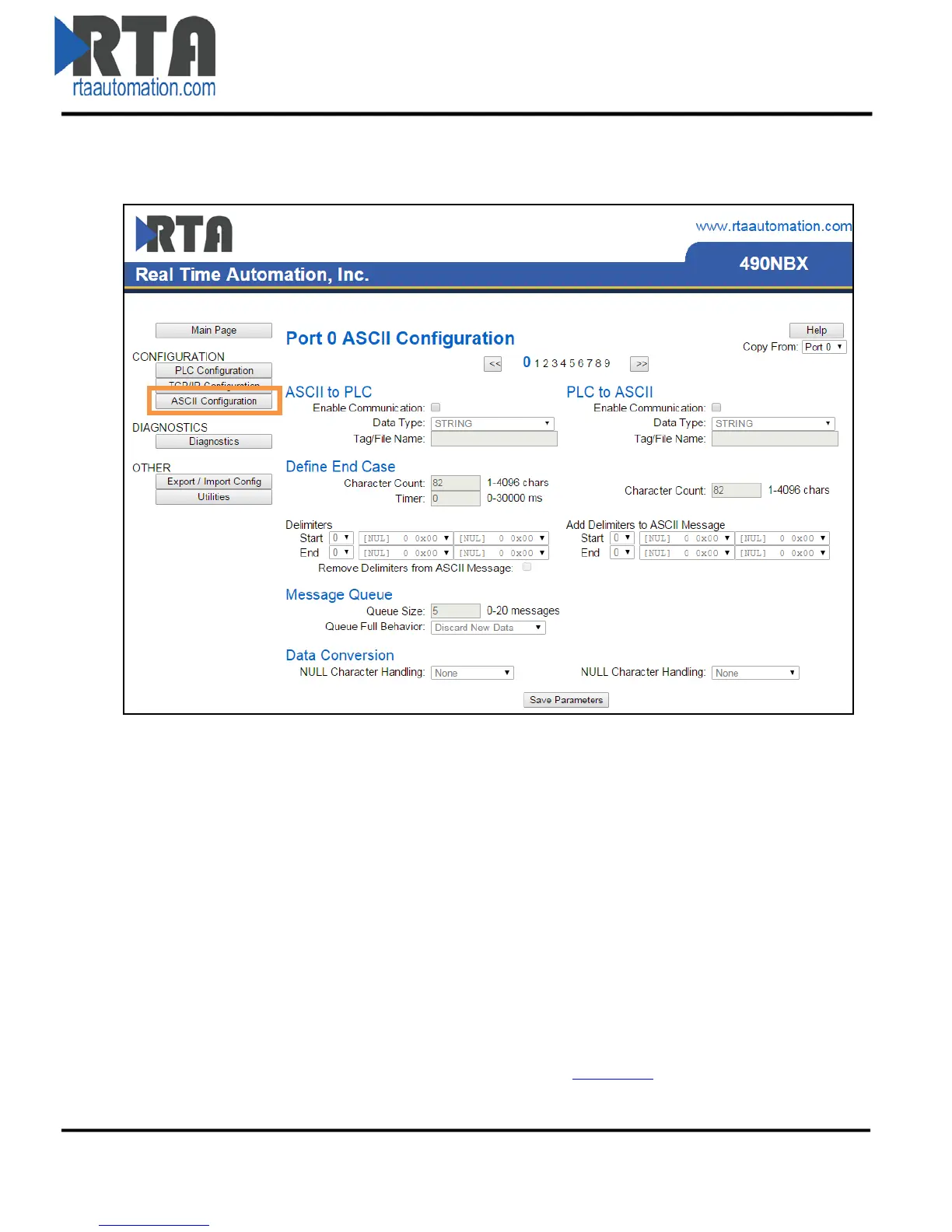
1) Click the ASCII Configuration button under the CONFIGURATION section.
2) Check the Enable Communication checkbox to modify the fields below.
3) Data Type: Select the Data Type for the Tag / File Name that you defined in the PLC.
a. If PLC Type configured is I/O Scanner, then this field is not used.
4) Enter the Tag / File name that you want the gateway to monitor for messages.
a. The Tag / File must be defined in the PLC and must match exactly.
b. The Tag Name must be defined within the Controller Scope of the PLC for Read/Write
Access.
5) Character Count: Enter the maximum number of characters that the gateway can send to the
ASCII device.
a. If using an INT Data Type, this is also the dimension size/2 + 1 of the Tag / File.
b. If using a SINT Data Type, this is also the dimension size + 2 of the Tag / File
c. For Controllers using RSLogix5000, the range for each data type is:
i. STRING/INT/SINT: 0-4096 characters.
ii. STRING– If using more than 82 characters, a User Defined Data Type must be
created within the PLC and used. Refer to Appendix C
for instructions.
d. For Controllers using RSLogix500, the range for each data type is:
Real Time Automation, Inc. 18 1-800-249-1612


 To Next Page